KB Connector Sync Configuration
After creating a KB connector, you configure how and when files are synchronized from your data source, run manual syncs, and monitor the results.
Connectors Overview
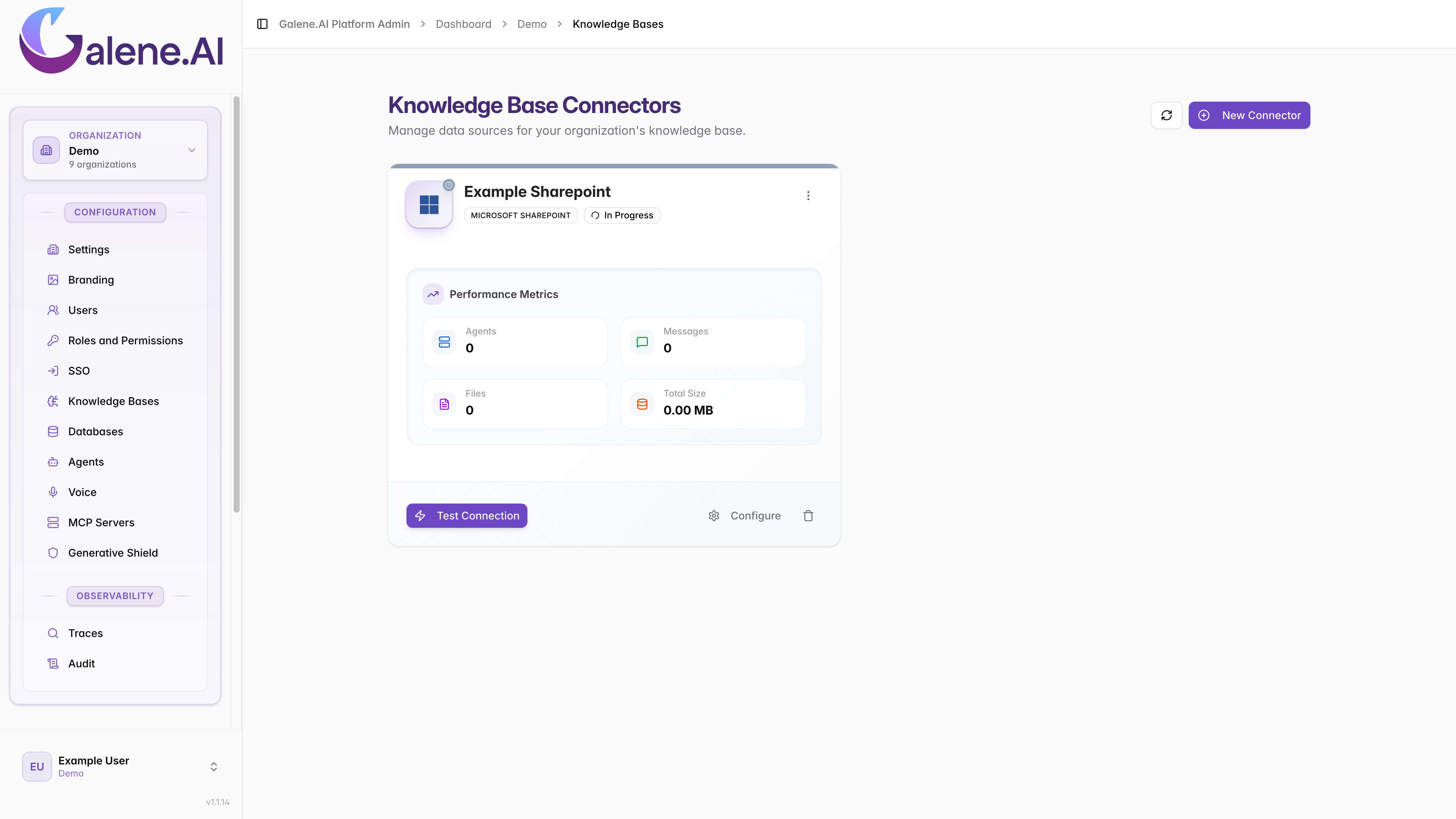
The Knowledge Base Connectors page lists all connectors configured for your organization. Each connector appears as a card showing its type, current status, and performance metrics — including the number of agents using it, messages exchanged, files indexed, and total data size.
From here you can test a connector's connection or open its configuration. Use the + New Connector button to add additional data sources.
Sync Configuration
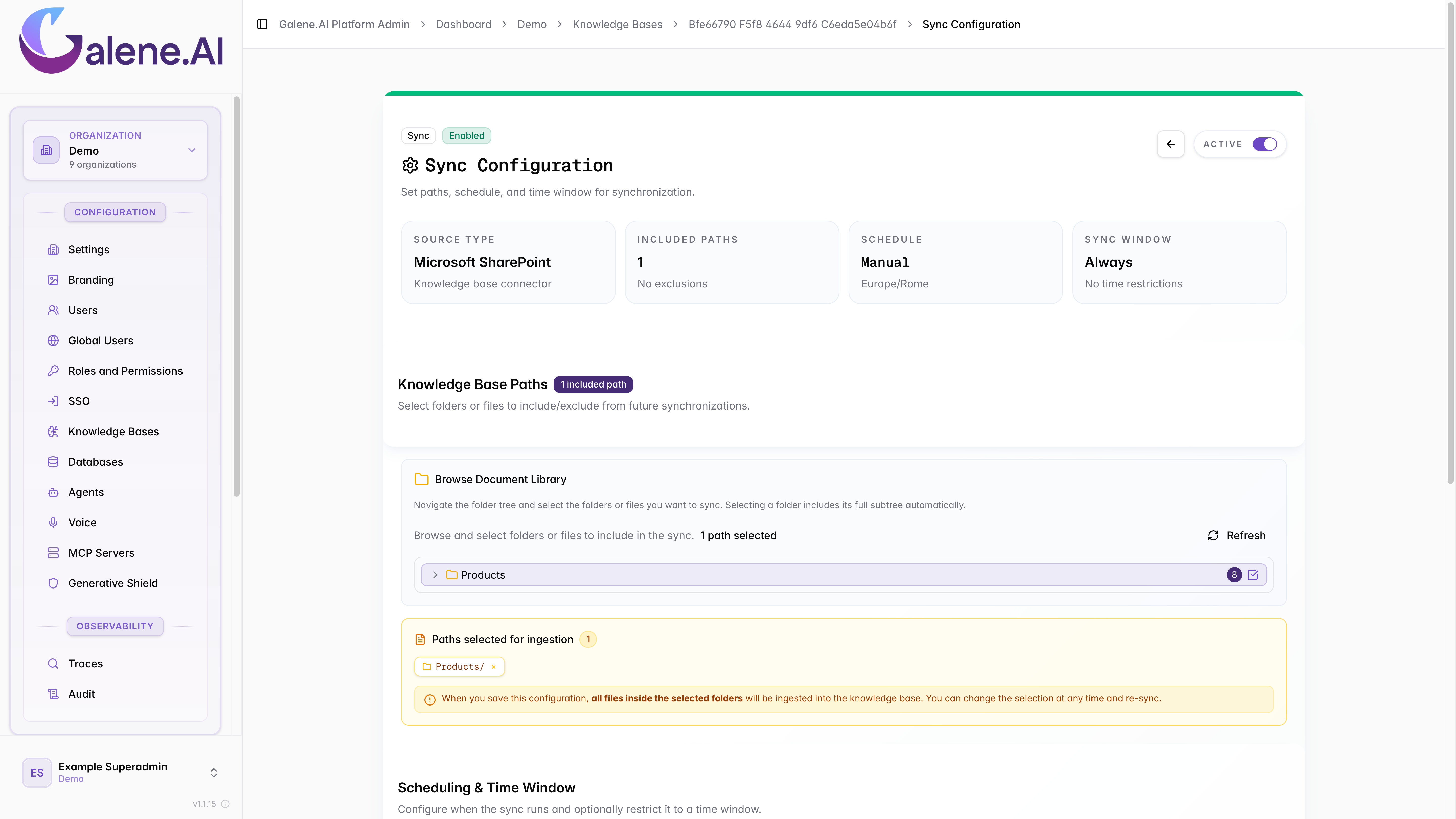
Open a connector and navigate to the Sync Configuration tab. The top summary cards give you an at-a-glance view of the source type, how many paths are included, the current schedule, and the sync time window. An Active toggle lets you enable or disable the connector without deleting its configuration. The Knowledge Base Paths section lets you browse and select the folders or files to include, while an info banner reminds you that all files inside selected folders will be ingested on the next sync.
Path Selection
Browse the folder tree to explore the connected data source and click a row to select it — the selected path appears as a chip in the Paths selected for ingestion section. You can also select individual files within a folder.
Scheduling
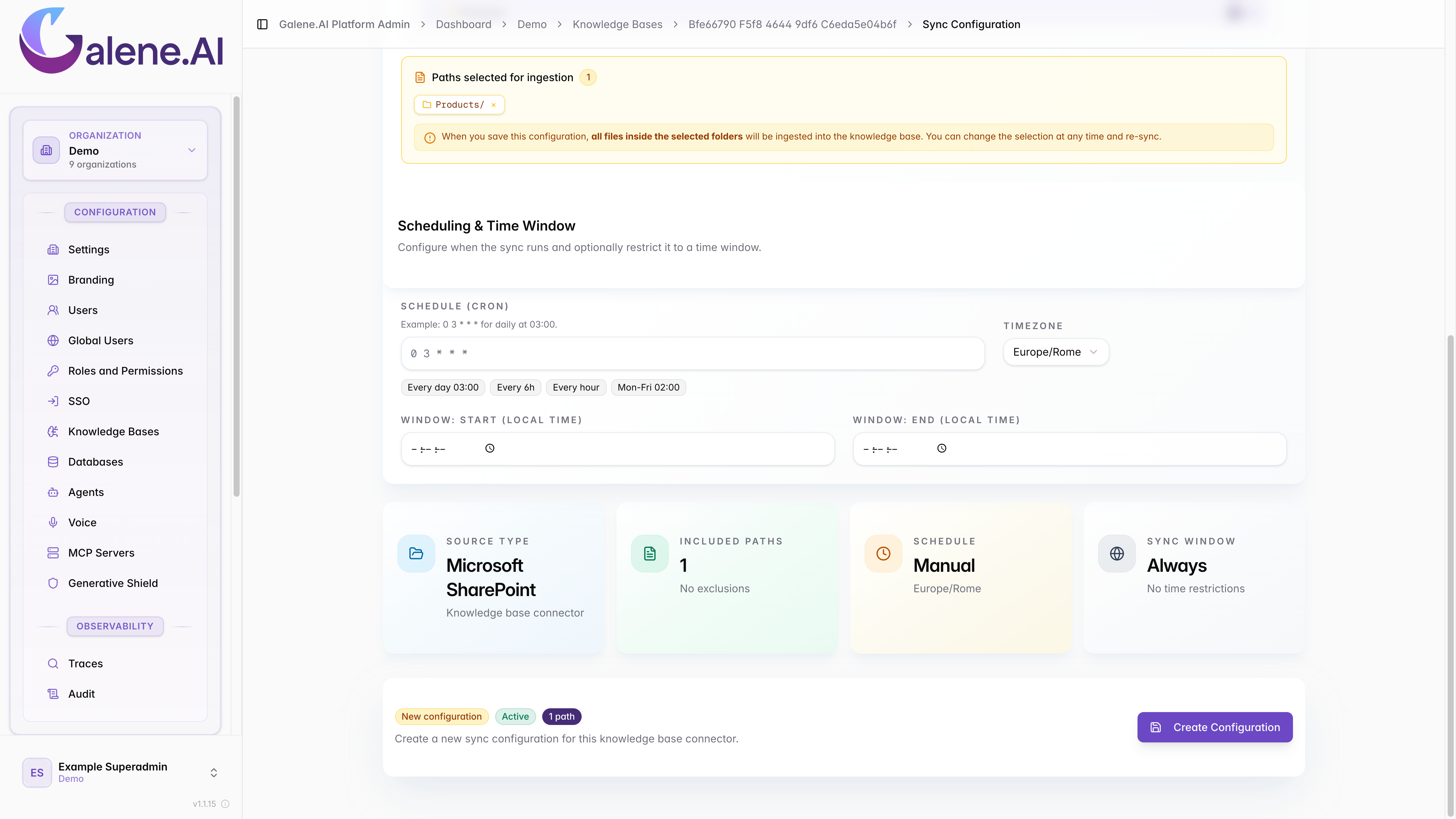
Configure automated synchronization with a cron expression. Quick-select buttons provide common presets — every day, every 6 hours, every hour, or weekdays — or you can enter a custom schedule. Set the timezone for your organization and optionally define a Sync Window (start and end time) to restrict sync operations to specific hours.
Confirming the Configuration
Once paths and schedule are set, click Create Configuration. A Discovery Preview modal appears, listing every file that will be ingested along with its type and size. This lets you review the exact scope before committing — the file count, total size, and a breakdown by file type are all shown upfront.
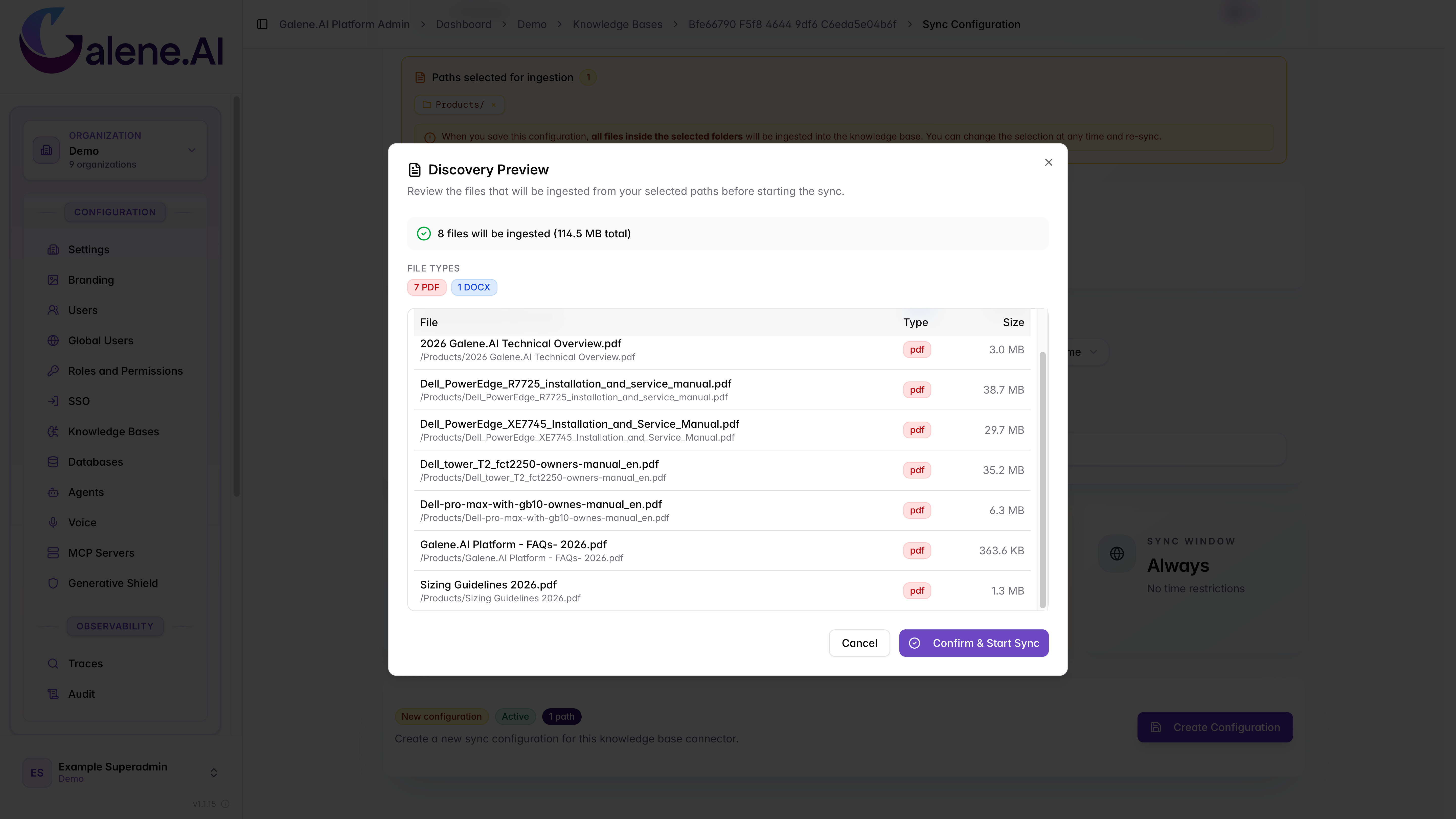
Click Confirm & Start Sync to save the configuration and kick off the first sync, or Cancel to go back and adjust the selection.
Manual Sync Options
Two manual operations are available at the bottom of the page:
- Run incremental sync — processes only new or changed files since the last successful sync
- Run full load sync — re-processes every file in the selected paths regardless of previous state
Monitoring a Sync Run
Once a sync is triggered, the Sync Status tab shows live progress. The summary cards display the current run state, completion percentage, last run timestamp with duration, and the number of retryable files. A progress bar tracks how many files have been processed, and the Last Run Details panel provides per-run metrics — run ID, duration, data volume processed, and per-file outcome counts.
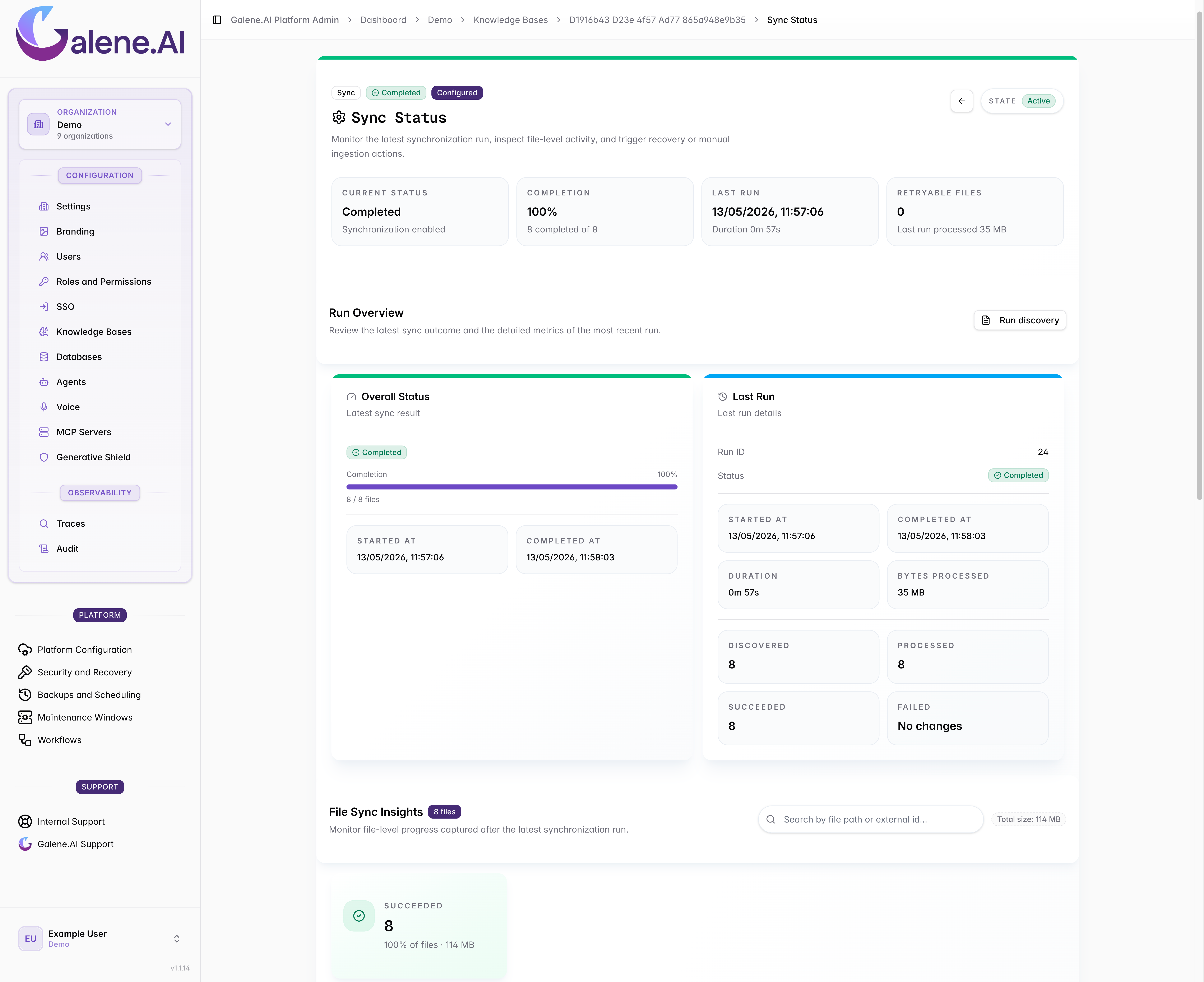
The File Sync Insights section aggregates outcomes across all files, showing the total count, combined size, and a breakdown by status with a color-coded summary card. A successful run reports 100% completion with all files in the Succeeded category.
Sync Status Table
The table below the summary cards lists every file discovered during the sync along with its source, status, size, and last activity timestamp. You can filter by status, adjust rows per page, and reset filters with a single click. Each row includes actions to Download the file directly to your local machine or Delete individual files to remove them from the knowledge base.
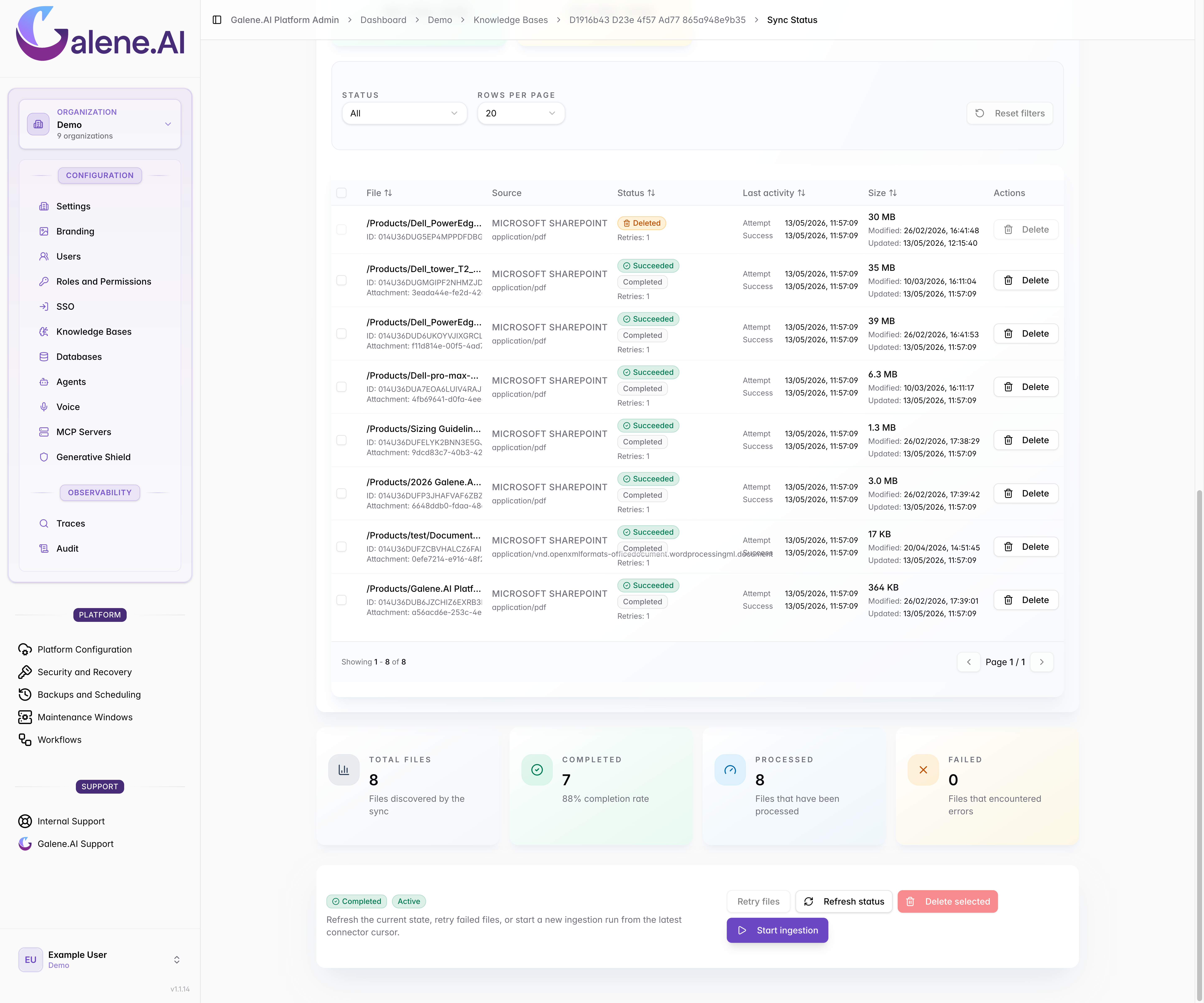
The bottom row of summary cards tallies total files, completed, processed, and failed counts at a glance. Action buttons let you retry individual failed files, refresh the status view, delete selected files in bulk, or start a new ingestion run from the latest connector cursor.
Best Practices
- Select paths carefully — review the folder tree and confirm the Discovery Preview before saving to avoid ingesting unintended files
- Start with incremental syncs — use incremental mode for routine updates; reserve full loads for initial ingestion or structural changes
- Review the status table after each run — delete stale or unwanted files to keep the knowledge base clean
- Set a sync window — restrict sync operations to off-peak hours for connectors with large data volumes
- Monitor retryable files — if the count is non-zero after a run, use the retry action to reprocess them