Roles & Permissions
Roles & Permissions management is available exclusively to administrators who need to create custom roles and control access to platform features and connectors.
Overview
Roles control access to enterprise connectors (databases, knowledge bases, MCP servers) and organization agents. By assigning roles to users and resources, you create a secure, flexible access control system that matches your organizational structure.
Core Principle: Access is granted when users share at least one role with a resource.
Example: User with roles [sales, manager] can access any connector or agent that has sales OR manager assigned.
Understanding Role-Based Access
System Roles
Three built-in roles exist with special behaviors:
| Role | Who Has It | Behavior |
|---|---|---|
| User | All standard users (automatic) | Basic platform access. Does not grant special resource access - it's universal. |
| Admin | Organization administrators | Bypasses all role restrictions within their organization. Can access any connector/agent. |
| Superadmin | Platform administrators | Same as Admin, but across all organizations. |
Custom Roles
You create custom roles to match your organizational structure:
- Purpose: Control access to sensitive resources (databases, agents, knowledge bases)
- Naming: Use descriptive, lowercase names with hyphens:
sales-team,finance-dept,data-analyst - Assignment: Assign multiple roles to users, connectors, and organization agents
- Architecture: Flat (non-hierarchical) - users can have multiple roles to model any complexity
How Role Matching Works
Users + Connectors:
- User has roles: [
sales,marketing] - Connector has roles: [
sales,finance] - ✅ Access granted (they share
sales): the user can create Personal Agents with the Connector
Users + Organization Agents:
- User has roles: [
support] - Organization Agent has roles: [
sales,marketing] - ❌ Access denied (no shared roles): the user will not see the Organization Agent in their interface
"Everyone in Organization" Option:
- Connectors and organization agents can be set to "Everyone in Organization"
- Behaves like the
Usersystem role - accessible to all users - Use for company-wide resources (HR policies, general Q&A agents)
Standard users work transparently with roles - they rarely see role names. Access is simply granted or denied when they try to use or share resources.
Managing Roles
Creating Roles
- Navigate to Roles & Permissions in the admin panel left sidebar
- Click New Role
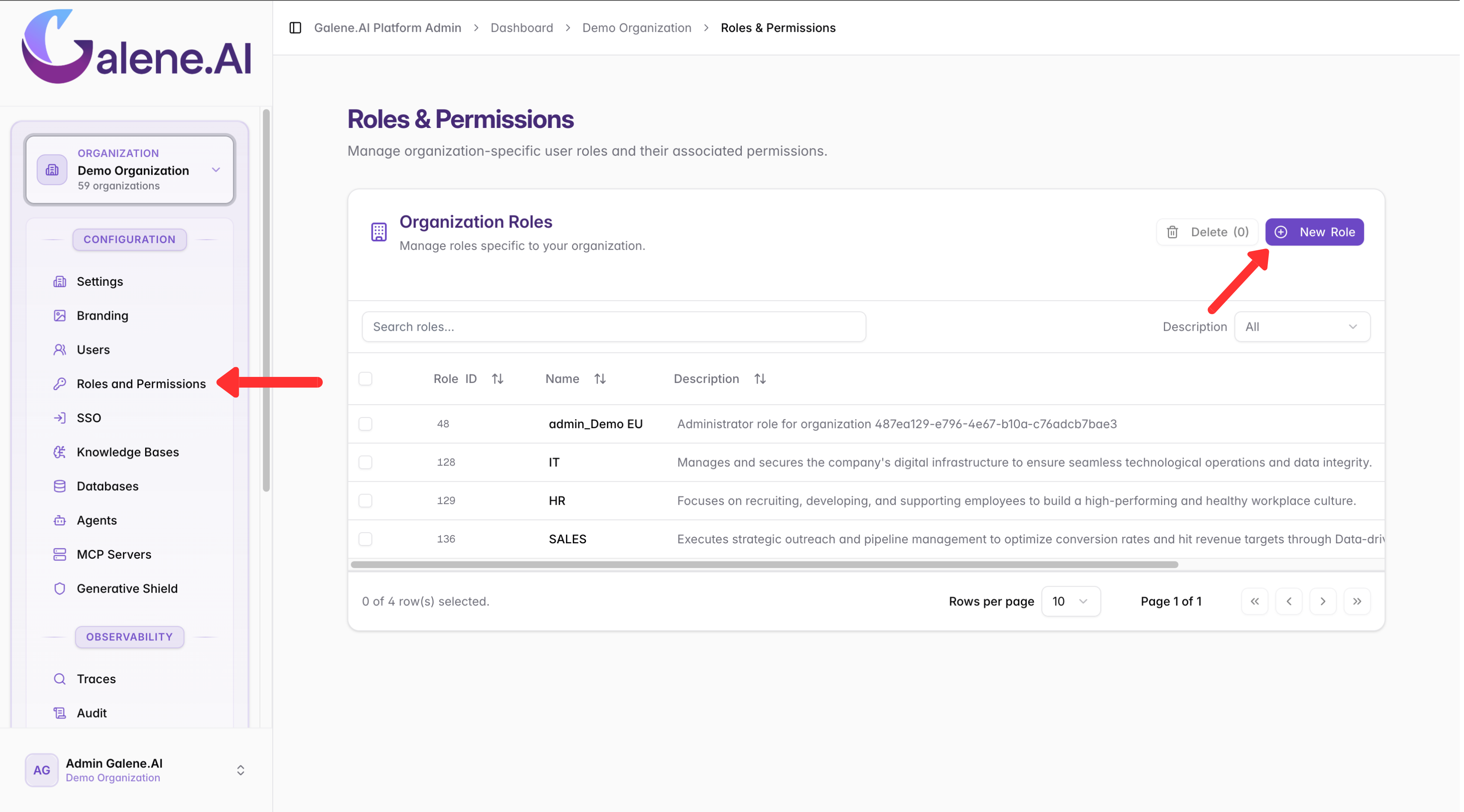
- Enter a unique Role Name (required): use
lowercase-with-hyphensformat - Add a Description (optional): explain the role's purpose for other admins
- Click Save Role
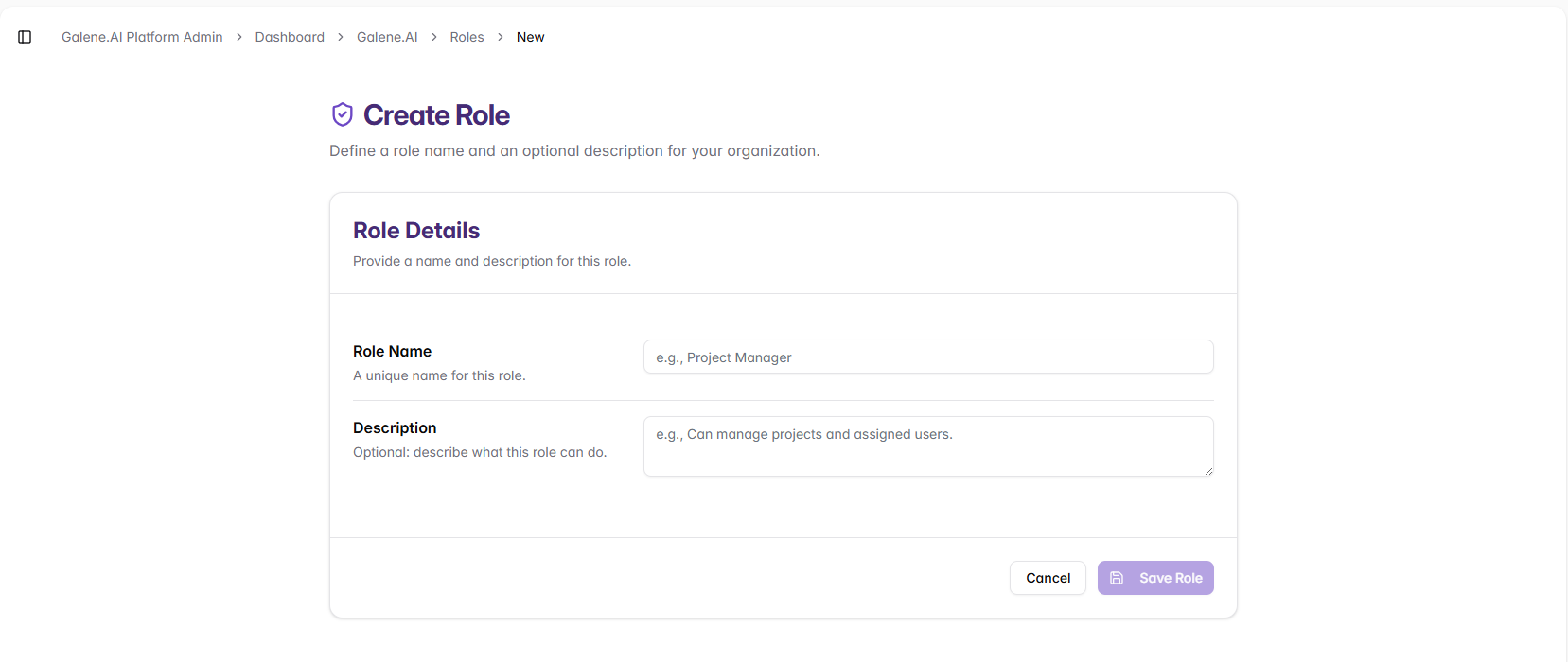
Best Practices:
- Start with broad department roles (
sales,support,finance) before specialized ones - Use consistent naming patterns across your organization
- Document purposes clearly to help other admins
Editing and Deleting Roles
The Organization Roles table displays all roles with search and sort capabilities:
- Edit: Click any custom role to modify name or description
- Delete: Select roles (checkbox) and click Delete button
- Bulk Actions: Select multiple roles for batch deletion
You cannot modify or delete built-in system roles (User, Admin, Superadmin).
Applying Roles to Resources
Organization Agents
When creating an organization agent (see Creating Organization Agents), you assign roles to control visibility:
Access Options:
| Option | Behavior | Use Case |
|---|---|---|
| Everyone in Organization | All users can see and use the agent | Company-wide tools (HR policies, general Q&A) |
| Specific Roles | Only users with matching roles can access | Department-specific agents with sensitive data |
Example:
Organization Agent: "Sales CRM Assistant"
Assigned Roles: sales, sales-manager

✅ User [sales, marketing] → Access granted (shares 'sales')
✅ User [sales-manager] → Access granted (shares 'sales-manager')
❌ User [support, finance] → Access denied (no shared roles)
✅ Admin → Always has access
Connectors (Databases, MCP Servers, SharePoint, Google Drive, ...)
When configuring connectors (see Enterprise Connectors), assign roles during setup:
Configuration Process:
- Create/edit a connector in the admin panel
- In the permissions section, choose:
- "Everyone in Organization" - open access for company-wide resources
- "Specific Roles" - select roles for sensitive data sources
- Save the configuration
How This Affects Users:
- Users can only see and use connectors with matching roles (or "Everyone" connectors) when creating personal agents
- Connectors without matching roles are completely invisible to users
- Admins bypass role checks and can use any connector
Example:
Connector: "Financial Database"
Assigned Roles: finance

✅ User [finance, analyst] → Can use in Personal Agents
❌ User [sales, support] → Cannot see this connector
Personal Agent Sharing
Users can share their personal agents with colleagues (see Agent Sharing), but security requirements apply when those agents use enterprise connectors.
Why Role Checks Matter for Sharing:
When a user creates a personal agent that connects to enterprise data sources (such as databases or knowledge bases), the platform enforces role-based access controls during the sharing process. This ensures that sharing an agent does not inadvertently grant unauthorized access to sensitive organizational resources.
The Security Rule:
The recipient must share at least one role with every connector attached to the agent. If the agent uses multiple connectors, the recipient requires matching roles for all of them—this is an "AND" requirement across all connectors, not an "OR" condition.
Example Scenario:
Consider a personal agent called "Sales Analysis Tool" that connects to:
- Sales Database (requires role:
sales) - Marketing Analytics (requires role:
marketing)
Sharing behavior:
✅ Recipient A has roles [sales, marketing] → Sharing succeeds
   (Recipient has access to both required connectors)

❌ Recipient B has roles [sales, finance] → Sharing fails
   (Recipient can access Sales Database but lacks access to Marketing Analytics)
What Happens When Sharing Fails:
- The platform displays an error message indicating "incompatible roles" or "insufficient permissions"
- The user should contact the administrator and specify the intended recipient
- The administrator can review the recipient's current roles against the agent's connector requirements
- Grant the necessary roles to the recipient via User Management
- Once the recipient possesses all required roles, sharing will succeed immediately
When users report sharing failures, compare the recipient's roles against each connector's role requirements. The recipient needs coverage for every connector attached to the agent—treat this as an "AND" requirement, not an "OR".
Practical Examples
Example 1: Department-Specific Organization Agent
Scenario: Create a "Customer Support Assistant" accessible only to the support team.
Setup Steps:
- Create custom role:
support - Assign
supportrole to support staff in User Management - Create organization agent and assign role:
support - Connect support-specific connectors (also assigned
supportrole)
Result:
- ✅ Support staff see and use the agent
- ❌ Other users cannot see it in their agent list
- ✅ Admins always have access (for testing/management)
Example 2: Cross-Functional Collaboration Agent
Scenario: Create a "Sales & Marketing Insights" agent for two departments.
Setup Steps:
- Create roles:
sales,marketing - Assign roles to respective team members
- Create organization agent with both roles:
sales,marketing - Connect shared connectors (CRM, analytics) with the same roles
Result:
- ✅ Sales team members can access (via
salesrole) - ✅ Marketing team members can access (via
marketingrole) - ✅ Users with both roles can access (via either role)
- ❌ Other users cannot access
Example 3: Personal Agent Sharing with Role Restrictions
Scenario: User wants to share a personal agent that uses a restricted connector.
Initial State:
- Finance Database connector has role:
finance - User Alice has roles:
finance,analyst - User Bob has roles:
sales,analyst
Workflow:
- ✅ Alice creates personal agent
- ✅ Alice adds Finance Database connector (she has
financerole) - Alice tries to share agent with Bob
- ❌ Sharing fails - Bob doesn't have
financerole - Alice contacts admin explaining Bob needs access
- Admin assigns
financerole to Bob - ✅ Alice successfully shares the agent with Bob
Key Takeaway: Recipients must match all connector role requirements.
Example 4: Setting Up Role-Based Connectors
Scenario: Configure different access levels for various databases.
Setup:
| Connector | Assigned Roles | Who Can Access |
|---|---|---|
| Company Wiki KB | Everyone in Organization | All users |
| Sales CRM Database | sales, sales-manager | Sales team only |
| Financial Reports KB | finance, executive | Finance team + executives |
| HR Database | hr | HR team only |
Result:
- Sales rep with
salesrole: ✅ Wiki, ✅ CRM, ❌ Financial, ❌ HR - Executive with
executiverole: ✅ Wiki, ❌ CRM, ✅ Financial, ❌ HR - Admin: ✅ All connectors (bypasses role restrictions)
Next Steps
After setting up roles and permissions:
- User Management: Assign roles to users
- Agent Creation: Configure role-based agent access
- Connector Configuration: Set up role-restricted connectors
- Organization Settings: Configure organization-wide settings
Roles & Permissions provide fine-grained access control for secure, organized platform usage.