MCP (Model Context Protocol) Server Connectors
MCP Server Connectors enable your AI agents to connect to external systems and specialized tools through the Model Context Protocol (MCP). By creating these connectors, you extend your agents' capabilities beyond standard text processing.
This documentation explains how to create connectors that integrate existing MCP servers with your Galene.AI agents. The MCP servers themselves must already be developed and running - this guide covers the configuration to make them available to your agents.
What is MCP and Why Use It?
MCP (Model Context Protocol) is a standard protocol that allows AI agents to communicate with external tools and services. Think of it as a universal translator that lets your agents interact with virtually any system.
Common MCP Use Cases:
- API Integrations: Connect to REST APIs, GraphQL endpoints, and web services
- External Tools: Access specialized processing capabilities (image processing, data analysis, etc.)
- Business Systems: Integrate with CRM, ERP, payment processors, and other enterprise tools
- Custom Logic: Execute domain-specific algorithms and workflows
- Third-Party Services: Connect to cloud services, databases, and SaaS platforms
How MCP Connectors Work with Galene Agents
When you connect an MCP server to a Galene agent:
- You create a connector in the admin panel (what this guide teaches)
- You assign the connector to one or more organization agents
- Users interact with the agent through natural language
- The agent determines when to use the MCP server based on the conversation
- The MCP server executes the requested action (API call, data processing, etc.)
- Results are returned to the agent and presented to the user
You create a Sales Agent connected to an MCP server that accesses your CRM:
- User asks: "What's the status of the ABC Corp deal?"
- Agent recognizes it needs CRM data
- Calls the MCP server:
get_deal_status(company="ABC Corp") - MCP server queries your CRM and returns data
- Agent presents results: "ABC Corp deal is in final negotiation, valued at $50K, closing next week"
MCP Server Deployment
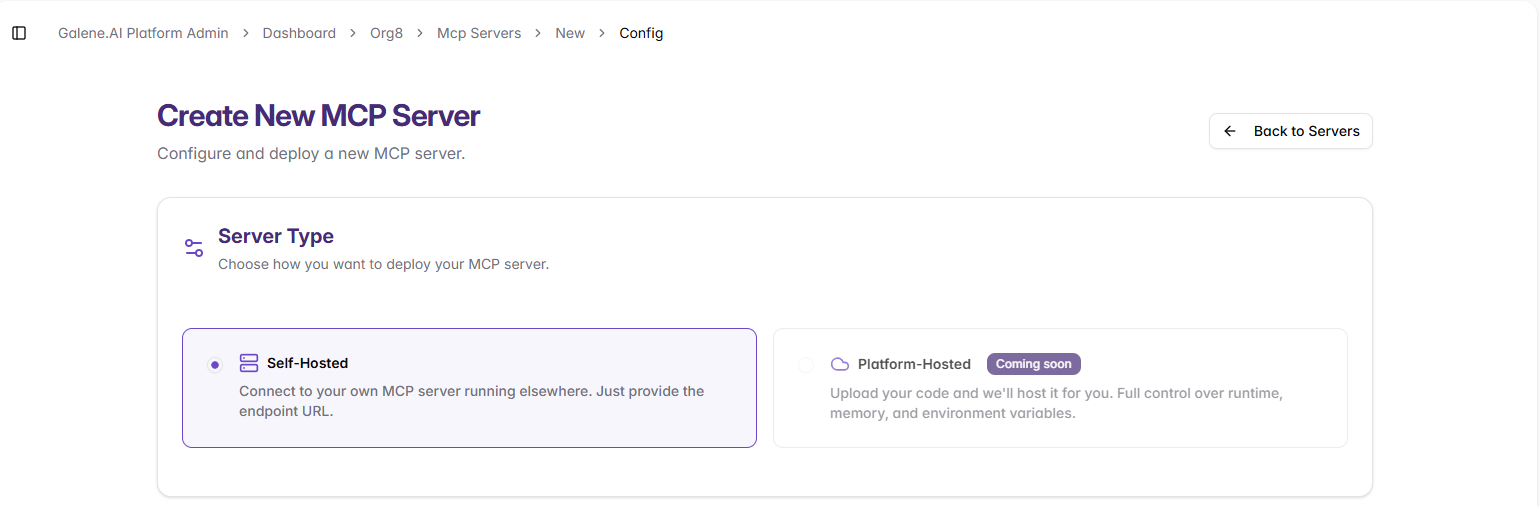
Currently, the platform supports connecting to Self-Hosted MCP Servers running on your own infrastructure.
Best For:
- Existing MCP servers already deployed
- Full control over server environment needed
- Strict security or compliance requirements
- Integration with on-premise systems
Requirements:
- MCP server already running and accessible via HTTP/HTTPS
- Endpoint URL and any authentication headers
- Network connectivity from platform to your server
The ability to upload and deploy MCP server code directly on the platform is coming soon.
Creating an MCP Server Connector
Step 1: Access MCP Server Connectors
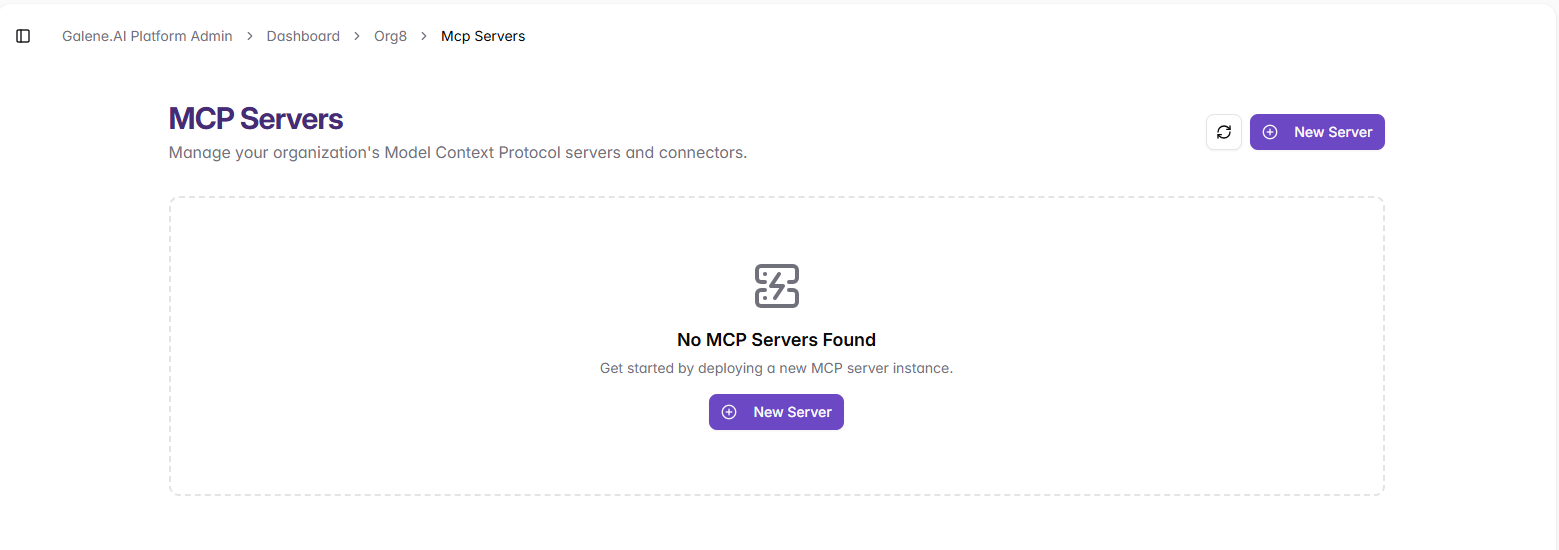
Navigate to MCP Servers in your admin panel and click New Server:
Step 2: Configure Your Self-Hosted Connector
Provide the connection details for your MCP server:
Before proceeding:
- ✅ Your MCP server must be already running and accessible
- ✅ You have the endpoint URL and authentication details
- ✅ Network connectivity from the platform to your server is configured
Next Steps
1. Self-Hosted MCP Connector →
Learn how to configure connection to your MCP server, including endpoint configuration, authentication headers, and connection troubleshooting.
2. Management and Usage →
Learn how to monitor connector status, connect to agents, and troubleshoot common problems.
This documentation assumes you understand what MCP servers are and how they work. If you need to develop an MCP server, refer to the Model Context Protocol documentation first.