Google Drive Connector
The Google Drive connector allows agents to access files and folders from Google Drive using either OAuth or Service Account authentication.
Prerequisites
Before creating a Google Drive connector, you need to:
- Create a Google Cloud Project
- Enable the Google Drive API
- Set up authentication credentials (OAuth Client or Service Account)
Getting Google Cloud Credentials
Method 1: OAuth Client Credentials
- Go to the Google Cloud Console
- Create a new project or select an existing one
- Navigate to APIs & Services > Library
- Search for and enable the Google Drive API
- Go to APIs & Services > Credentials
- Click Create Credentials > OAuth client ID
- Configure the OAuth consent screen if prompted
- Select Web application as the application type
- Add your redirect URI:
https://your-domain.com/api/auth/google-drive/callback - Download the JSON file containing your client credentials
Method 2: Service Account (Recommended for automation)
- In the Google Cloud Console, go to APIs & Services > Credentials
- Click Create Credentials > Service account
- Fill in the service account details
- Grant the service account appropriate roles (e.g., Editor or custom role)
- Create and download a JSON key file
- Share the Google Drive folders/files with the service account email address
Configuration Fields
When creating a Google Drive connector, you'll need to provide:
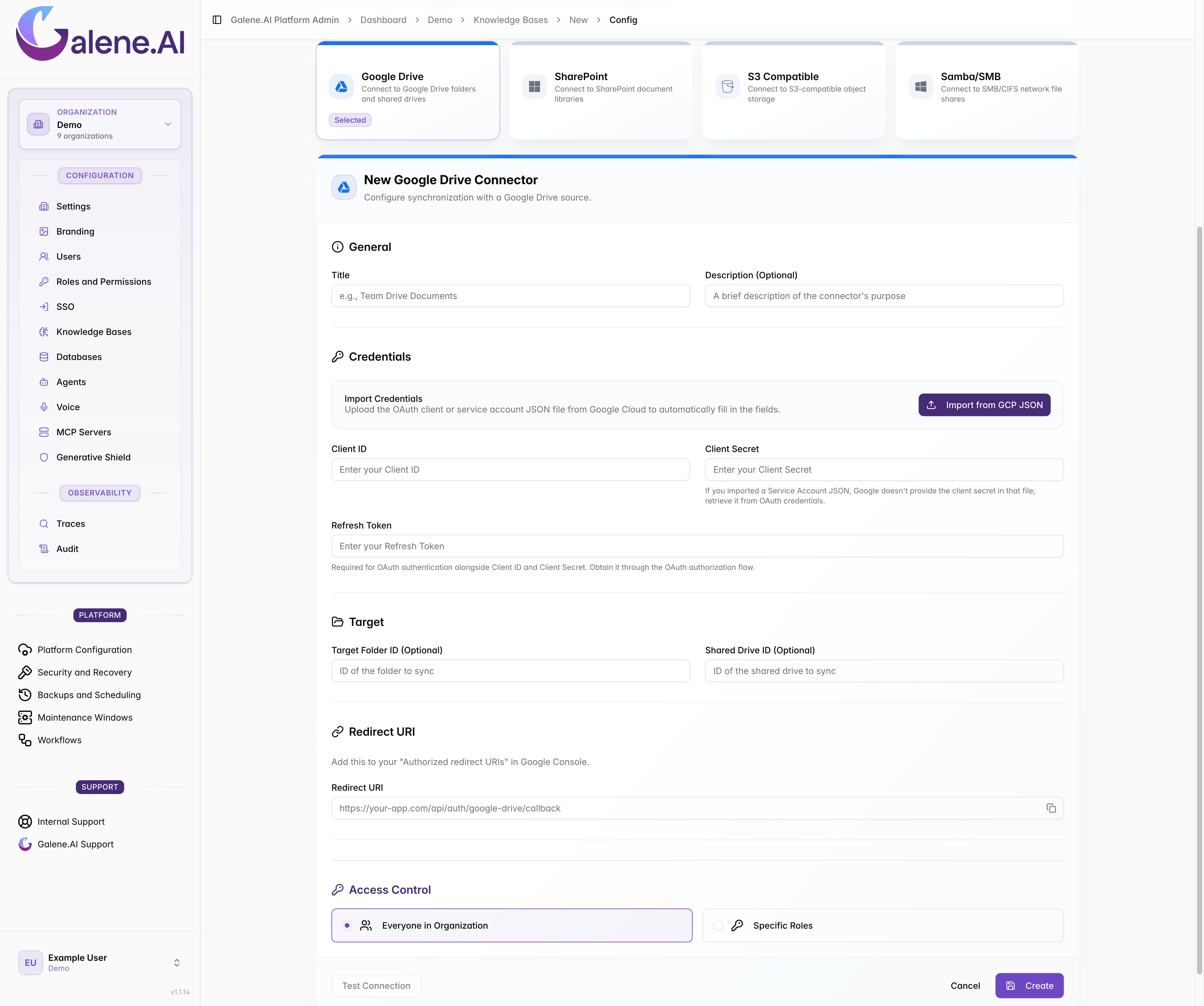
Required Fields:
- Title: A descriptive name for your connector (e.g., "Team Drive Documents")
- Client ID: From your Google Cloud OAuth client or service account
- Client Secret: From your Google Cloud OAuth client (not needed for service accounts)
- Redirect URI: The callback URL for OAuth authentication
Optional Fields:
- Description: Description of the connector's purpose
- Target Folder ID: Specific Google Drive folder ID to sync (leave empty for root access)
- Shared Drive ID: ID of a Google Shared Drive to access
Finding Google Drive IDs
To get folder or shared drive IDs:
- Open Google Drive in your browser
- Navigate to the desired folder or shared drive
- Look at the URL:
https://drive.google.com/drive/folders/FOLDER_ID_HERE - Copy the ID from the URL
Testing the Connection
After configuring your Google Drive connector:
- Click Test Connection to verify the setup
- The system will attempt to authenticate and list sample files
- Fix any configuration issues if the test fails
- Click Create Connector once the test succeeds