Database Connectors
Database Connectors enable your AI agents to connect to and query various types of databases and data warehouses. Agents can execute SQL queries, analyze data, and provide insights based on your organization's data.
The platform supports multiple database types including:
- PostgreSQL
- MS SQL Server
- MySQL
- MariaDB
- Generic SQL (JDBC)
- Dedicated drivers: PostgreSQL, Vertica, Oracle
Creating a Database Connector
Step 1: Access Database Connectors
Navigate to Database Connectors in your admin panel and click New Connector:
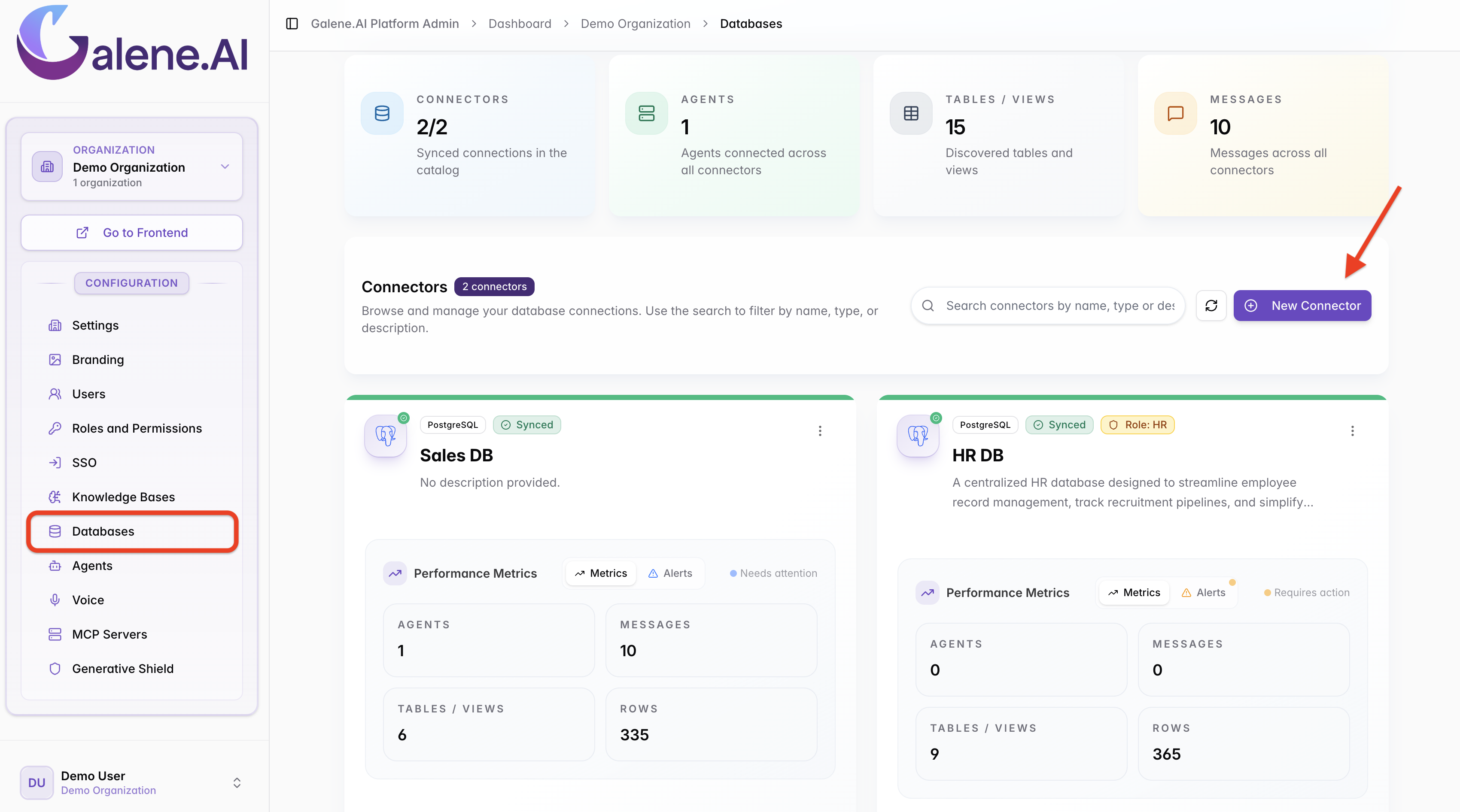
Step 2: Select Database Type
Choose the type of database you want to connect to. For this example, we'll configure a PostgreSQL connection:
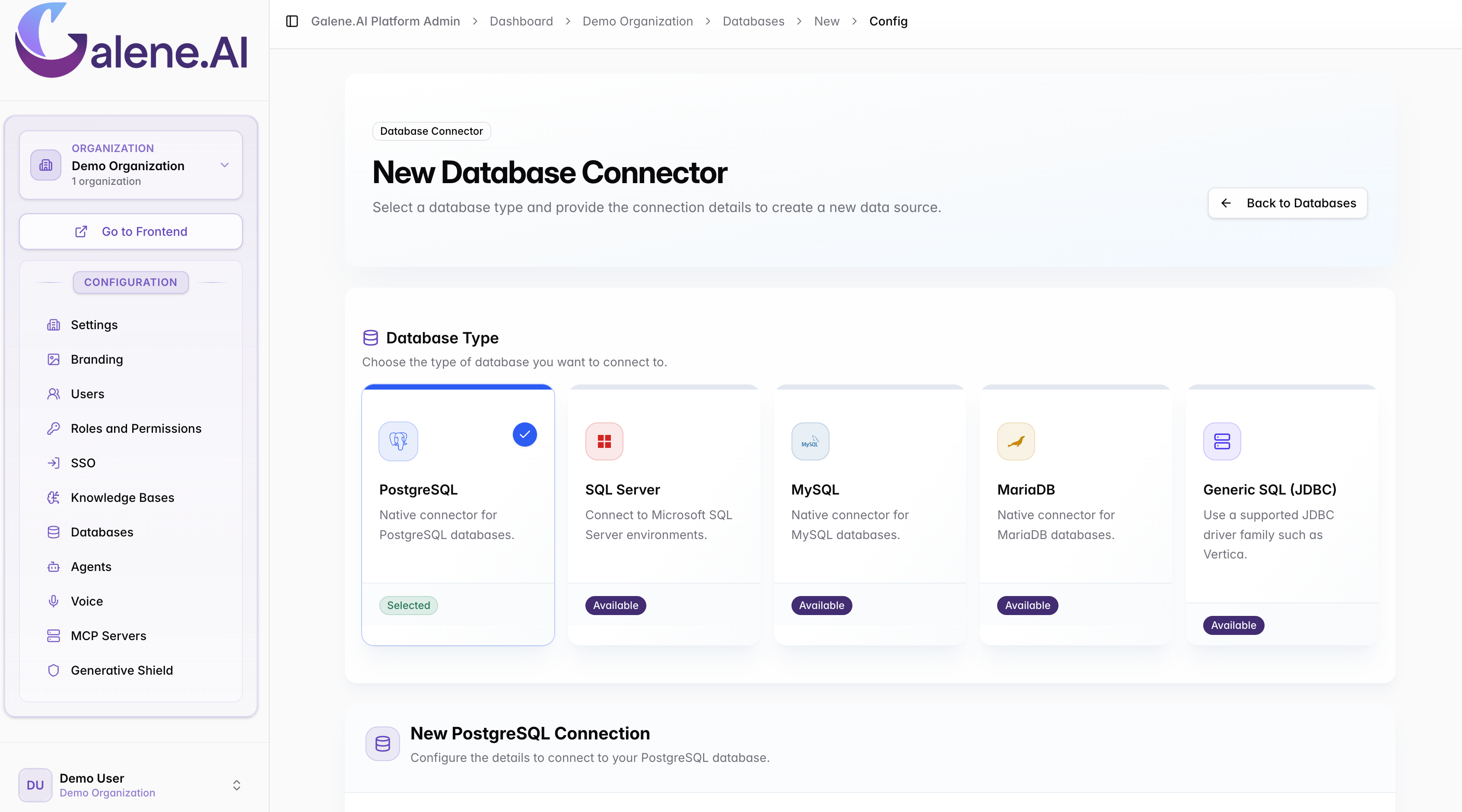
Step 3: Configure Connection Details
Fill in the connection details for your database:
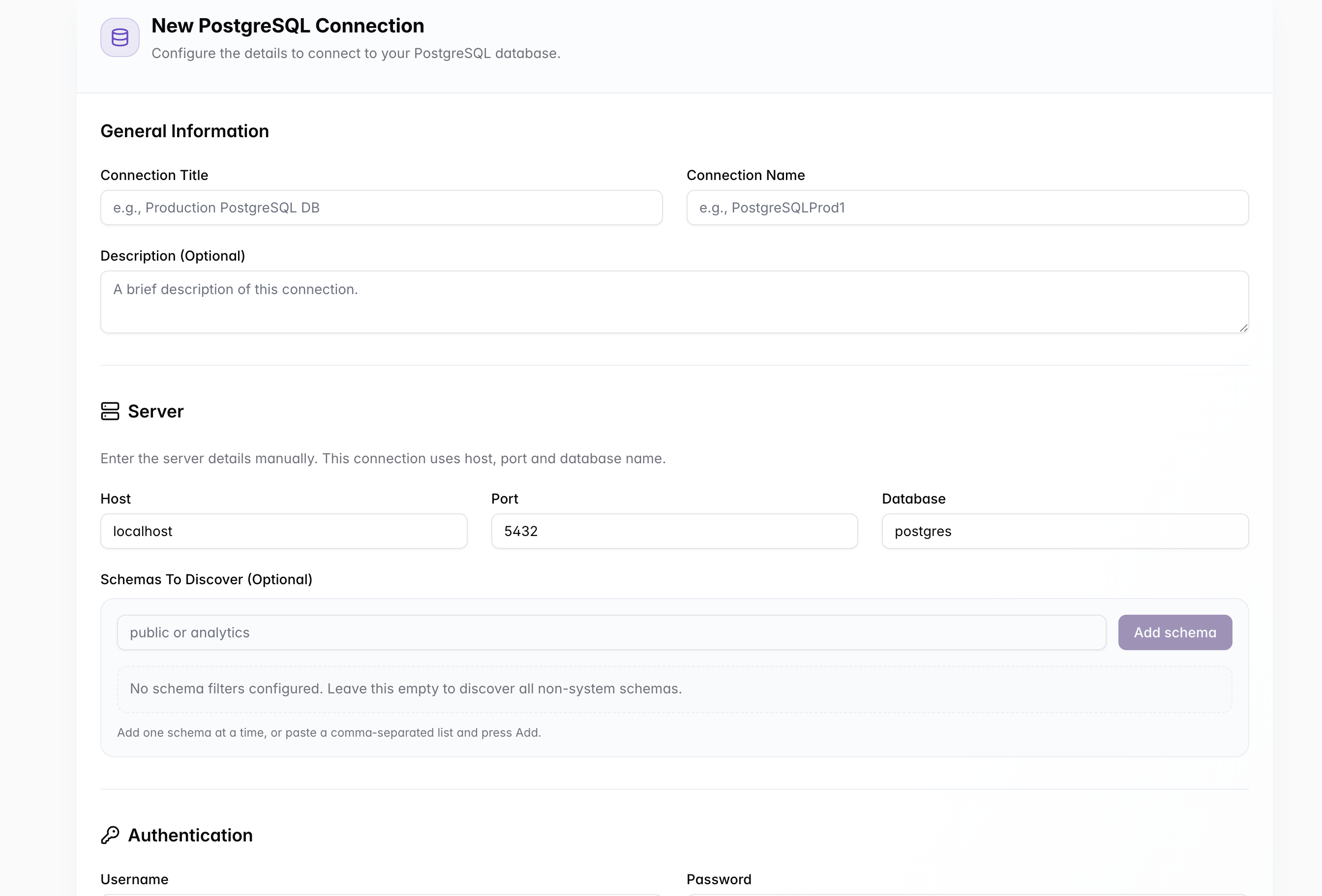
For detailed connection configuration options, see Connection Configuration.
Step 4: Test and Create Connector
After configuring your connection:
- Test Connection: Use the "Test Connection" button to verify connectivity
- Configure Access Control: Set which roles can use this connector
- Create Connector: Save your configuration
- Run Discovery: Allow the system to catalog your database schema
To connect this database to agents, see Connecting Enterprise Data - Database Connections for step-by-step user instructions.
This includes:
- How to add database connectors to agents
- Configuration and testing steps
- Usage examples and best practices
Next Steps
After creating your database connector:
- Configure Connection Details: Detailed setup options
- Manage Schema Discovery: Configure table and column descriptions
- Agent Integration: Connect to user agents