Agent Audio Settings
Agent Audio Settings allows administrators to configure language-specific voice overrides for Text-to-Speech (TTS) across the organization. By uploading voice samples and generating transcriptions for specific languages, you can customize how the AI speaks to users, replacing the default TTS voice with your preferred voice profile.
Agent Audio Settings is available exclusively to administrators. Changes made here apply organization-wide to all users and agents for the configured languages.
Overview
The Agent Audio Settings page provides a centralized interface to:
- Upload voice samples for specific languages to override the default TTS voice
- Monitor override status for each supported language
- Remove overrides to revert to the default TTS voice
Impact: Once a voice override is fully configured (audio + transcription), it applies organization-wide to all users and agents for that language.
Accessing Agent Audio Settings
- Navigate to your organization's Admin Panel
- From the left sidebar, select Voice (microphone icon)
- The Agent Audio Settings page displays the Language Voice Overrides section
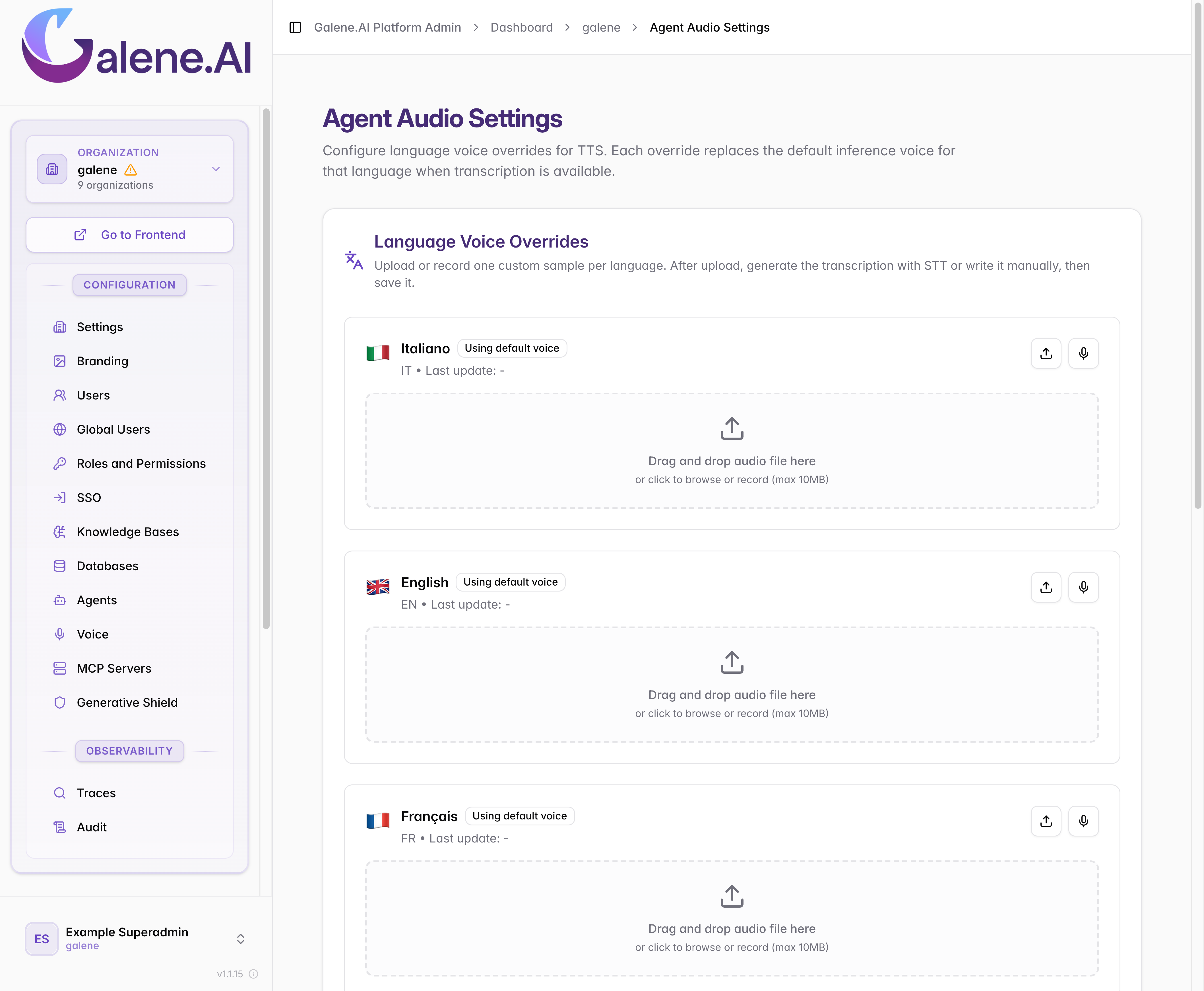
Supported Languages
The following languages are available for voice override configuration:
| Language | Code |
|---|---|
| Italian | IT |
| English | EN |
| French | FR |
| German | DE |
| Spanish | ES |
| Portuguese | PT |
Understanding Voice Override Status
Each language row displays a status badge indicating the current state of the voice override:
| Status Badge | Meaning |
|---|---|
| Using default voice | No audio uploaded — the platform uses the default TTS voice |
| Override active | Audio and transcription are both present — custom voice is active |
| Override pending transcription | Audio uploaded but transcription not yet generated — default voice still in use |
Uploading a Voice Sample
You can provide a voice sample for any supported language using file upload or direct recording.
Option 1: File Upload
- Locate the language row you want to configure
- In the upload zone, click Browse or drag and drop an audio file
Supported formats: Any audio format (audio/*)
Maximum file size: 10 MB
Drag-and-drop: Supported — drop the file directly onto the upload zone
Option 2: Record Audio
- Locate the language row you want to configure
- Click the Record button (microphone icon)
- Speak clearly into your microphone
- Click Stop to finish recording
- The recording is automatically uploaded as the voice sample
Recording audio requires microphone access. Your browser will prompt for permission the first time you attempt to record. Ensure microphone permissions are granted for the admin panel domain.
Managing Uploaded Audio
Once a voice sample is uploaded, the language row displays:
- Audio player with play/pause controls, filename, and progress bar
- Delete button to remove the current audio
- Replace option to upload a different file
- Record button to capture a new recording
Generating Transcription
After uploading a voice sample, generate its transcription to activate the voice override:
- Locate the language row with the uploaded audio
- Click the Generate with STT button (sparkles icon)
- Wait for the transcription to complete
- The transcription appears in a read-only text area below the audio player
- The status badge updates to Override active
The transcription is generated automatically using Speech-to-Text (STT) and is read-only. It reflects what the system recognized from your uploaded audio sample.
Deleting a Voice Override
To remove a voice override and revert to the default TTS voice for a language:
- Locate the language row with the active override
- Click the Delete button next to the audio player
- The audio, transcription, and override are removed
- The status badge returns to Using default voice
Override Behavior
The voice override logic follows these rules:
- No override configured — The platform uses the default TTS voice for the language.
- Audio uploaded, no transcription — The override stays pending and the default TTS voice is still used until a transcription is generated.
- Audio + transcription present — The custom voice override is active and applies organization-wide to all users and agents for that language.
Next Steps
- Voice Generator — User guide for generating speech and managing personal voice samples