Settings & Branding
The Settings & Branding section enables administrators to configure core organizational details (name, support email, authentication methods), control platform capabilities (web search, voice input, ...), customize branding (chat agent name, color palette, logos and icons), redeploy the organization frontend, and permanently delete the organization.
Organization Settings are available exclusively to administrators who need to configure platform-wide settings and capabilities for their organization.
Overview
The Settings & Branding configuration is divided into two main sections:
Organization Settings
- Organization Details: Basic organizational information and configuration
- Platform Capabilities: Control which AI capabilities are available to users
- Frontend Deployment: Redeploy the organization's custom frontend
- Danger Zone: Permanently delete the organization and all associated data
Branding
- Brand General Settings: Customize your AI agent's name
- Brand Palette: Define your organization's color scheme
- Assets Configuration: Upload and manage logos and background images
Accessing Settings & Branding
- Navigate to your organization's Admin Panel
- From the left sidebar, select Settings > Settings or Branding
- You'll see the respective configuration interface with all available options
Organization Details
The Organization Details section allows you to configure core organizational information and settings.
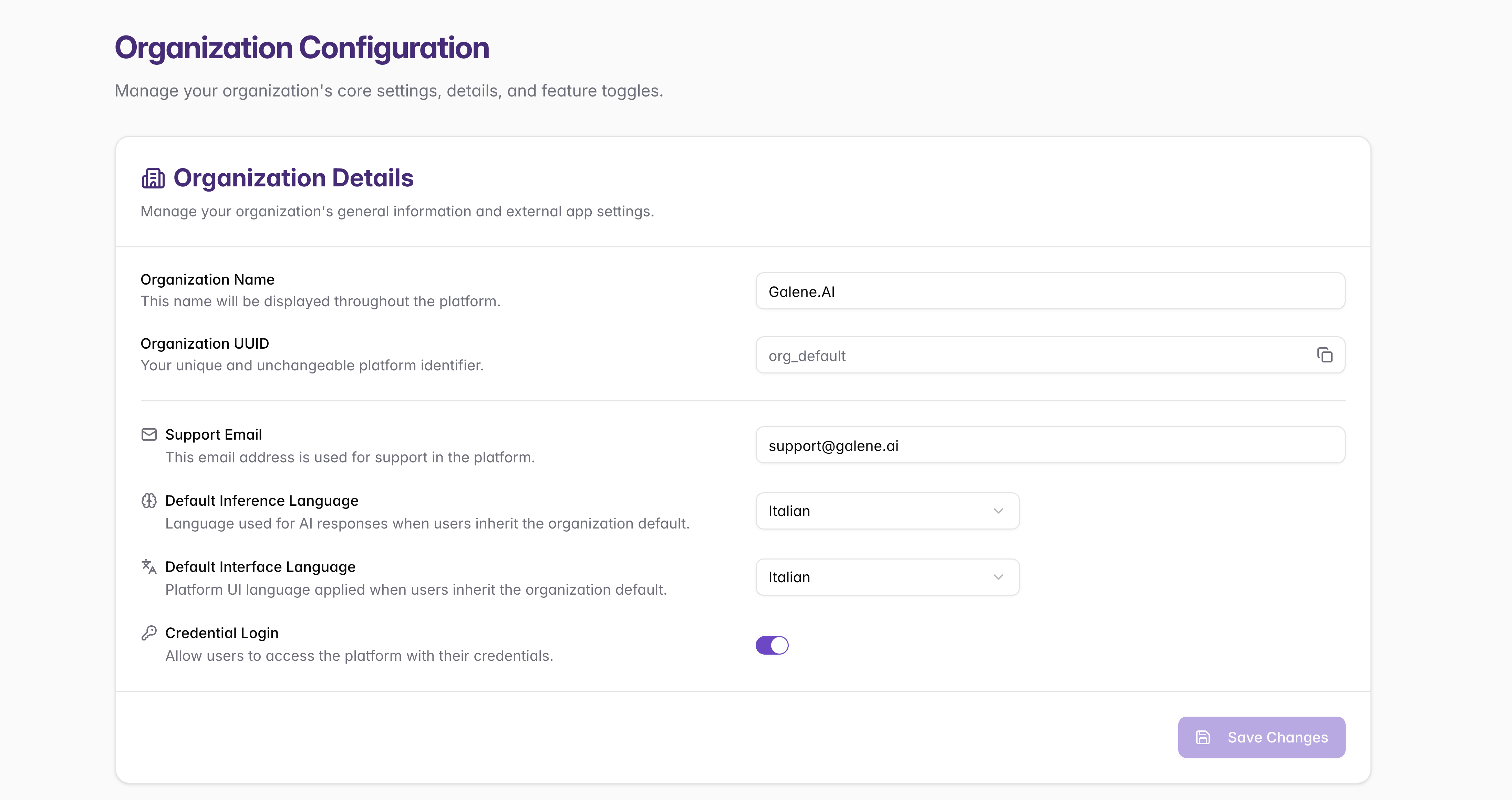
Configuration Options
| Setting | Description |
|---|---|
| Organization Name | The display name shown throughout the platform to identify your organization. |
| Organization UUID | System-generated unique identifier that cannot be changed. Used for API calls and integrations. Copy button available for secure sharing. |
| Support Email | Email address for platform support and communications, displayed to users for support requests. |
| Credential Login | Toggle to enable/disable username/password login. Can be disabled to enforce SSO-only authentication. |
| Default Interface Language | Sets the default language for the platform UI across the organization. Defaults to English if not configured. Individual users can override this setting from their own profile preferences. |
| Default Inference Language | Sets the default language used by the AI model when generating responses. Defaults to English if not configured. Individual users can override this setting from their own profile preferences. |
After making changes, click Save Changes to apply your organization settings.
Platform Capabilities
Platform Capabilities allows you to control which AI features and capabilities are available to users within your organization. These settings apply organization-wide and determine what functionality users can access.
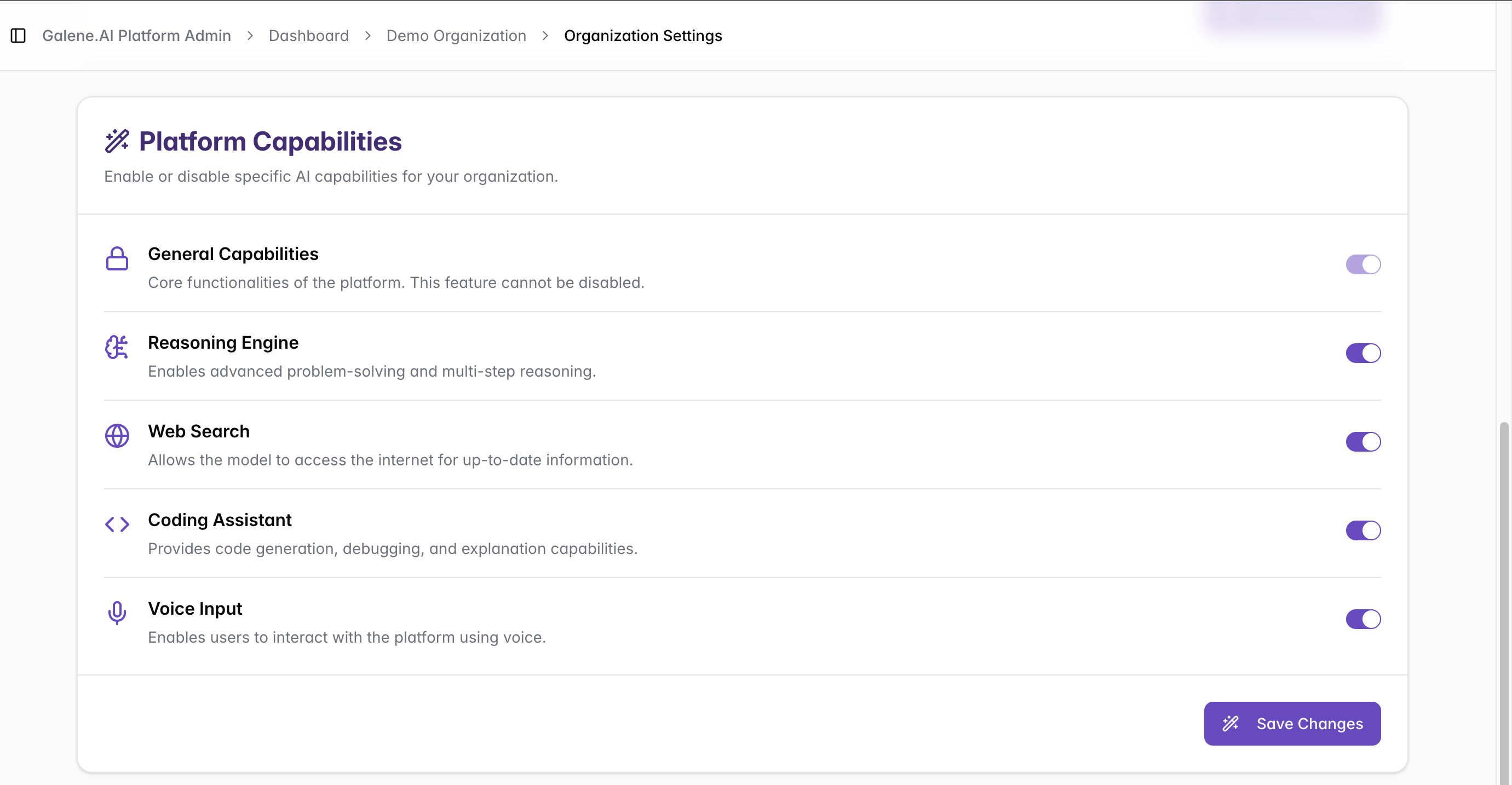
Available Capabilities
| Capability | Toggle | Description |
|---|---|---|
| General Capabilities | Always On | Core platform functionality that cannot be disabled. Always enabled for fundamental platform operations. |
| Reasoning Engine | Optional | Enable advanced problem-solving and multi-step reasoning capabilities. May impact response times for complex queries. |
| Web Search | Optional | Enable internet search for real-time information retrieval and current data access. |
| Coding Assistant | Optional | When enabled, users can switch from the Galene.AI Chat generalist assistant to a specialized coding agent. This preconfigured agent is optimized for coding assistance tasks. |
| Voice Input | Optional | Enable voice interaction capabilities. Requires microphone access and browser permissions. |
After configuring capabilities, click Save Changes to apply your settings. Changes take effect immediately for new sessions and apply organization-wide.
When Voice Input is enabled, you can further customize the TTS voice for each supported language using Agent Audio Settings. This allows you to upload voice samples and override the default TTS voice organization-wide.
Frontend Deployment
Frontend Deployment allows you to manually trigger a redeploy of the custom frontend for this organization. Use this when you need to re-apply the current saved configuration — for example after branding changes or to sync the frontend with the latest platform version.
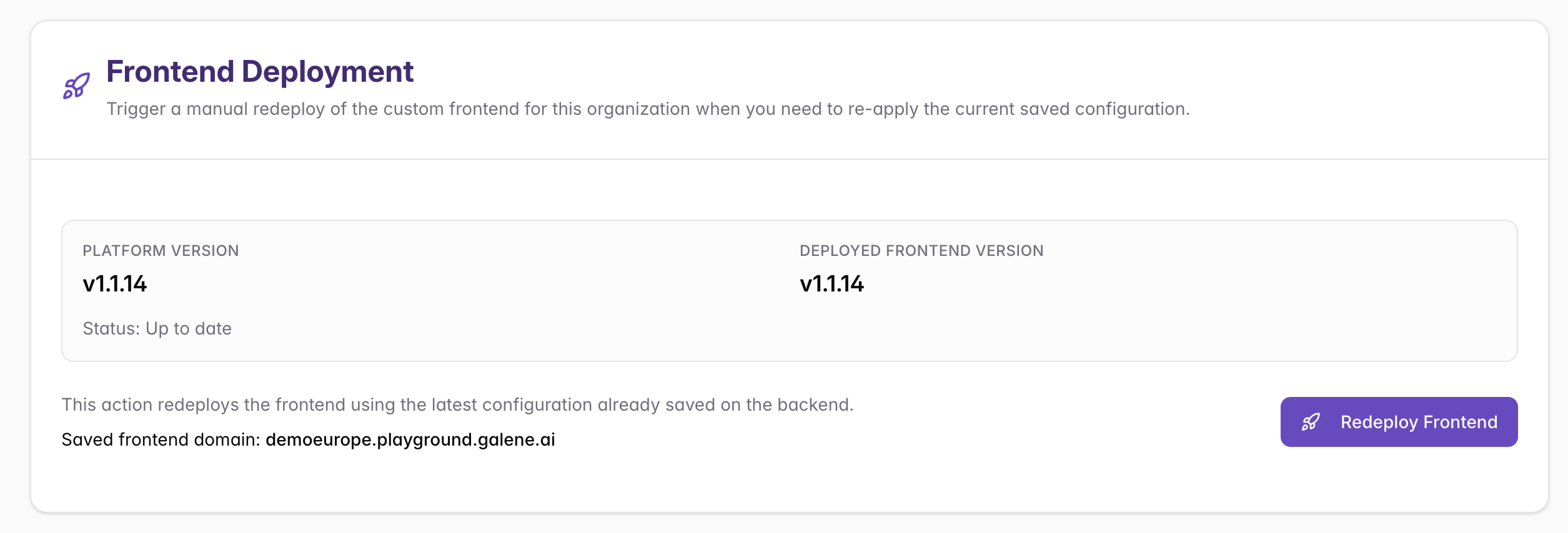
Version Information
The section displays two version indicators:
| Field | Description |
|---|---|
| Platform Version | The current version of the Galene.AI platform backend |
| Deployed Frontend Version | The version currently running on the organization's frontend domain |
When both versions match and Status: Up to date is shown, no redeployment is needed.
Redeploy Frontend
Button: Triggers a redeployment of the frontend using the latest configuration already saved on the backend. The saved frontend domain is displayed for confirmation before proceeding.
During redeployment the organization's frontend will be briefly unavailable. Schedule this action during low-traffic periods and ensure all configuration changes have been saved beforehand.
The domain shown here is specific to this organization's frontend. SSL certificate configuration for this domain is managed at the organization level in Organization Details above.
For platform-wide SSL and infrastructure configuration (affecting all organizations), see Platform Configuration.
Danger Zone
The Danger Zone section provides the option to permanently delete the organization and all its associated data.

Deleting an organization is permanent and cannot be undone. This action will remove:
- All users belonging to the organization
- All agents and their configurations
- All connectors and integrations
- The organization's dedicated frontend
Only proceed if you are certain you want to permanently remove this organization from the platform.
Branding Configuration
Branding allows you to customize the visual identity of your platform, including the AI agent name, color scheme, and all visual assets across the interface.
Accessing Branding Settings
- Navigate to your organization's Admin Panel
- From the left sidebar, select Settings > Branding
- You'll see the Branding Configuration interface
Branding changes are configured in this section but require a frontend redeployment to take effect. After saving your branding changes, remember to trigger a Frontend Deployment in the Organization Settings section.
Brand General Settings
Customize general branding settings for your AI agent.
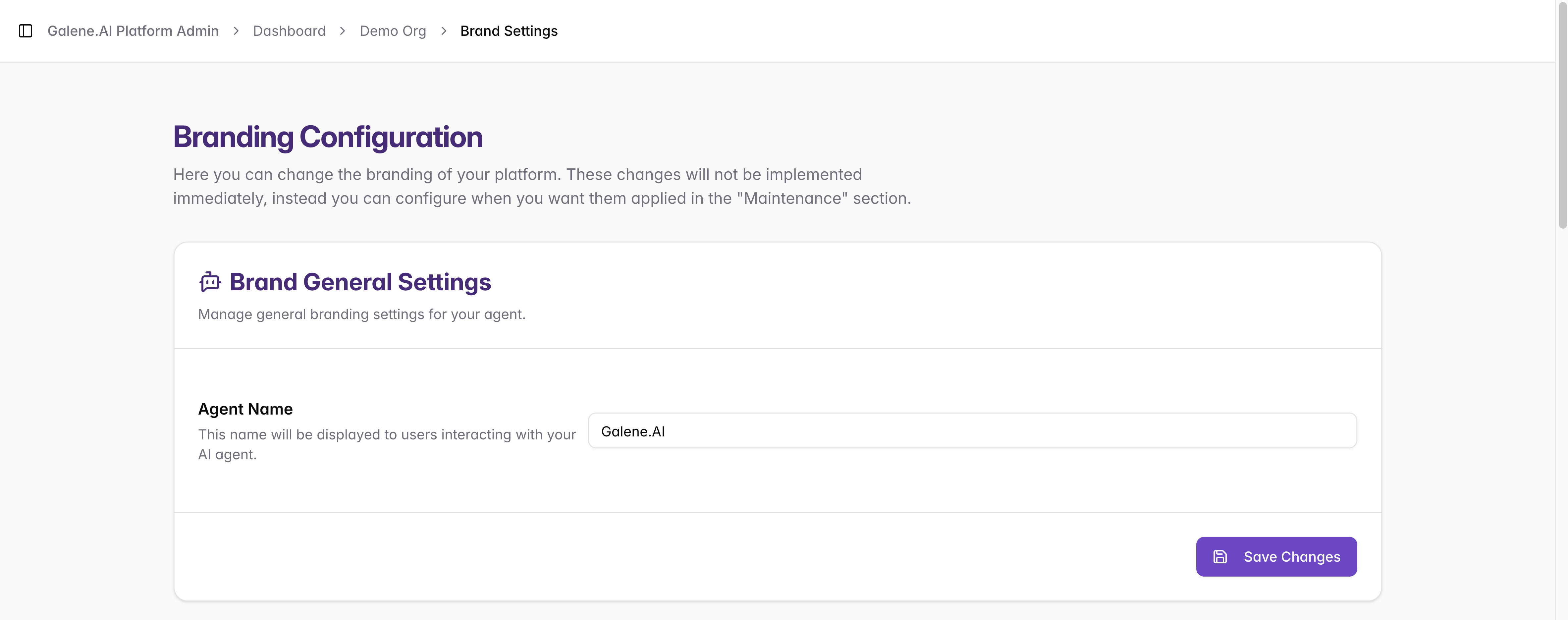
Agent Name
The name displayed to users when interacting with your AI agent. By default, this is set to "Galene.AI" but can be customized to match your organization's branding (e.g., "CompanyBot", "Assistant", or any custom name).
Field: Text input for agent name
Button: Save Changes to apply the new agent name
Brand Palette
Define your organization's color scheme to match your brand identity. The palette customizes the application's color scheme across all interface elements.
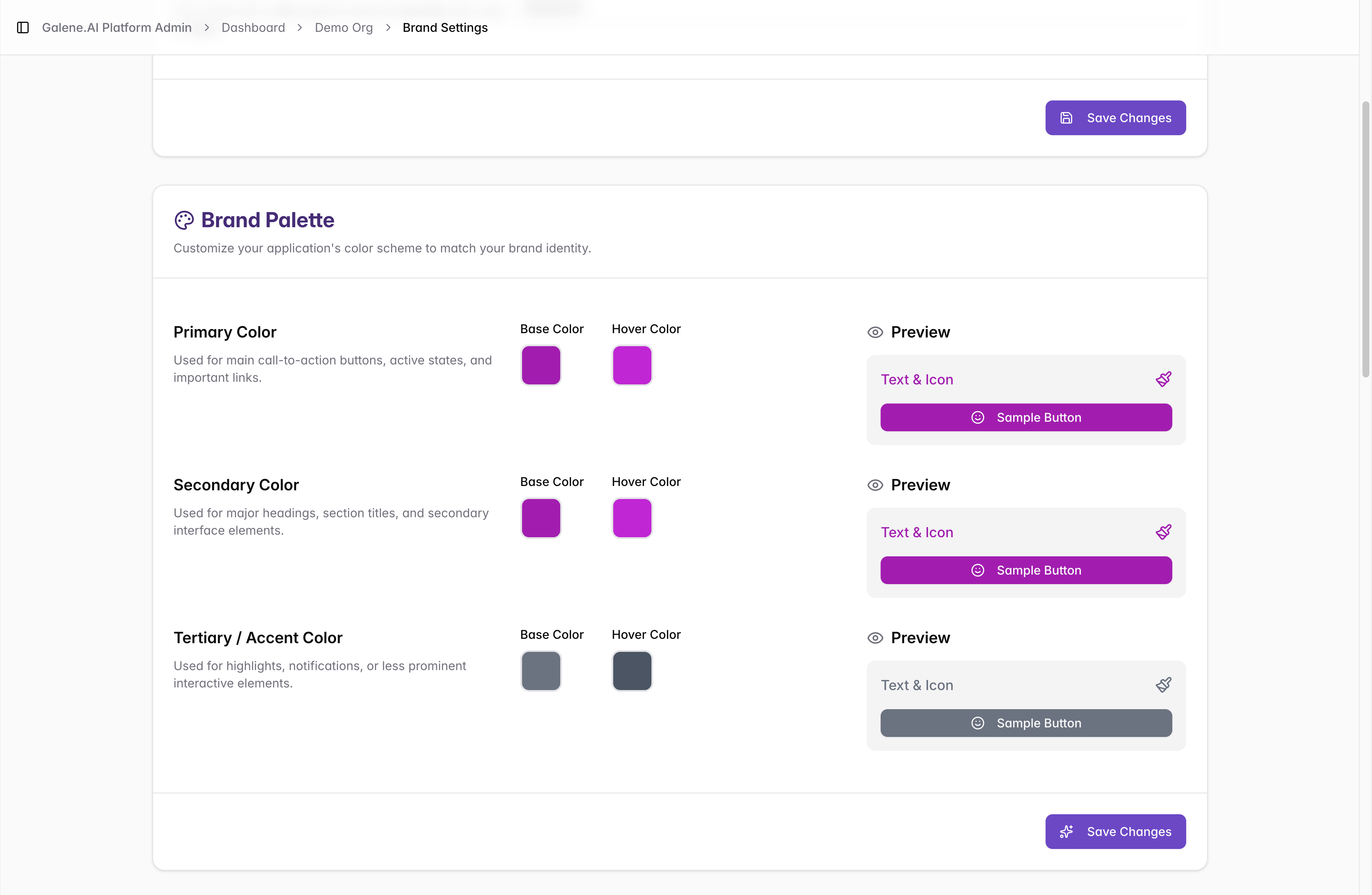
For each color category (Primary, Secondary, Tertiary/Accent):
- Base Color: The standard color displayed for that element type
- Hover Color: The color displayed when users hover over that element type
- Preview: Live preview showing how text, icons, and buttons will appear with the selected colors
Button: Save Changes to apply the color palette configuration
Assets Configuration
Upload and manage visual assets for your platform's frontend customization, from the login page to all icons and logos throughout the interface.
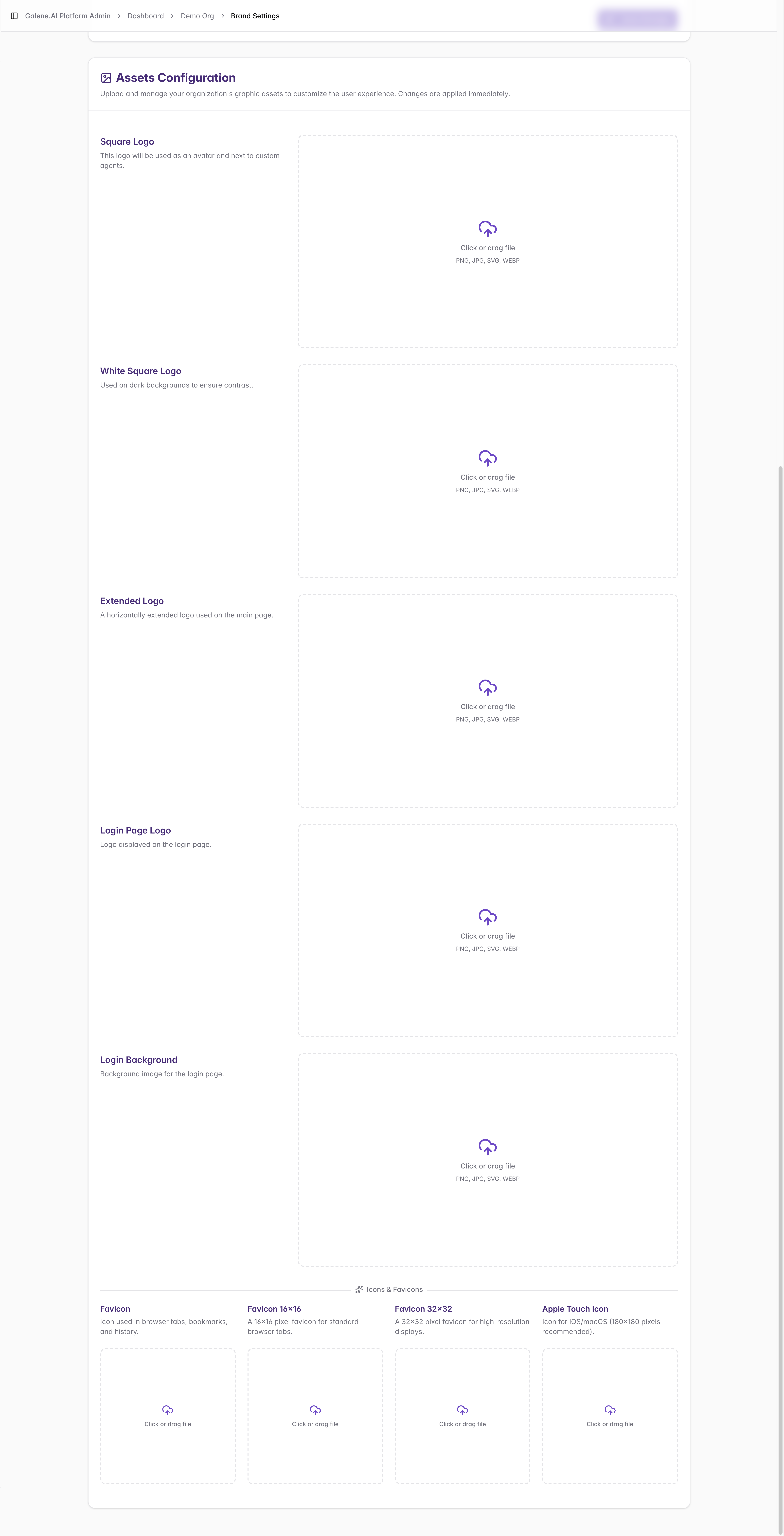
How to upload: Drag and drop or click to upload (PNG, SVG, JPG or WEBP format).
Deploying Branding Changes
After configuring your branding settings, you must deploy the changes to make them effective on your organization's dedicated domain.
Branding changes are not applied automatically. After saving your branding configuration, navigate to Settings > Organization Settings and use the Frontend Deployment section to redeploy and make changes visible to users.
Deployment Process:
- Save all branding changes (Agent Name, Brand Palette, Assets)
- Navigate to Settings > Organization Settings
- Scroll to the Frontend Deployment section
- Click Redeploy Frontend
- Wait for redeployment to complete — the frontend will be briefly unavailable
- Verify branding changes appear correctly on your organization's dedicated domain
For detailed deployment information, see the Frontend Deployment section above.
Next Steps
After configuring organization settings:
- User Management: Create and manage organization users
- Agent Creation: Deploy organization-wide agents
- Connector Setup: Configure enterprise data integration
Organization Settings provides the foundation for your platform configuration and user experience.