Knowledge Base Connectors
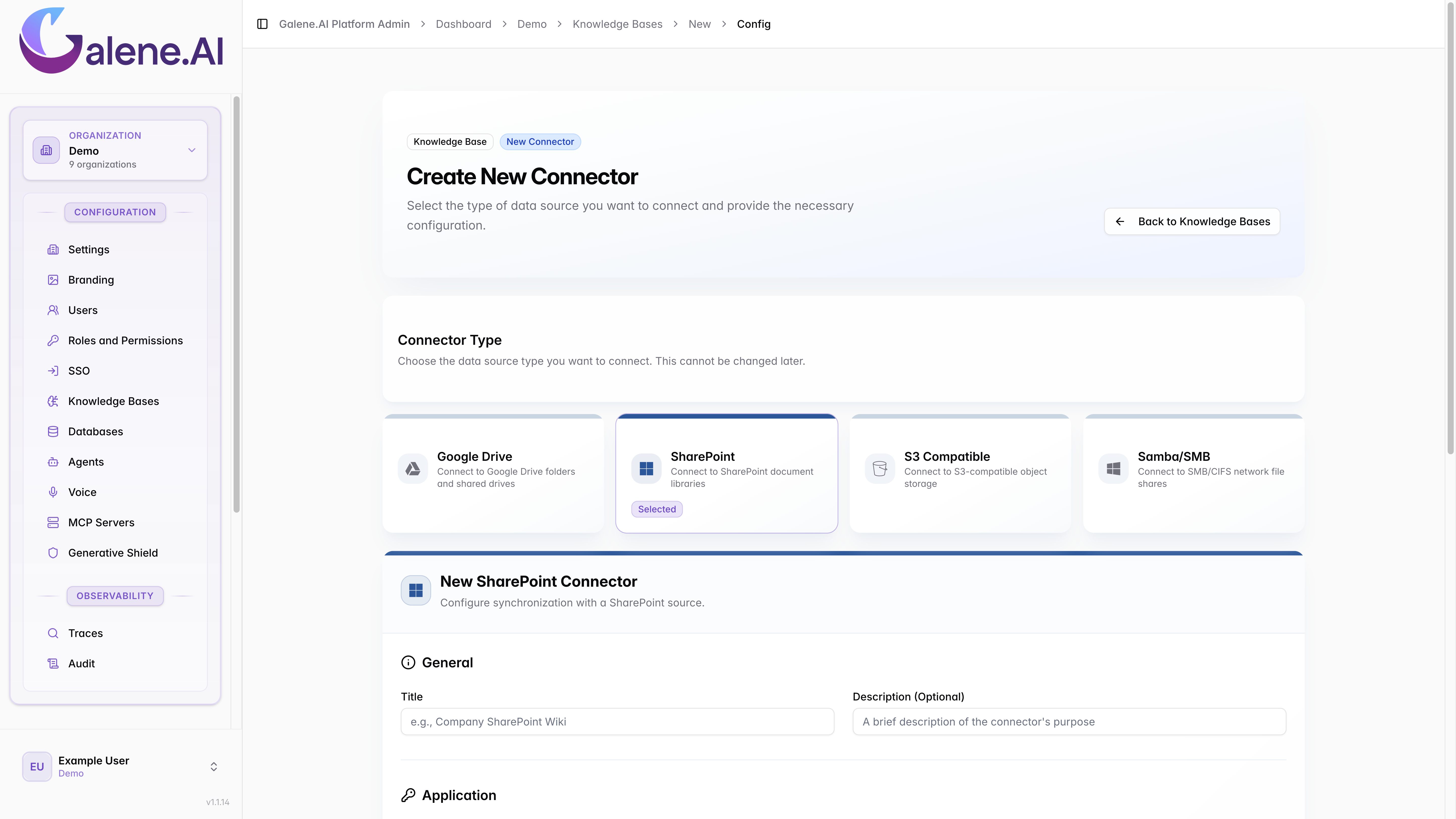
Knowledge Base (KB) Connectors enable your AI agents to access and utilize documents and files from external storage platforms. The platform supports four main KB connector types:
- Google Drive Connector - Access files and folders from Google Drive
- SharePoint Connector - Connect to Microsoft SharePoint document libraries
- S3 Compatible Connector - Connect to AWS S3 or S3-compatible storage services
- Samba Connector - Connect to shared folders and network drives
Creating a KB Connector
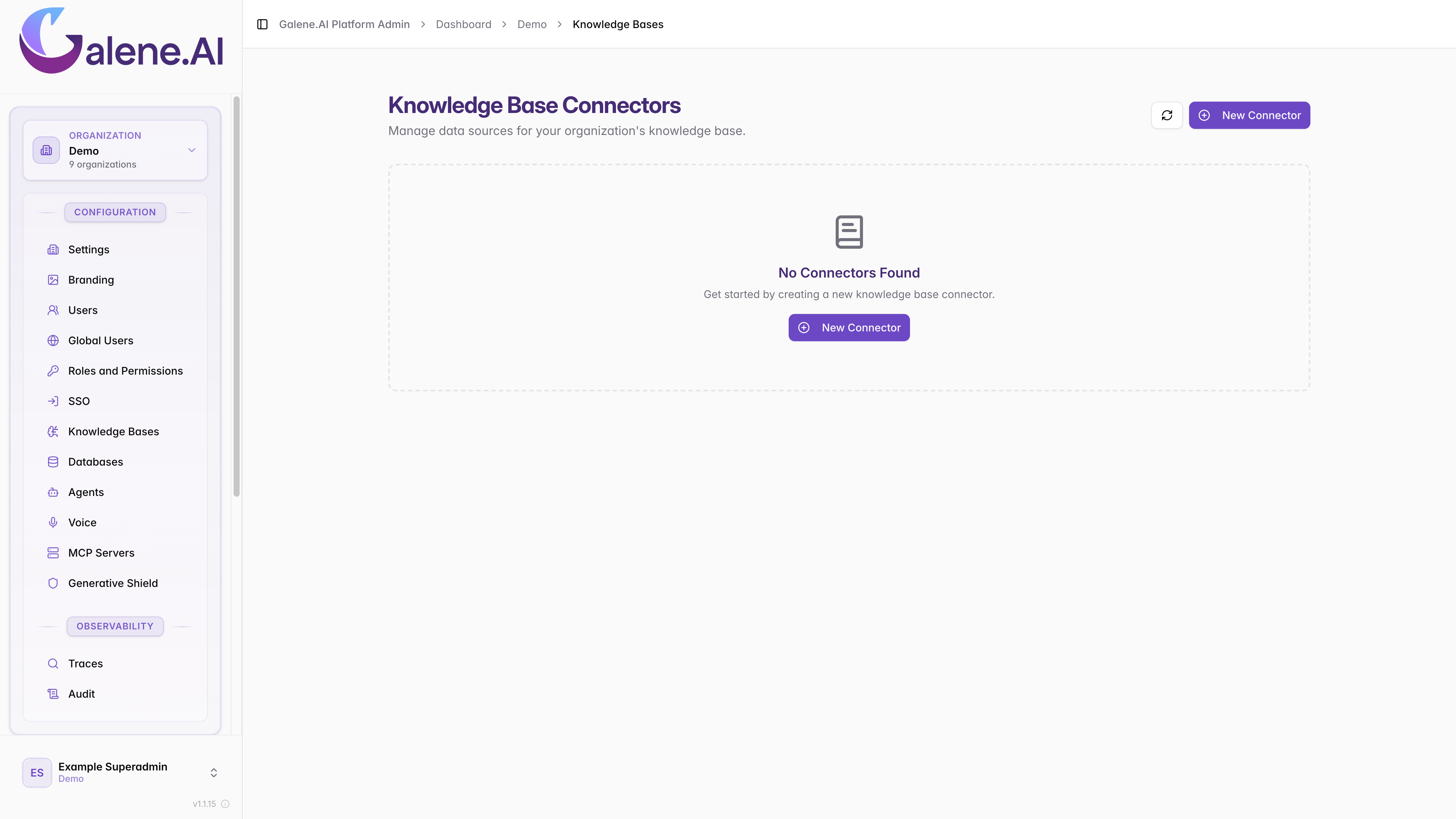
Step 1: Select Connector Type
From the Knowledge Bases section, click New Connector and select the type of data source you want to connect:
Step 2: Configure Access Control
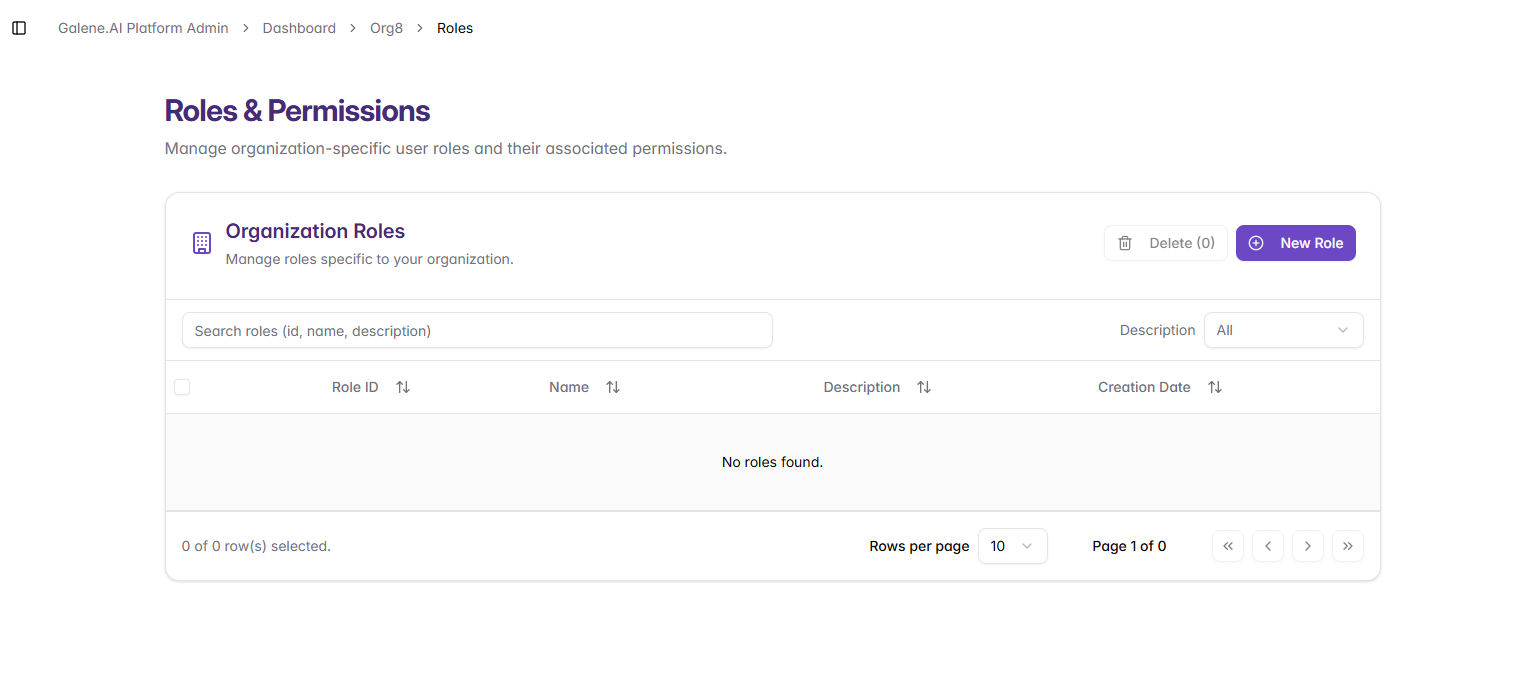
Before configuring the specific connector settings, you need to set up access permissions:
-
Everyone in Organization: All users in your organization can use this connector
-
Specific Roles: Only users with selected roles can access this connector. To create new roles go in the Roles & Permissions section:
Step 3: Configure Connector Settings
After setting access control, select the connector type you want to set up and fill in the required configuration fields. Refer to the dedicated page for detailed instructions:
Using KB Connectors with Agents
Once you've created a KB connector, you can attach it to your AI agents:
- Navigate to the Agents section in your admin panel
- Select an existing agent or create a new one
- In the agent configuration, find the Knowledge Base section
- Select your KB connector from the dropdown
- Save the agent configuration
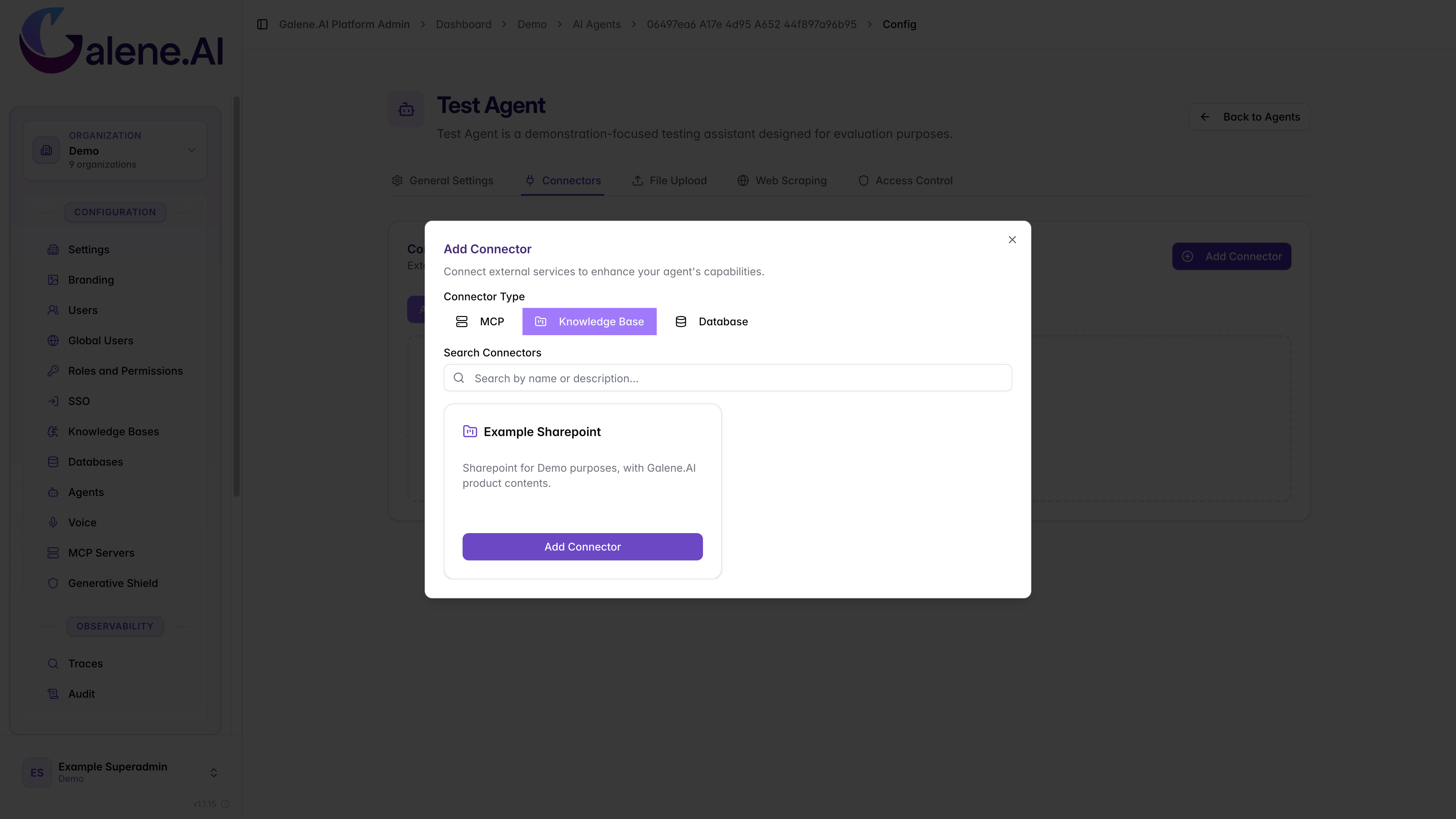
The agent will now have access to the files and documents from your connected data source and can use them to answer questions and provide information.
Authentication Errors:
- Verify all credentials are correctly entered
- Check that APIs are enabled (Google Drive API, Microsoft Graph API)
- Ensure proper permissions are granted
Access Denied:
- For Google Drive: Make sure folders are shared with the service account
- For SharePoint: Verify the app has proper site permissions
- For S3: Check IAM policies and bucket permissions
No Files Found:
- Verify folder IDs and paths are correct
- Check that files exist in the specified locations
- Ensure file permissions allow reading
Connection Timeouts:
- Check network connectivity
- Verify endpoint URLs are correct
- Try testing with a smaller dataset first
Always use the Test Connection feature before creating a connector. This will:
- Validate your credentials
- Test access to the data source
- Show sample files that can be accessed
- Identify configuration issues early