Samba Connector
The Samba connector allows Galene.AI to index files stored on SMB/CIFS network shares (Windows file shares, NAS devices, Samba servers). It uses the SMB 2.x/3.x protocol with NTLMv2 authentication.
Prerequisites
Before creating a Samba connector, ensure:
- A reachable SMB server (hostname or IP address)
- A service account with read access to the target share
- Port 445 open between the Galene.AI platform and the SMB server
Preparing the SMB Share
- Create a dedicated service account on the SMB server or Active Directory domain
- Grant read permissions to the service account on the target share
- On Windows: right-click the share folder → Properties → Sharing → add the account with Read access
- On Samba/Linux: add the user and set
read only = yesinsmb.conf
- Verify connectivity from a test machine on the same network.
- Note the configuration details you'll need:
- Host (hostname or IP) and port (default
445) - Share name
- Domain or workgroup (default
WORKGROUP) - Username and password of the service account
- Host (hostname or IP) and port (default
Configuration
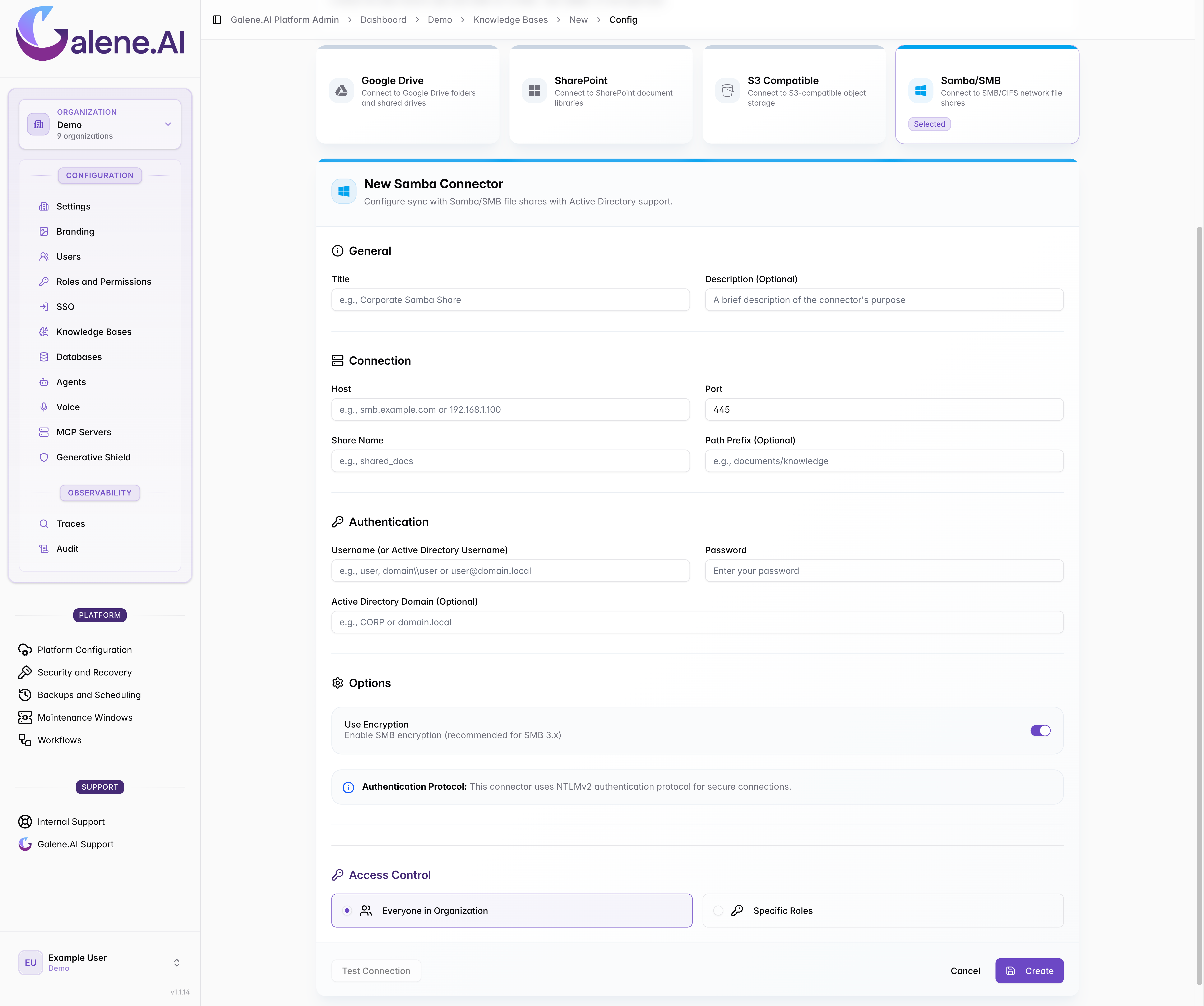
General
| Field | Required | Default | Description |
|---|---|---|---|
| Title | Yes | — | A descriptive name for your connector |
| Description | No | — | Optional description of the connector's purpose |
Connection
| Field | Required | Default | Description |
|---|---|---|---|
| Host | Yes | — | Hostname or IP of the SMB server (e.g. smb.example.com or 192.168.1.100) |
| Port | Yes | 445 | SMB port |
| Share Name | Yes | — | Name of the SMB share to sync (e.g. shared_docs) |
| Path Prefix | No | — | Subdirectory within the share to limit the sync scope (e.g. documents/knowledge) |
Authentication
| Field | Required | Description |
|---|---|---|
| Username | Yes | SMB username. Accepts DOMAIN\user or user@domain.local format |
| Password | Yes | Service account password. |
| Domain | No | Active Directory domain (e.g. CORP or domain.local). Leave empty for workgroup environments |
Authentication always uses NTLMv2. For non-domain environments, the workgroup defaults to WORKGROUP.
Security
Use Encryption (default: enabled) — enables SMB-level encryption. Recommended for SMB 3.x servers. Disable only if the server does not support it.
Access Control
Choose who can query this connector:
- Organization-wide — all members of the organization have access.
- Role-based — access is restricted to specific roles. Select the allowed roles from the list.
How Sync Works
- Initial sync — the connector recursively scans the entire share (or path prefix) and ingests all discovered files.
- Incremental sync — subsequent runs detect changes using last-modified timestamps. Only new or updated files are re-ingested.
Supported file types: PDF, Word, Excel, PowerPoint, plain text, CSV, JSON, XML, HTML, and common image formats.
Testing the Connection
After saving the connector, use the Test Connection button to verify connectivity. The test checks:
- Reachability of the SMB server on the configured host and port
- Authentication with the provided credentials
- Access to the specified share
A discovery test is also available to retrieve a sample list of files from the share.
The Test Connection button is only available after the connector has been saved for the first time.
Troubleshooting
| Symptom | Likely cause |
|---|---|
| Connection refused on port 445 | Firewall blocking SMB traffic |
| Authentication failure | Wrong credentials, locked account, or NTLMv2 not accepted |
| Share not found | Incorrect share name — verify with net view \\<host> |
| No files discovered | Path prefix does not exist or the account lacks read permissions |
| Encryption error | Server does not support SMB 3.x encryption — disable the option |