Database Discovery Process
After creating a database connector, the system automatically performs database discovery to catalog your database schema:
What Gets Discovered
- Tables and Views: All accessible tables and views in your database
- Columns: Column names, data types, constraints, and relationships
- Schema Information: Database schemas and their organization
- Statistics: Row counts and basic table statistics
Discovery Status
The discovery process runs automatically in the background. Once connected, you'll see a status indicator:
-
⚙️ In Progress: Currently scanning your database schema
-
✅ Synched : Discovery finished successfully
-
❌ Failed: Discovery encountered errors
Configuration Alert
When discovery completes successfully, you'll see an alert prompting you to configure your tables:
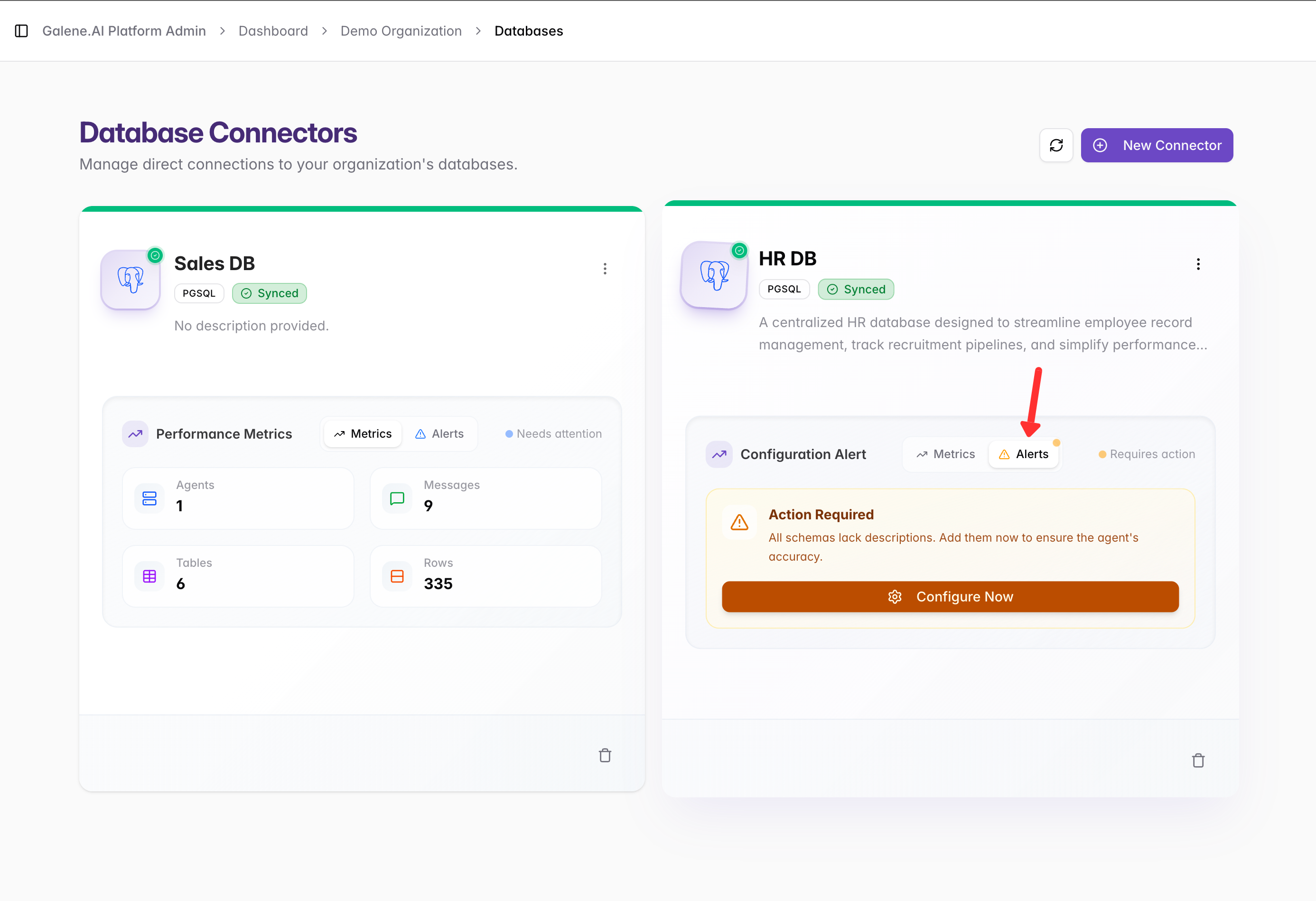
Clicking on the alert opens a modal window with a Configure Now button. Clicking Configure Now takes you directly to the Schema Definition section where you can configure your tables and columns.
Accessing Table Configuration
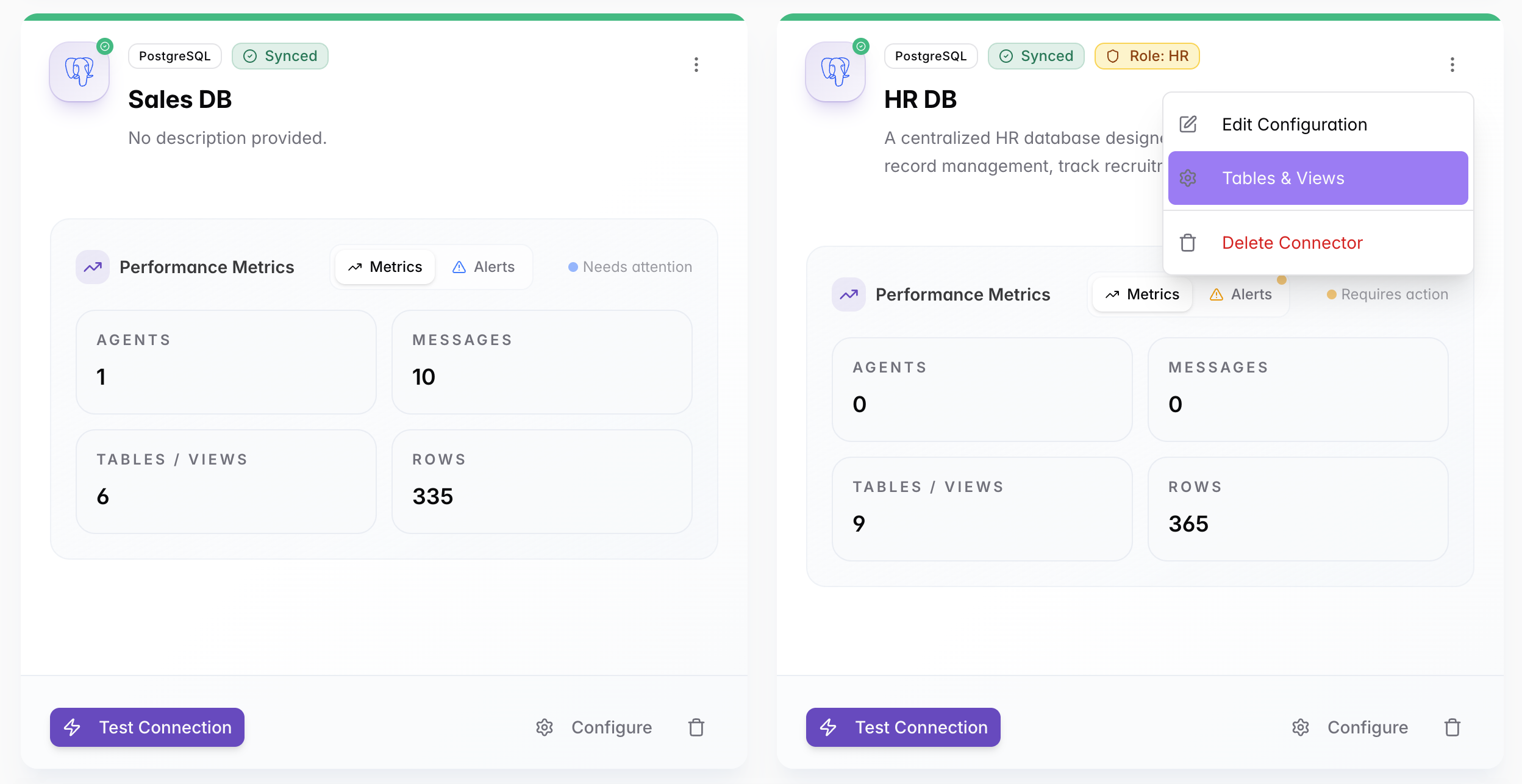
You can access table configuration at any time by:
- Clicking the three dots (⋮) on your specific database connector
- Selecting Tables&Views from the menu
Database Schema Definition
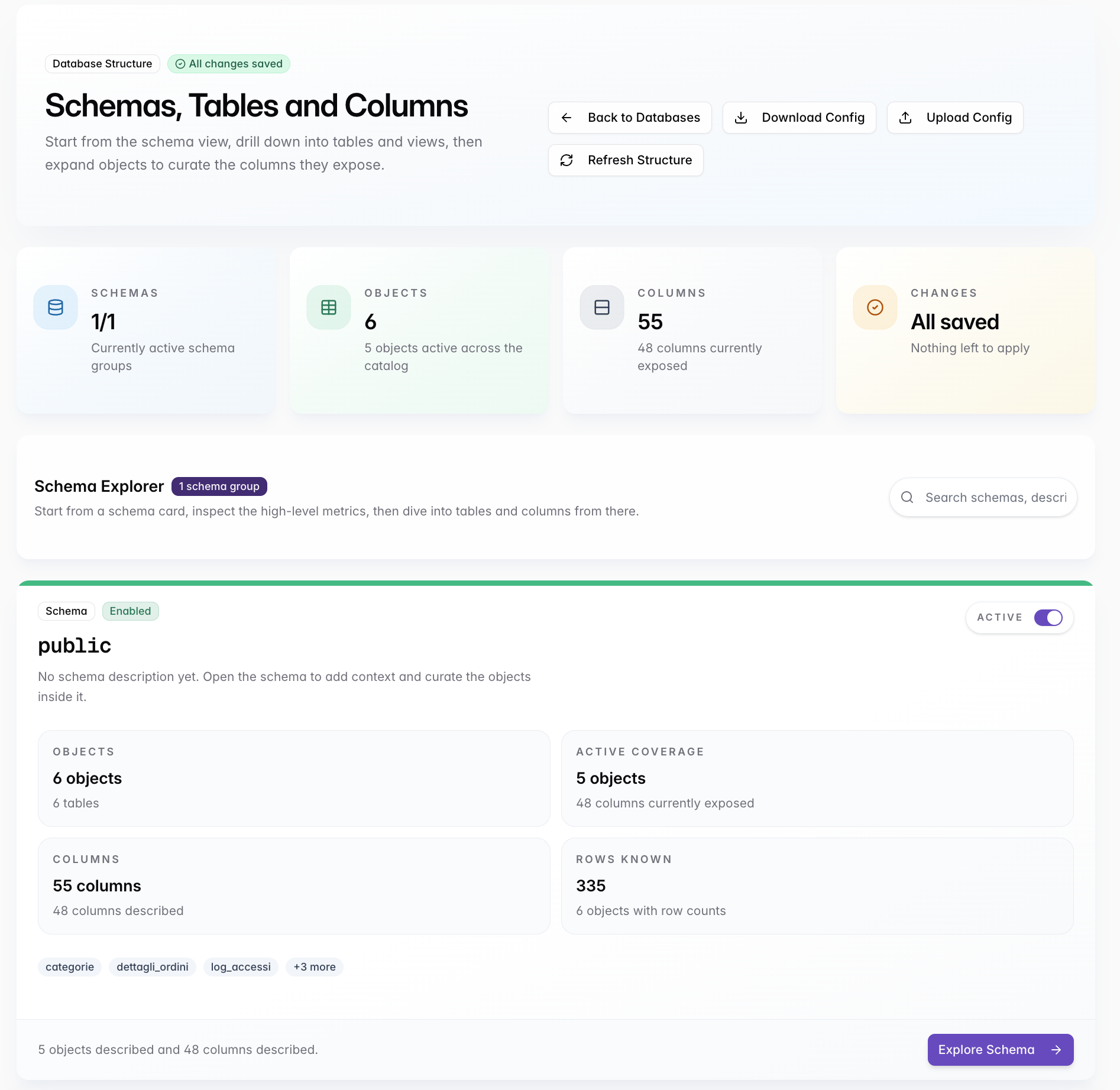
Once you access the Tables&Views (via the configuration alert or the connector menu), you'll see the Database Schema Definition interface:
Managing Table Descriptions
Available Tables
The Available Tables section shows all discovered tables with:
- Table Name: The actual database table name
- Columns: Number of columns in the table
- Rows: Estimated row count
- Status: Whether the table is enabled for agent use
Adding Table Descriptions
For each table, you should provide:
Table Description: A clear, human-readable explanation of what the table contains and its purpose.
Example:
Table: public.categorie
Description: Contains reference data for product categories used throughout the system.
Each category has a unique ID, name, description, and status indicator.
Possible values: product categories = categories_id
Why This Matters: Agents use these descriptions to understand:
- What data the table contains
- How tables relate to each other
- Business context for the data
- Appropriate use cases for queries
Column Descriptions
For each column in your tables, provide descriptions that explain:
Example Column Descriptions:
id: Unique primary key identifiernome: Category name (e.g., "Electronics")descrizione: Detailed description of the categoryattivo: Indicates if the category is active (true/false)created_at: Timestamp when the category was created
Enabling/Disabling Tables
Table Status Control: You can enable or disable specific tables for agent access:
- Enabled Tables: Available for agent queries
- Disabled Tables: Hidden from agents (useful for sensitive or irrelevant data)
If your database contains thousands of tables and columns and they are all left Enabled, the entire schema metadata will be injected into the agent's system prompt. This massive influx of tokens can severely overwhelm the agent's context window, leading to a significant deterioration of performance, slower response times, hallucinated queries, or outright model failures. To ensure optimal performance, explicitly disable any tables, views, or columns that are not strictly necessary for the agent's tasks.
Best Practices for Schema Management
Writing Effective Descriptions
-
Be Specific: Instead of "user data", write "customer account information including contact details and preferences"
-
Include Business Context: Explain how the data is used in your organization
-
Mention Relationships: Reference related tables and foreign keys
-
Clarify Value Formats: Explain codes, enums, or special formatting
Example Table Description
Table: dettagli_ordini
Description: Contains line items for each order placed by customers.
Each record represents one product within an order.
Relationships:
- ordine_id connects to ordini.id
- prodotto_id connects to prodotti.id
Key fields: quantity (quantity ordered), prezzo_unitario (unit price at time of order)
Organizing Your Schema
- Start with Core Tables: Begin with your most important business entities
- Add Relationships: Document how tables connect to each other
- Review Regularly: Update descriptions as your schema evolves
- Test with Agents: Create test agents to verify descriptions are helpful
Schema Update Workflow
When your database schema changes:
- Run Discovery: Use "Run discovery" to detect new tables/columns
- Review Changes: Check for new or modified database objects
- Update Descriptions: Add descriptions for new elements
- Test Agents: Verify agents can properly use the updated schema
- Document Changes: Keep track of significant schema modifications