Connectors
This is Step 3 in the agent creation process. After configuring your agent and adding static knowledge sources, you can connect to enterprise data sources for real-time, automatically updated information.
Administrative privileges are required to configure enterprise data sources. Once configured, these sources can be linked to your agents. See Admin Connectors Documentation for setup details.
Connector types:
- Database Connections - Access organizational databases (PostgreSQL, MySQL, SQL Server, MariaDB)
- Knowledge Base Connectors - Connect to enterprise documentation systems (Google Drive, SharePoint, S3-Compatible Storage, Samba)
Knowledge Base Connector content is automatically updated based on the sync frequency configured by your administrators. This ensures your agents have access to current data while optimizing system performance.
- MCP Servers - Real-time connections to external systems and APIs
For direct file upload and website integration, see Adding Files and Websites.
Database Connections
Database connections enable your agents to interact with your organization's data using natural language. Agents can query databases, analyze data, and provide insights without requiring you to write SQL or understand database schemas.
How to Connect a Database to Your Agent
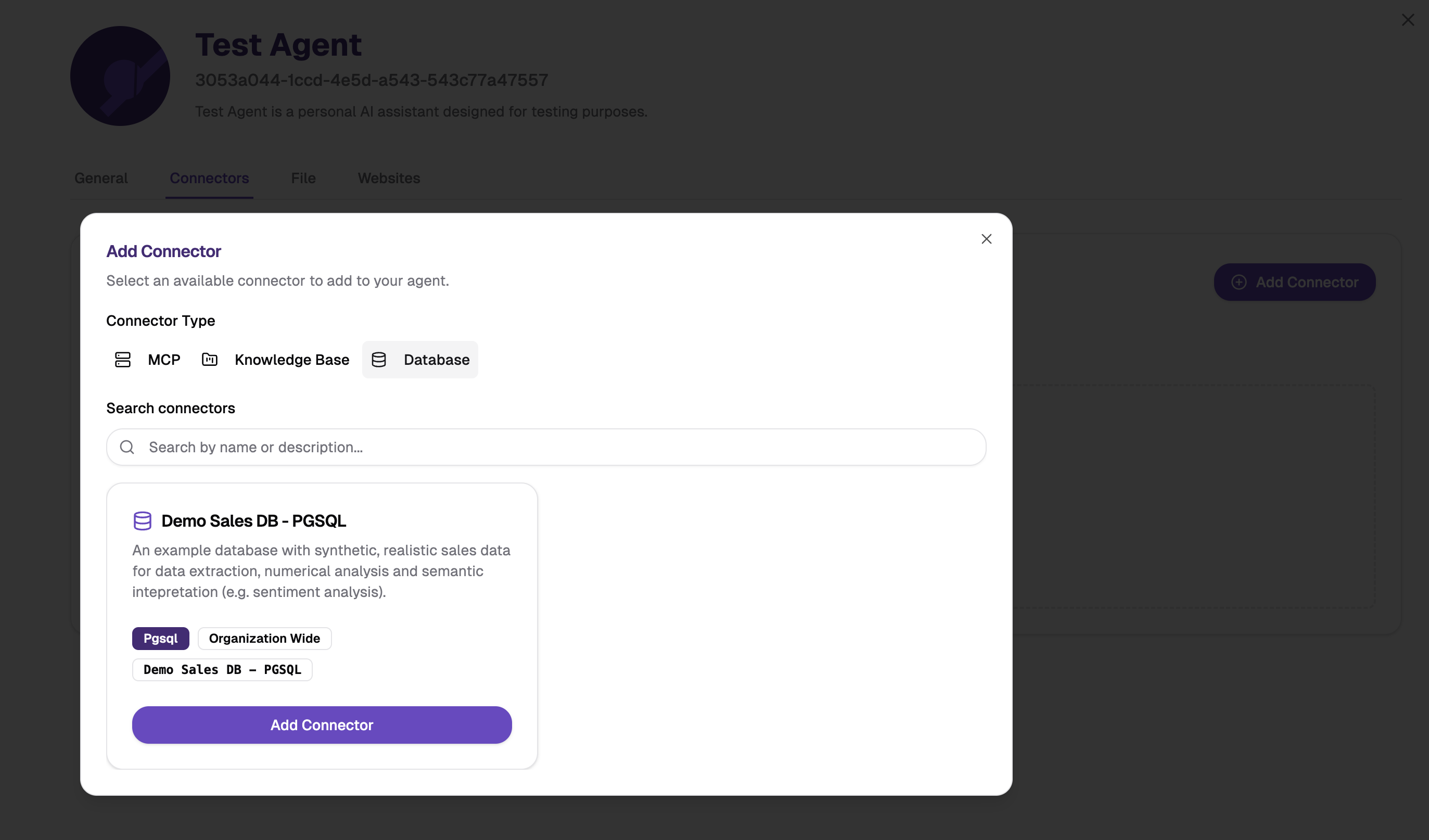
- Navigate to your agent's "Connectors" tab
- Browse available database connections (configured by administrators)
- Select relevant databases for your agent
- Test the connection with sample queries
Capabilities
Once connected, your agents can:
- Query with natural language - Ask questions in natural language; the agent translates them to appropriate database queries
- Analyze data - Receive formatted results with insights and analysis
Using Database Connectors with Agents
Database agents connect to your data sources and allow you to query and analyze data using natural language. They translate business questions into SQL queries and provide comprehensive data analysis.
How It Works:
- You ask a question in plain language: "What were our top-selling products last month?"
- The agent generates appropriate SQL queries
- Executes them against the connected database
- Analyzes results using Python/Pandas if needed
- Presents insights in business-friendly language
Example Questions:
- "Show me customers and their recent orders"
- "Which products sold more than 100 units last month?"
- "What's our top-performing sales region?"
- "How did Q3 revenue compare to Q2?"
- "What's the average order value by customer segment?"
Database agent responses include an Open analysis results button that shows exactly how your question was processed.
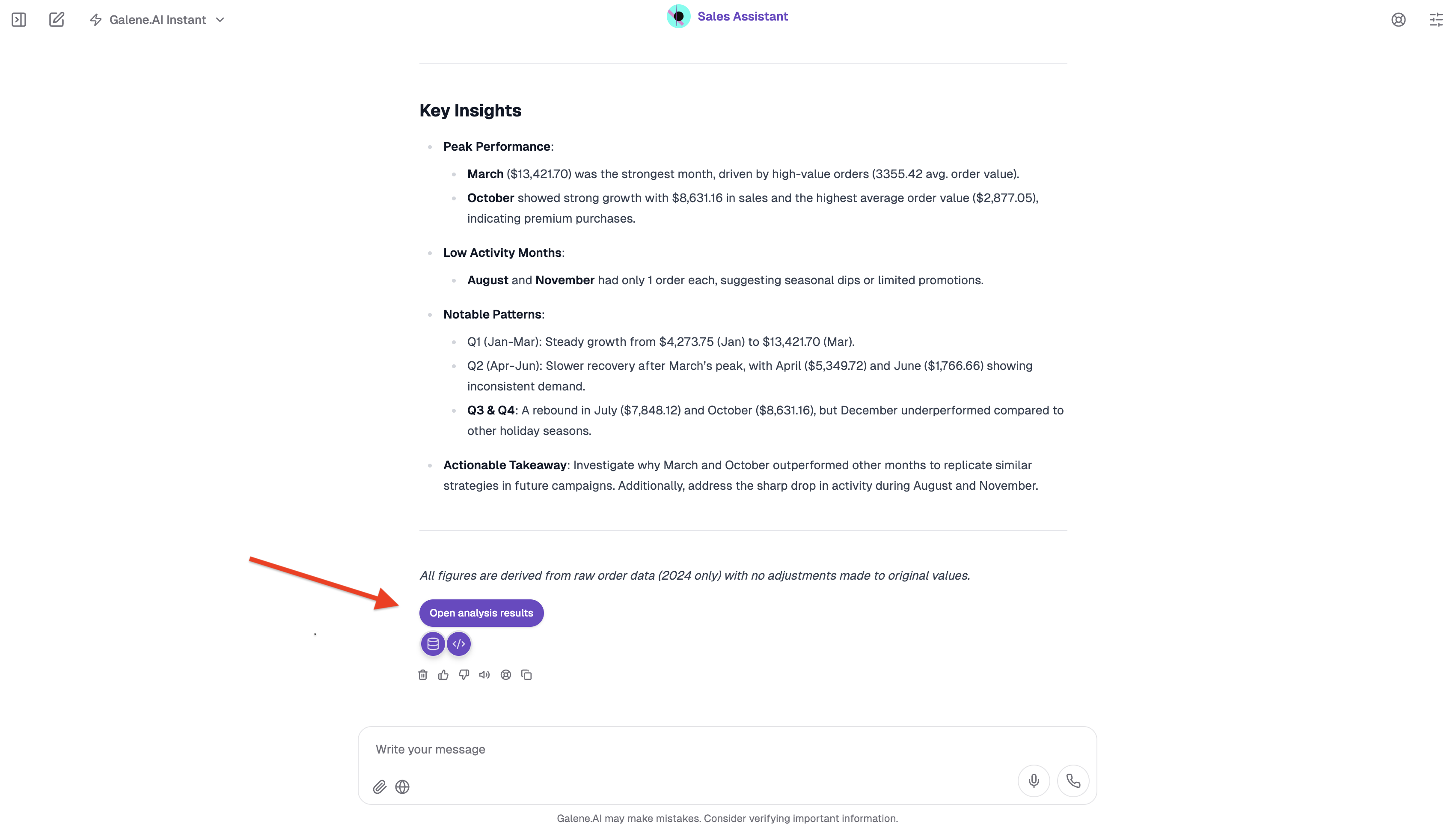
What You Can See:
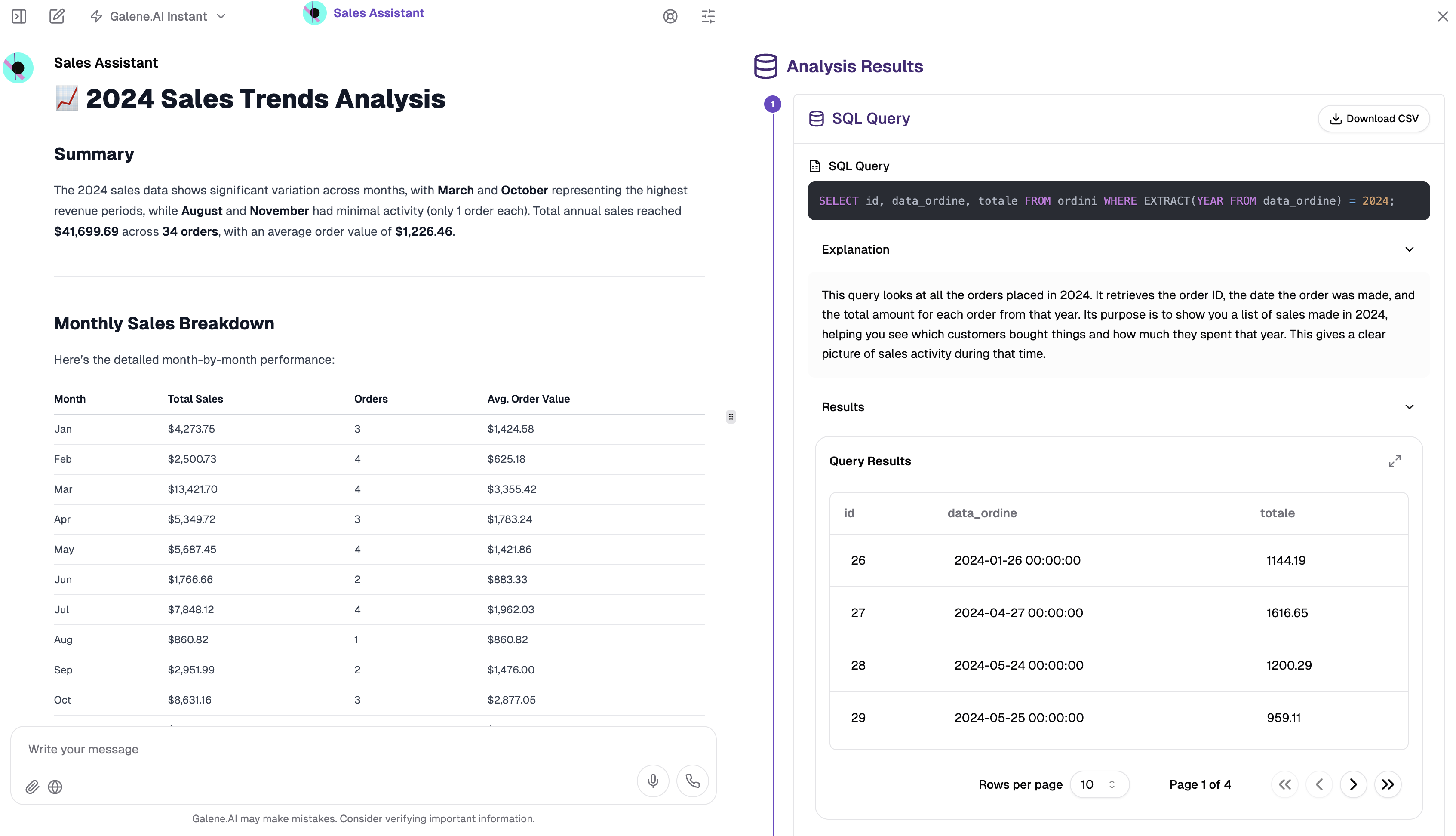
-
SQL Query Generation: The exact SQL query generated from your natural language question, showing which tables were accessed, what JOIN operations were performed, and which filters were applied.
-
Raw Query Results: The complete dataset returned by the SQL query before any processing, allowing you to verify the agent's work.
-
Query Explanation: Plain-language description of what the query does, why specific tables were joined, and how it relates to your question.
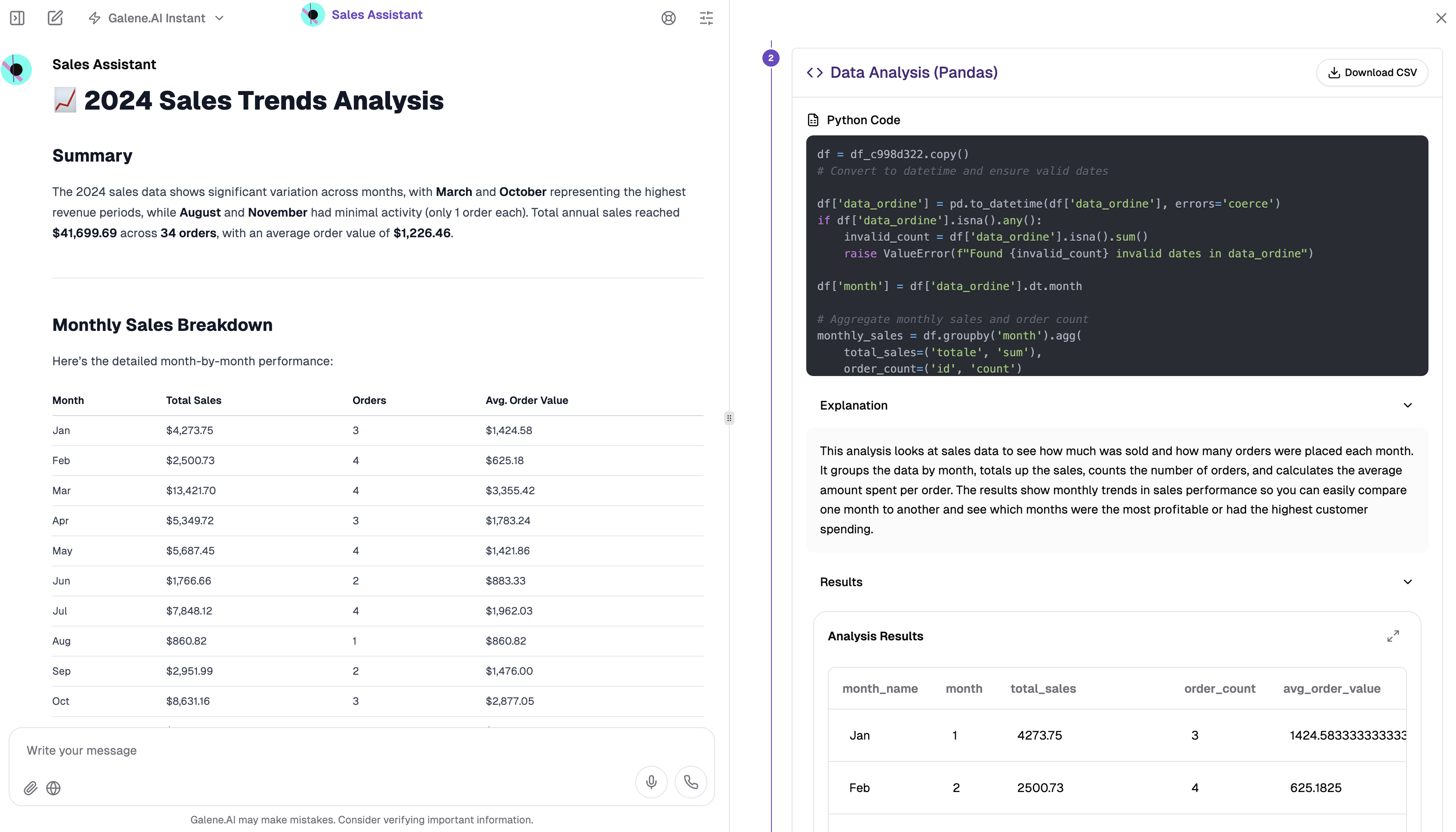
-
Data Analysis Code: If additional analysis was performed, you'll see the Python/Pandas code used to process results, including transformations, statistical operations, and calculations.
-
Processed Results: Calculated metrics, summary statistics, and formatted output that directly answers your business question.
Export Options:
- Download CSV for use in spreadsheets
- Copy results to clipboard
- Share SQL query with technical team
Common Use Cases
Database connections are commonly used for sales analytics (customer information, revenue tracking), financial reporting (budget analysis, cost reports, performance metrics), operational insights (inventory levels, production metrics), and business intelligence (trend analysis).
Check out detailed examples in Agent Examples.
Knowledge Base Connectors
Overview
Knowledge Base connectors allow your agents to access organizational documentation and information. Administrators configure connections to your organization's repositories, and you can then connect these resources to your agents.
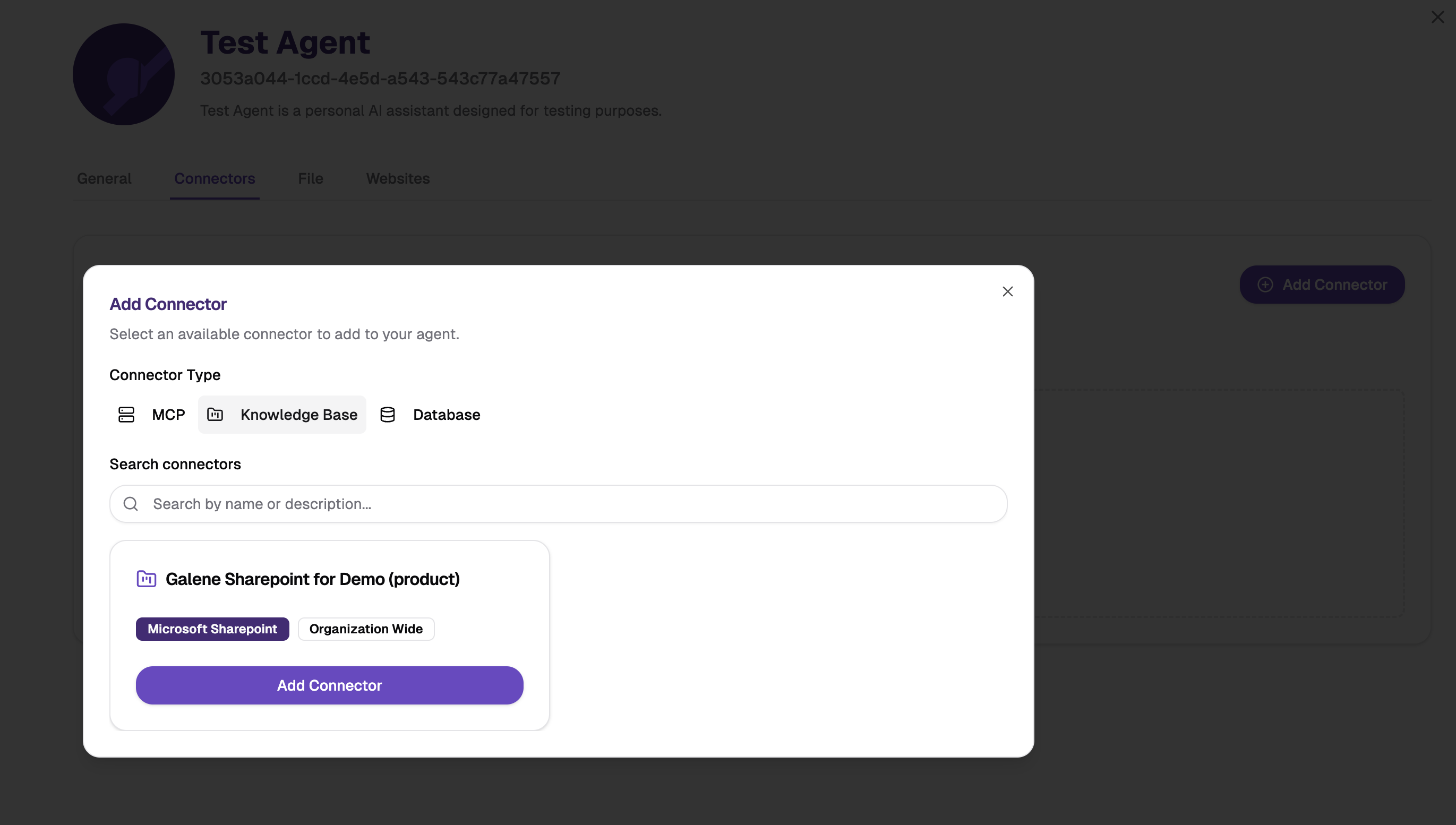
Available Connector Types
| Connector Type | Supported Content |
|---|---|
| Google Drive | Company documents, shared folders, collaborative documents, and team repositories. |
| SharePoint | Corporate document libraries, team sites, company wikis, and structured organizational content. |
| S3-Compatible Storage | Document repositories, structured file systems, cloud-based storage, and scalable content management. |
| Samba Shares | Connect to shared folders and network drives. |
How to Connect a Knowledge Base to Your Agent
- Navigate to your agent's "Connectors" tab
- Browse available knowledge base connections (configured by administrators)
- Select relevant knowledge bases for your agent
Capabilities
Once connected, your agent can:
- Query organizational documentation - Access company policies, procedures, and guidelines
- Search information - Search across multiple repositories simultaneously
- Retrieve best practices - Access company standards and guidelines
- Consult historical data - Retrieve information from document archives
Common Use Cases
Knowledge bases are commonly used for accessing corporate documentation (employee handbooks, processes, training materials), team knowledge (project docs, technical specs, meeting notes), and organizational intelligence (research, case studies, historical data).
Looking for conversation examples? See practical knowledge base interactions in Agent Examples.
MCP Server Integration
Overview
Model Context Protocol (MCP) is a standardized protocol that enables AI agents to securely interact with external tools, systems, and services. MCP servers act as bridges between your agents and enterprise systems, allowing agents to perform actions, retrieve data, and integrate with your organization's infrastructure.
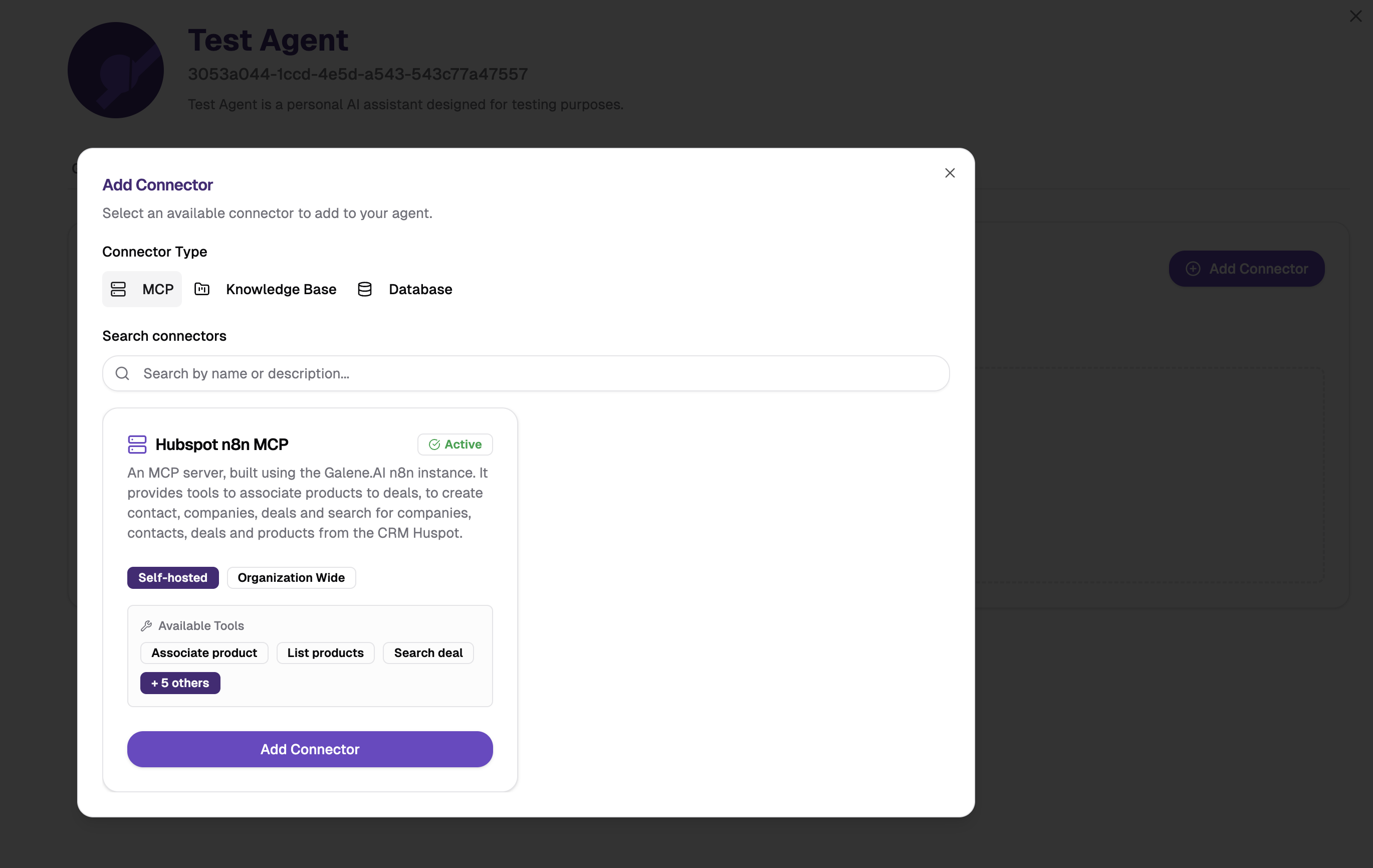
How to Connect MCP Servers to Your Agent
- Navigate to your agent's "Connectors" tab
- Browse available MCP integrations (configured by administrators)
- Select relevant MCP tools for your agent
Capabilities
Once connected, your agent can:
- Execute external actions — Call APIs, trigger workflows, create records in external systems, all through natural language requests
- Retrieve real-time data — Query live systems (CRMs, project trackers, monitoring tools) and present results directly in chat
- Return files as attachments — MCP tools can generate or fetch files (reports, spreadsheets, presentations, images) that appear as downloadable attachments in the conversation automatically
- Chain multiple tools — Combine several MCP tool calls in a single response to complete multi-step tasks
Using MCP Connectors with Agents
How It Works:
- You ask a question or request an action in natural language
- The agent determines which MCP tool(s) to call based on your request
- The MCP server executes the action against the external system
- Results are returned to the conversation — as text, data, or file attachments
Example Interactions:
- "Create a Jira ticket for the login bug we discussed"
- "Pull the latest sales pipeline from Salesforce"
- "Generate the monthly revenue report as a DOCX"
- "Check the status of today's deployment in our CI pipeline"
- "Search our internal wiki for the onboarding checklist"
File Attachments from MCP Tools
When an MCP tool returns a file (e.g., a generated report, an exported spreadsheet, a fetched document), it appears as a downloadable attachment directly in the conversation. No manual download or separate link is needed.
Supported file types: PDF, DOCX, PPTX, XLSX, CSV, TXT, PNG, JPEG, MP3, WAV, MP4, and more.
What to expect:
- The file appears inline in the chat as a downloadable card
- The agent confirms which file(s) were attached with a brief summary
- You can download the file directly from the conversation
- Files up to 512 MB are supported
The platform does not generate or host download URLs. Files returned by MCP tools are conversation attachments — if you see a URL in the agent's response, it comes from the MCP tool itself (e.g., a link to the record in the external system), not from the platform.
Common Use Cases
MCP servers are commonly used for development automation (code reviews, deployments, container management), business operations (CRM updates, project tracking, team communications), and data integration (analytics queries, API interactions, cloud storage access).
| Integration Type | Supported Systems | Common Use Cases |
|---|---|---|
| Development Tools | GitHub repositories, Docker containers, development environments, CI/CD pipelines | Code reviews, automated deployments, container management, build pipeline monitoring |
| Business Systems | CRM platforms (Salesforce, HubSpot), project management tools, communication platforms, ERP systems | CRM data updates, task creation and tracking, team notifications, order processing |
| Data Sources | Analytics platforms, external APIs, cloud storage systems, specialized databases | Data analysis, third-party API interactions, file operations, database queries |
Want to see MCP servers in action? Explore real-world integration examples in Agent Examples.
Next Steps
After connecting your data sources:
- Configure Your Agent: Optimize agent behavior and responses
- Share Your Agent: Collaborate with team members
For administrator information about configuring and managing these data connections, see the Admin Connectors Documentation.