Self-Hosted MCP Server Connector
Create a connector to integrate an existing MCP server running on your own infrastructure. This option is ideal when you have an MCP server already deployed and accessible via HTTP/HTTPS.
Before creating this connector, ensure:
- ✅ Your MCP server is already running and accessible
- ✅ You have the server endpoint URL
- ✅ Network connectivity exists between the platform and your server
- ✅ Any required authentication headers or API keys are available
Configuration Fields
When creating a self-hosted MCP server, you'll need to provide:
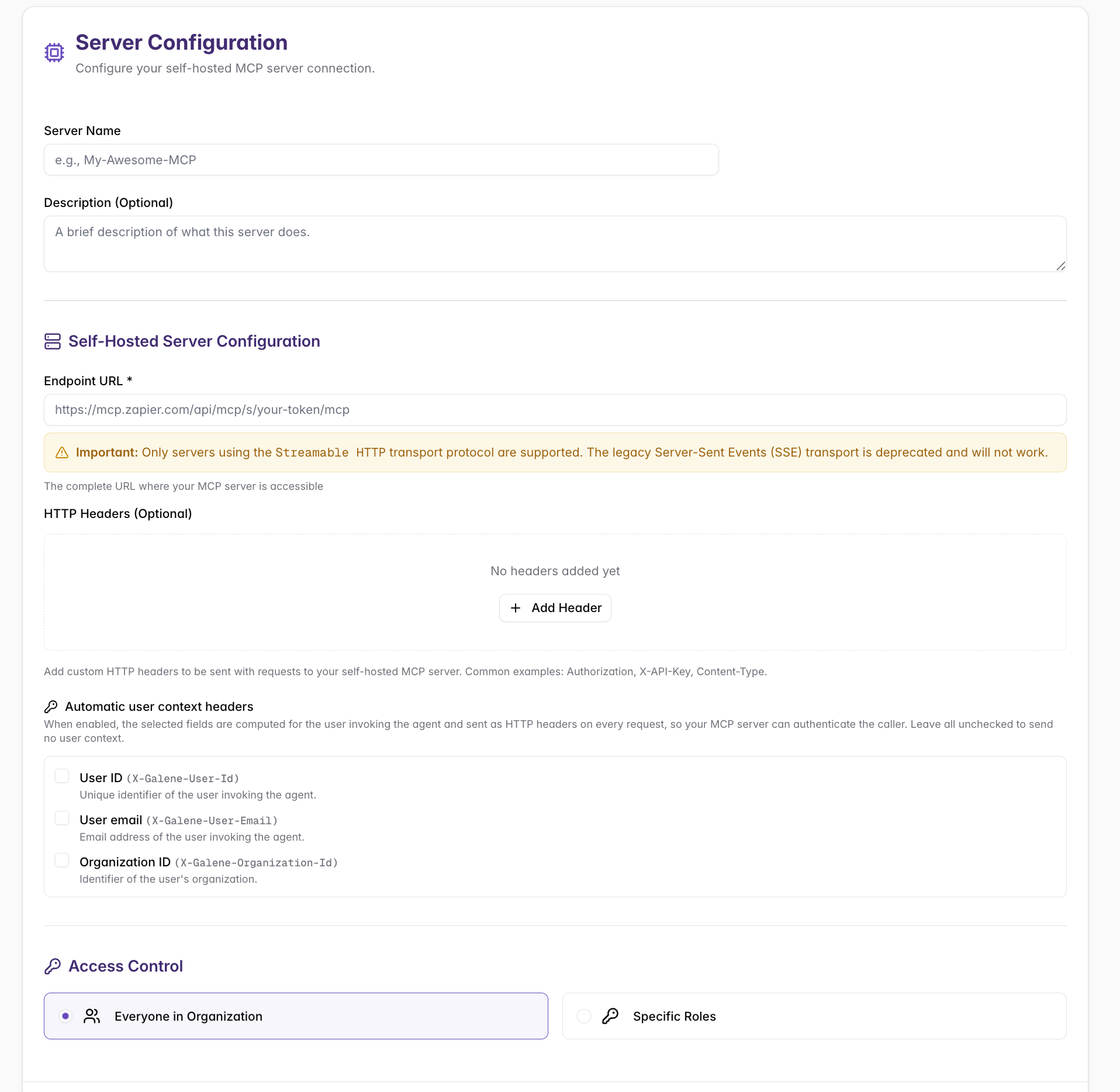
Server Configuration
- Server Name: A descriptive name for your MCP server (e.g., "My-Awesome-MCP")
- Description (Optional): A brief description of what this server does
Self-Hosted Server Configuration
- Endpoint URL (Required): The complete URL where your MCP server is accessible (e.g.,
https://mcp.zapier.com/api/mcp/s/your-token/mcp)
Only servers using the Streamable HTTP transport protocol are supported. The legacy Server-Sent Events (SSE) transport is deprecated and will not work.
- HTTP Headers (Optional): Custom HTTP headers to be sent with requests to your self-hosted MCP server. Common examples:
Authorization,X-API-Key,Content-Type. Click + Add Header to add new headers.
Automatic User Context Headers
When enabled, the selected fields are computed for the user invoking the agent and sent as HTTP headers on every request, so your MCP server can authenticate the caller. Leave all unchecked to send no user context.
Available headers:
| Header | Description |
|---|---|
User ID (X-Galene-User-Id) | Unique identifier of the user invoking the agent |
User email (X-Galene-User-Email) | Email address of the user invoking the agent |
Organization ID (X-Galene-Organization-Id) | Identifier of the user's organization |
Access Control
Configure who can use this MCP server through agents:
- Everyone in Organization: All users can use this server through shared agents
- Specific Roles: Only users with selected roles can access agents connected to this server
For role-based access, select the appropriate roles from your organization. Users must have the correct role to use agents that are connected to this MCP server.
Common Issues and Troubleshooting
Connector shows "Error" status:
- ❌ Verify the endpoint URL is correct and accessible
- ❌ Check network connectivity (firewalls, VPN requirements)
- ❌ Confirm your MCP server is running and responding
- ❌ Validate authentication headers are correct
Agents can't use the MCP server:
- ❌ Check user has appropriate role permissions
- ❌ Verify the agent is correctly configured with the MCP connector
- ❌ Review MCP server logs for request errors
- ❌ Test the endpoint URL directly with curl or Postman
Timeout errors:
- ❌ Your MCP server may be responding too slowly
- ❌ Check MCP server performance and resource usage
- ❌ Consider optimizing MCP server response times
Authentication failures:
- ❌ Verify header format is correct (
Header-Name: value) - ❌ Check API keys or tokens haven't expired
- ❌ Confirm authentication method matches server requirements
After creating the connector:
- Check the status indicator shows "Ready" (green)
- Create a test agent and connect it to this MCP server
- Send test queries to verify functionality
- Monitor the MCP server logs for incoming requests