Sharing and Collaboration
Share your personal agents with colleagues to enable collaboration and knowledge distribution across your team.
The sharing feature applies only to personal agents that you create in "My Agents". Organization Agents, which are centrally managed by your administrators, cannot be shared by individual users.
How to Share Agents
- Access Your Agents: Navigate to "My Agents" section
- Select Agent to Share: Find the personal agent you want to share
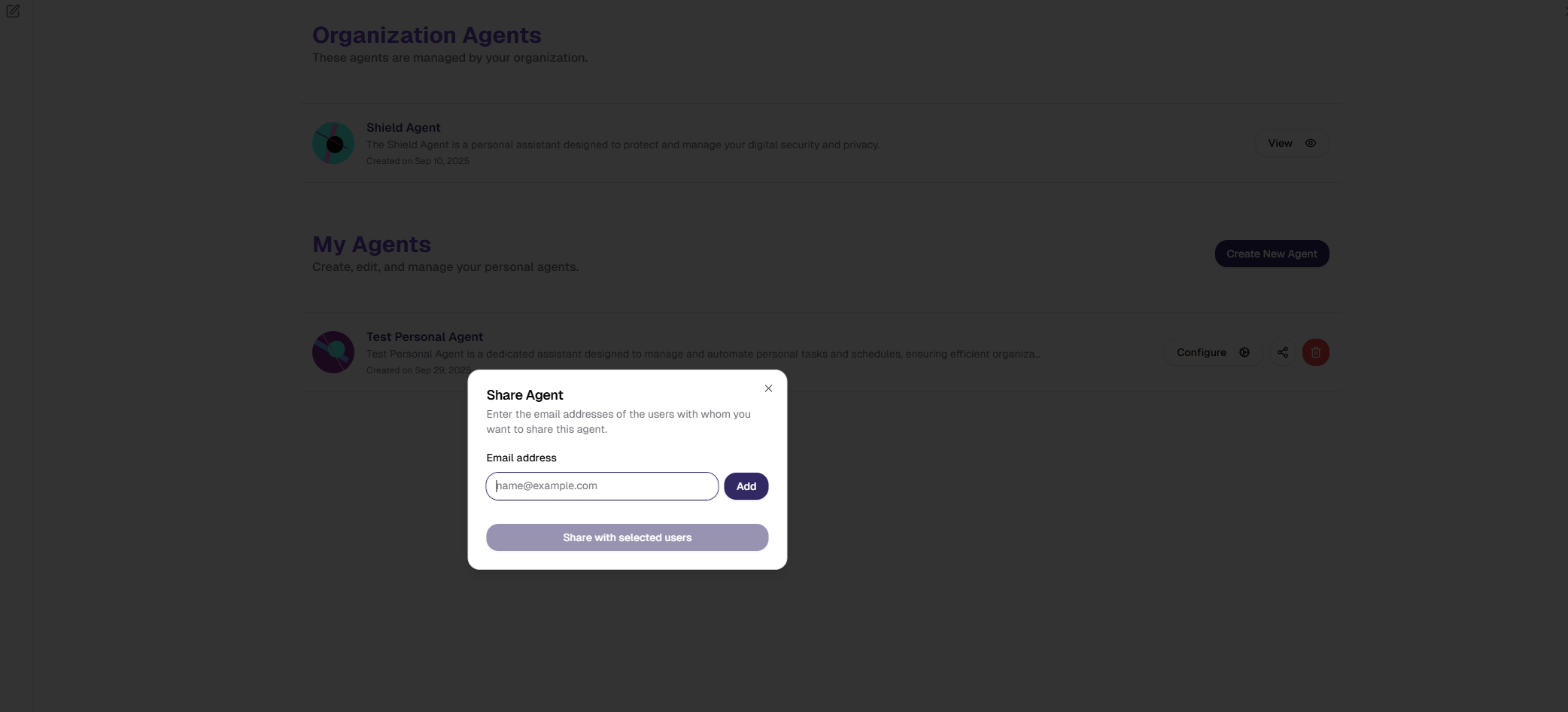
- Click Share Button: Click the share icon next to your agent

- Enter Email Addresses: In the sharing dialog, enter the email addresses of people you want to share with
- Send Invitations: Click "Add" to send sharing invitations
Sometimes sharing an agent may not be possible due to access restrictions:
- You and the recipient may not have compatible access levels within your organization
- If the agent connects to enterprise data sources, the recipient may not have permission to access that data
If you receive an error when trying to share, submit a support ticket to your administrators. They can help resolve access issues and explain what's needed for successful sharing.
To understand how user permissions and roles affect agent sharing capabilities, see User Management.
Accepting Shared Agents
When someone shares an agent with you:
- Check "Shared with me" Section: Look for pending invitations
- Accept or Reject: Choose "Accept" to add the agent to your collection or "Reject" to decline

Once you accept a shared agent, it will appear in your "My Agents" section alongside your personal agents. Currently, there is no visual indicator to distinguish between agents you created and agents shared with you within the "My Agents" section.
Agent Access Overview
After creating and sharing agents, you'll see different types of agents organized in sections:
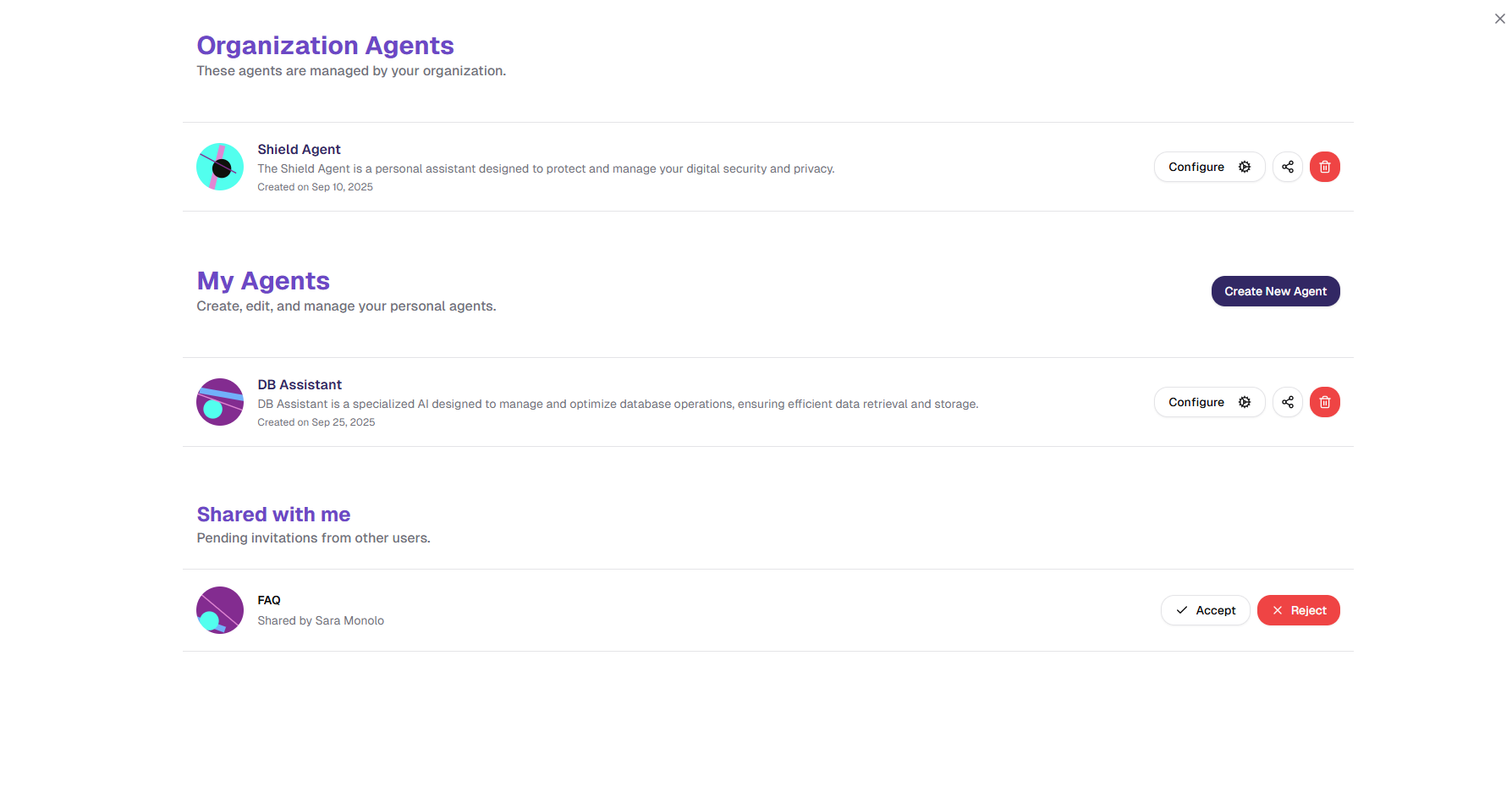
- Organization Agents: Agents managed by your organization's administrators. These cannot be shared or modified by users - only administrators can manage them
- My Agents: Personal agents you've created and shared agents you've accepted. Only these can be shared with colleagues
- Shared with me: Personal agent invitations awaiting your acceptance
Collaborative Editing
When you share an agent, all users with access can modify it. Any changes made by anyone—including updates to configuration, knowledge sources, or settings—will be reflected for everyone sharing that agent.
If you want to share an agent with multiple colleagues without allowing modifications, you can submit a support ticket to request that your administrators configure it as an Organization Agent. Organization agents are managed centrally by administrators and provide controlled access to your team.
How Sharing Works
- Owner: Has full control over the agent, including configuration, knowledge sources, and sharing settings
- Shared Users: Can modify the agent just like the owner
- All changes are synchronized in real-time across all users with access to the agent
Deletion Behavior
Understanding how deletion works is important for managing shared agents:
- If you (recipient) delete a shared agent: The agent is removed from your "My Agents" section only. This breaks the sharing connection for you, but the agent remains available to the owner and other shared users.
- If the owner deletes the agent: The agent is permanently deleted and removed for everyone who has access to it.
Security and Privacy
Connected Data Sources: When your agent uses connectors (like Databases, Google Drive, or SharePoint), existing permissions automatically control access. Recipients can only access data they already have permission to view through those systems.
Manually Uploaded Files: For knowledge sources you've manually uploaded to your agent, you should ensure that these files are appropriate to share. Before sharing, review any manually uploaded documents to confirm they don't contain sensitive information you don't wish to share with recipients.
Best Practices: Follow your organizational policies and share only with appropriate users.
Common Sharing Issues
Sharing Invitation Fails: If you can't share an agent with a colleague:
- Verify you've entered the correct email address
- Check that the recipient is part of your organization
- If you receive an access or permission error, create a support ticket explaining who you're trying to share with and what error message you received
- Your administrators can help resolve access restrictions
Users Can't Access Shared Agent: Verify sharing permissions, confirm correct email addresses, and check agent configuration. If issues persist, contact your administrators.
Agent Not Working for Recipients: Test agent yourself first, check knowledge source connectivity, verify configurations, and submit a support ticket if the problem continues.
Next Steps
After learning about sharing:
- Create Your Agents: Build agents worth sharing
- Agent Configuration: Optimize your agents before sharing
- Chat with Agents: Learn effective usage patterns
Sharing agents amplifies their value. Start with trusted colleagues and expand based on feedback.