Support Ticketing
Learn how to create, manage, and respond to support tickets on the Galene.AI platform. Our ticketing system provides multiple ways to get help and track your support requests.
Types of Support Tickets
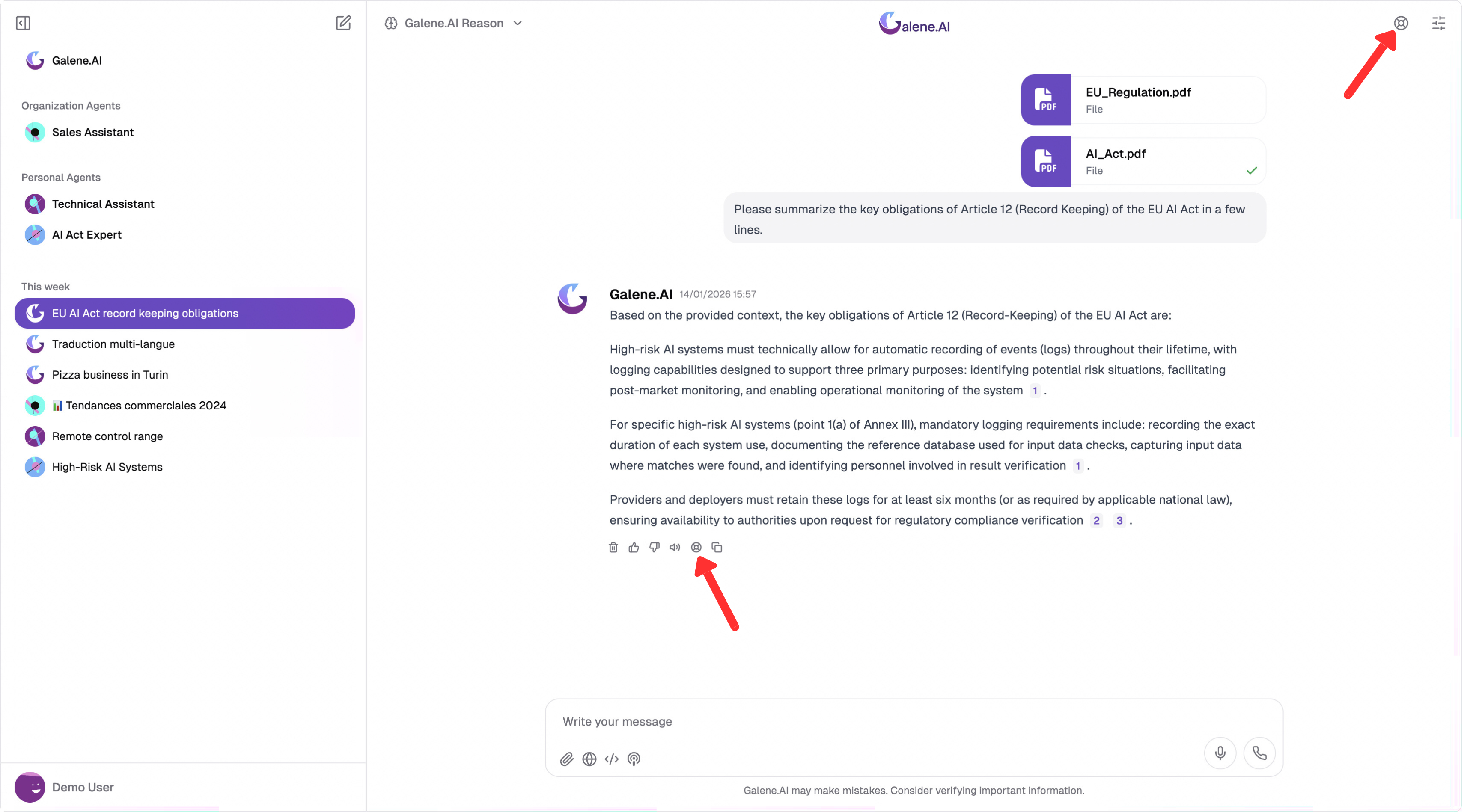
The platform offers two ways to create support tickets, each accessed through different buttons as shown in the image below:
1. Generic Tickets
Standalone tickets for general questions, feature requests, or account-related issues.
Creation: Press the button in the top-right corner to open the general support system.
2. Chat-Based Tickets
Created directly from chat conversations with full conversation context preserved.
Creation: Look for the support button below the chat message where you encountered the issue.
Creating a New Support Ticket
Step 1: Initial Help Prompt
Before you can create a new support ticket, a prompt will appear encouraging you to check the official documentation first. This helps ensure your question hasn't already been answered in a guide.
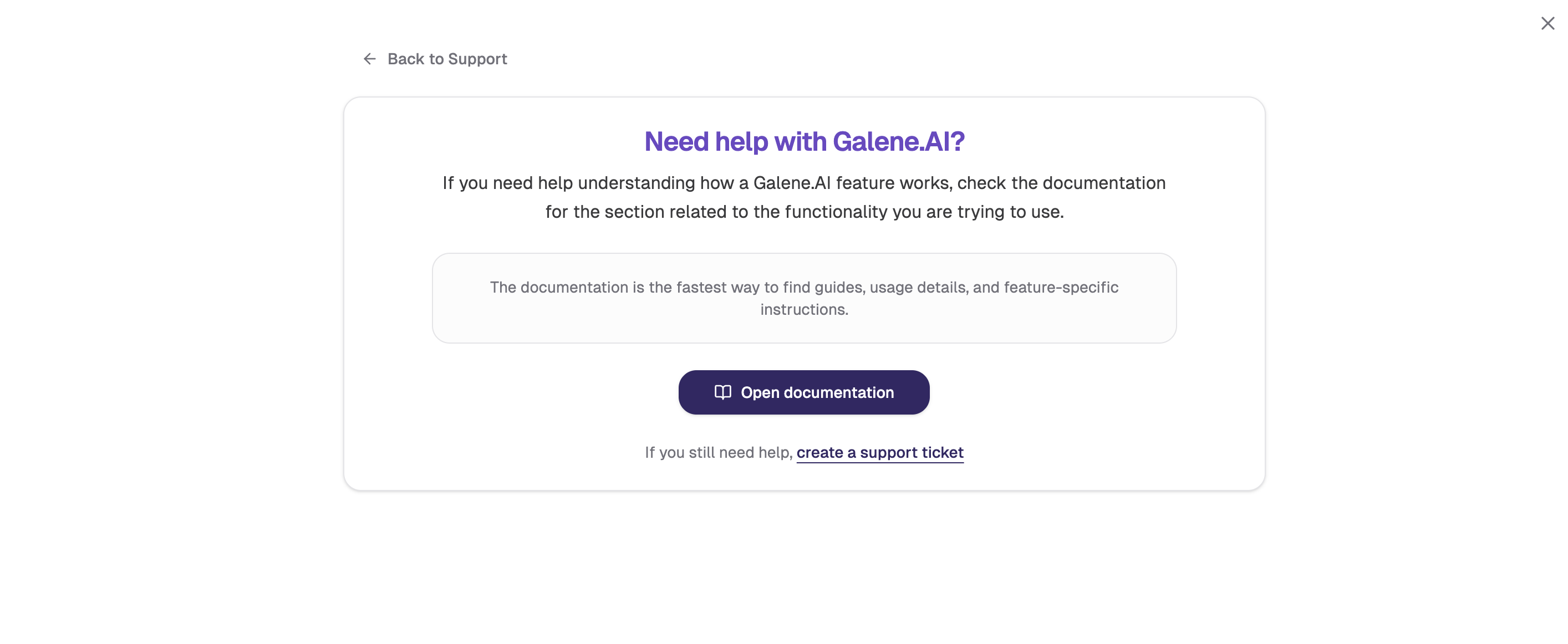
- Open documentation: Click this button to search the self-service user guides and feature documentation.
- create a support ticket: If you still need specialized help, click this link at the bottom to proceed to the creation form.
Step 2: Select a Category
When creating a new ticket, you'll first choose the category that best describes your issue:
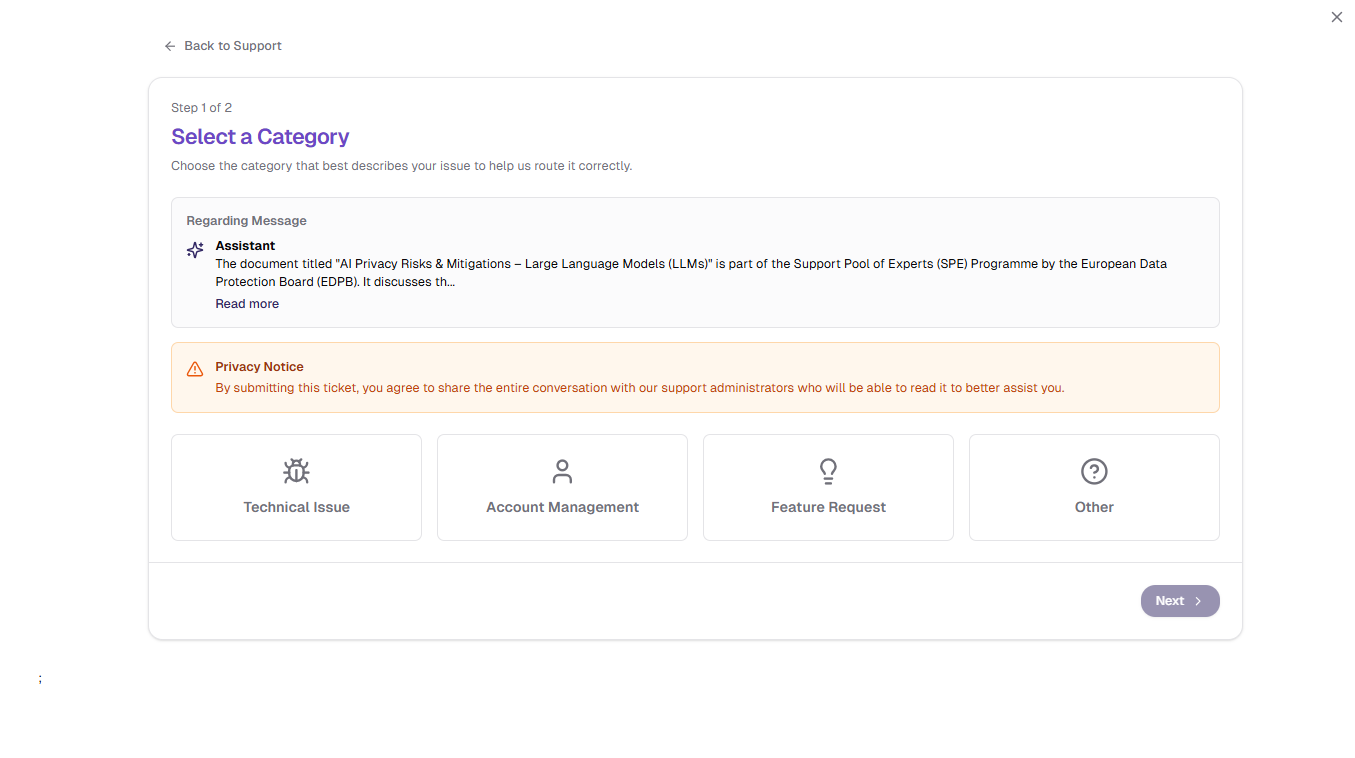
Available Categories:
- Technical Issue: Bugs, errors, platform malfunctions
- Account Management: Billing, user access, account settings
- Feature Request: New features or improvements
- Other: General questions not covered by other categories
Click "Next" to proceed to the ticket details.
Step 3: Describe Your Issue
Provide detailed information about your issue to help our support team assist you faster:
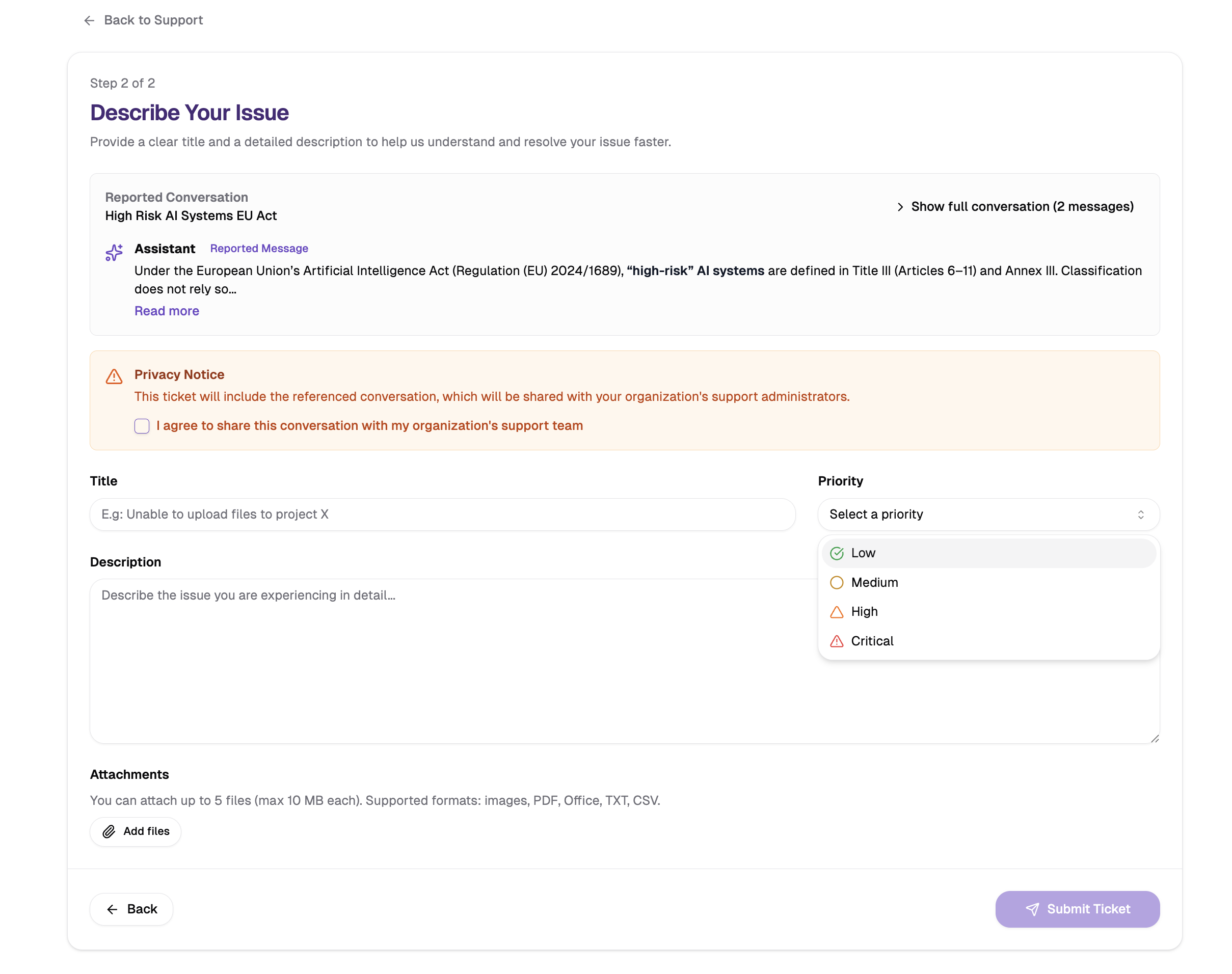
Required Information:
- Title: Clear, concise summary
- Description: Detailed explanation including what you tried, what happened, error messages, and reproduction steps
Priority Levels:
☑︎ Low: General questions, minor issues○ Medium: Work-affecting issues with workarounds△ High: Significant productivity problems▲ Critical: Platform unusable or data loss
Attachments:
You can also attach relevant files or screenshots to your ticket by clicking on the attachments icon. This helps our team diagnose and resolve your issue much faster.
Privacy Notice: By submitting a ticket, you agree to share the entire conversation (for chat-based tickets) with our support administrators to help them better assist you.
Click "Submit Ticket" to create your support request.
Managing Your Support Tickets
Accessing Your Tickets
Once you've submitted your ticket, you can view and manage all your support requests:
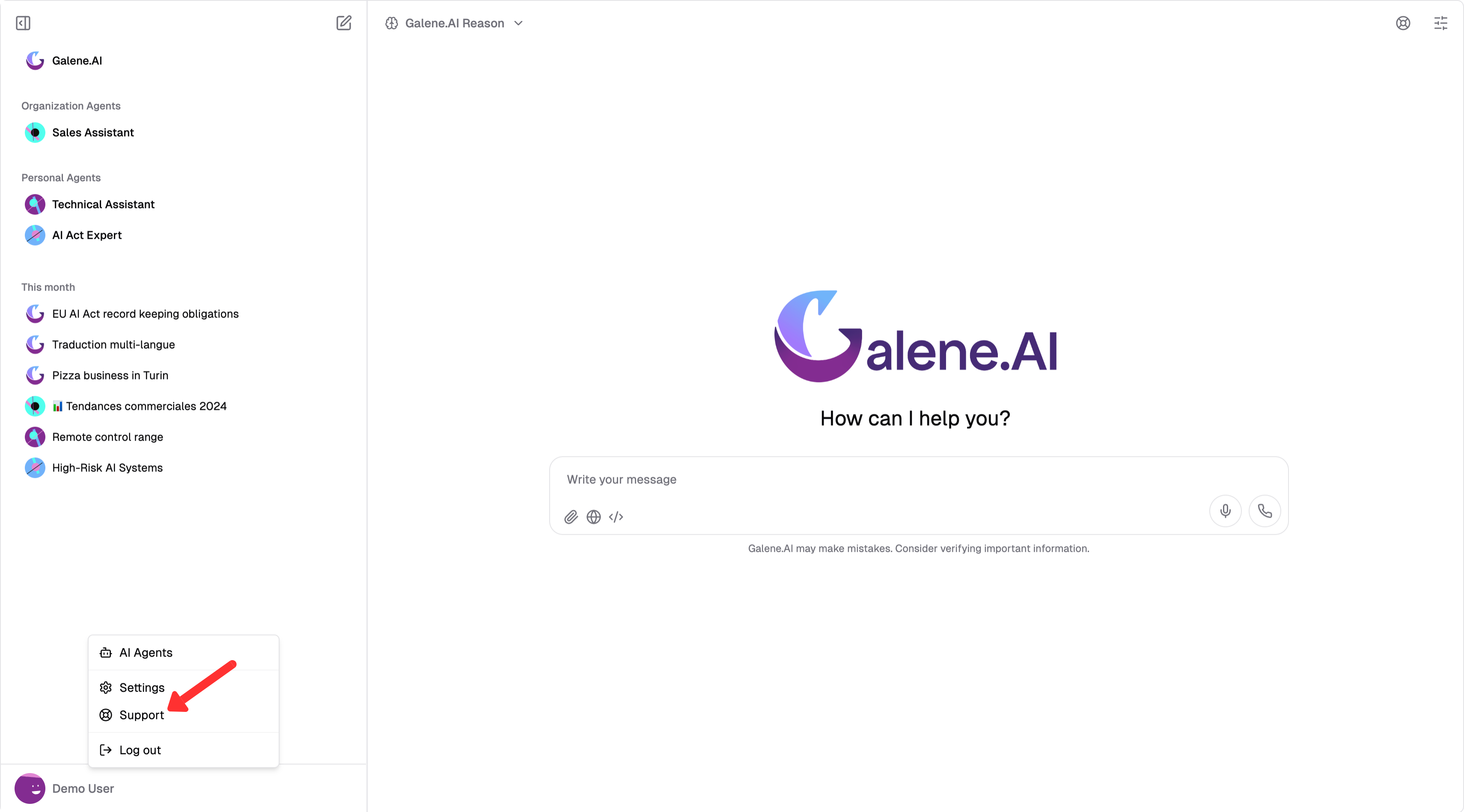
- Click on your username in the top-right corner
- Select "Support" from the dropdown menu
- You'll see a list of all your tickets with their current status
Viewing New Responses
When the support team responds to your ticket or changes its status, you'll be notified in multiple ways:
1. Red Badge Notification:
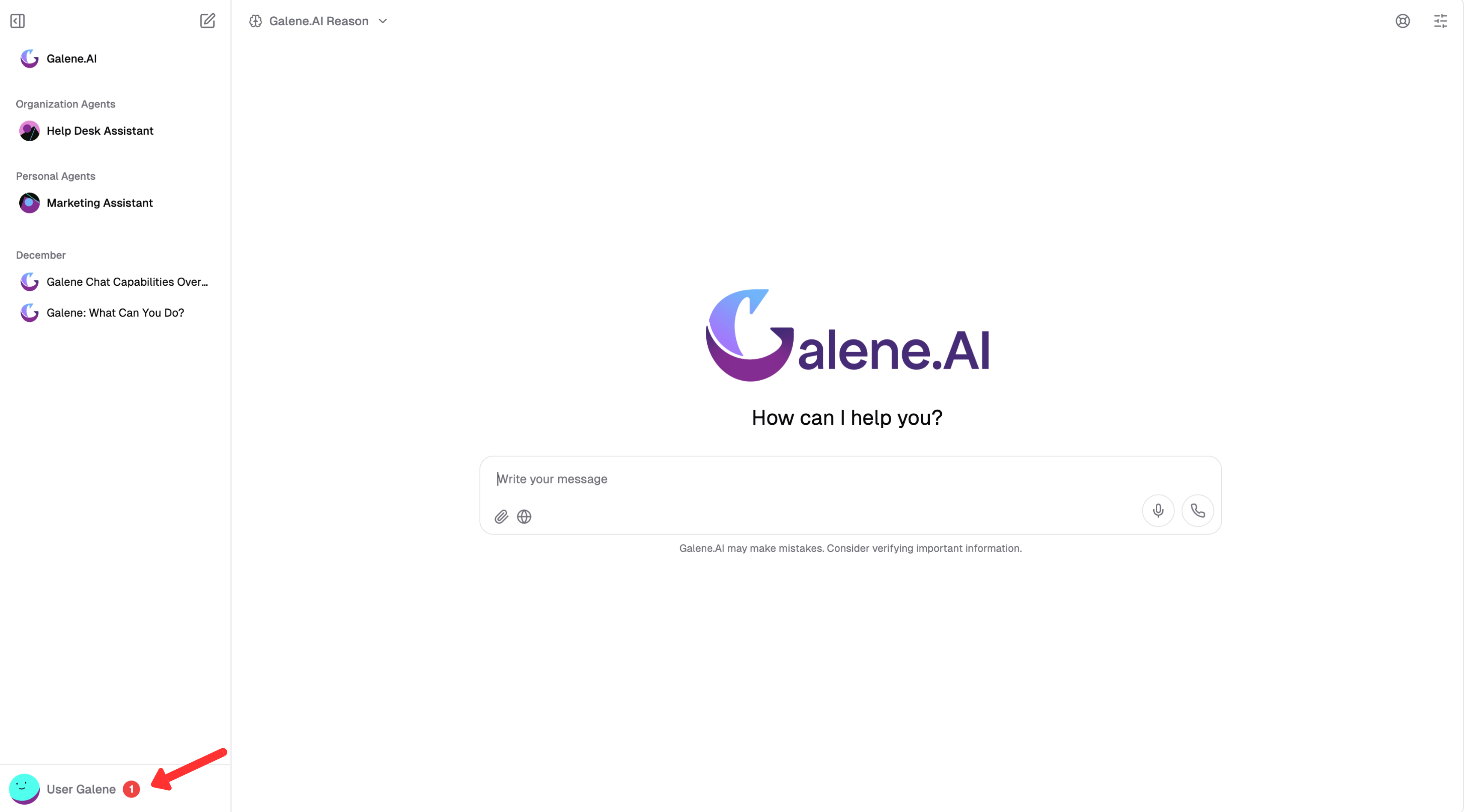
When you have unread ticket notifications, a red badge with a number appears in the top-right corner of the platform. This number indicates how many unread notifications you have across all your tickets.
2. Blue Dot in Ticket List:
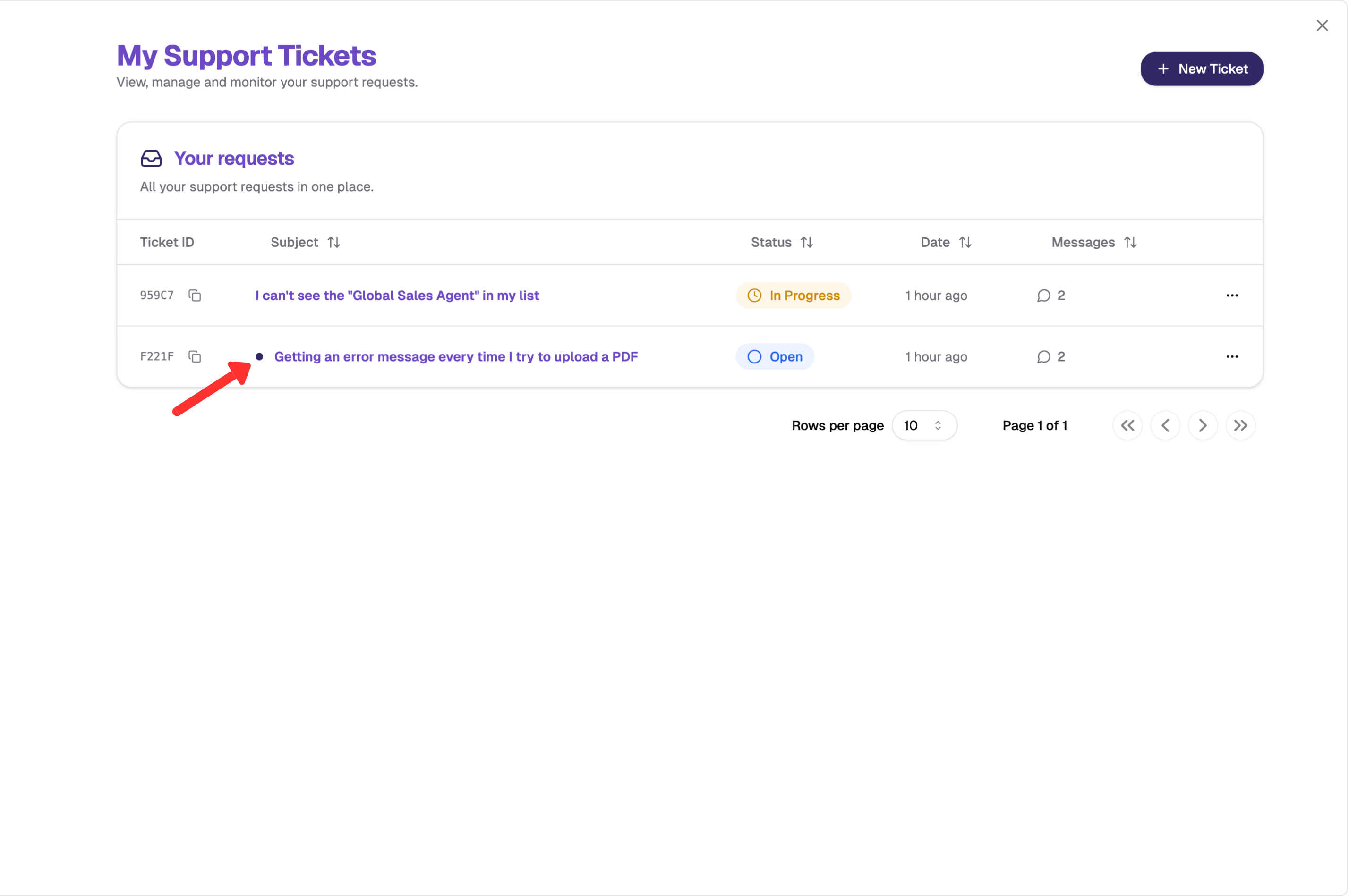
When you open the Support section, tickets with new messages or updates are marked with a blue dot next to their name. This helps you quickly identify which specific tickets have unread messages from the support team.
3. Email Notifications: You'll also receive emails for new responses, status changes, and resolution confirmations.
Viewing and Responding to Tickets
When you open a ticket, you can:
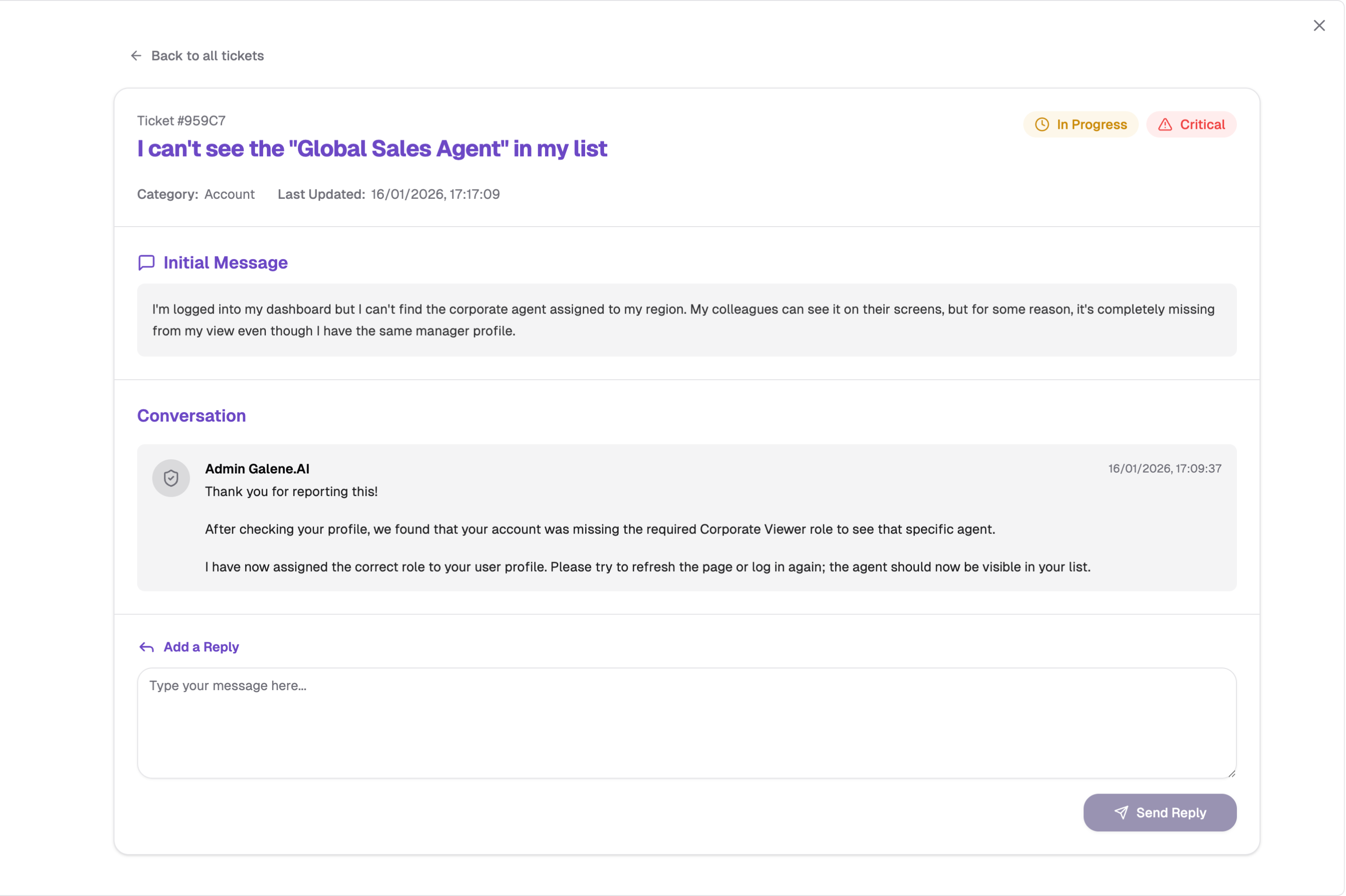
- View Current Status: See the ticket's current state (Open, In Progress, or Done)
- Read Support Responses: Review messages and solutions provided by the support team
- Reply with Additional Information: Add more details, screenshots, or clarifications to help resolve your issue faster
- Track Conversation History: All communication is preserved in chronological order
Ticket Status Levels:
- Open: Awaiting support response
- In Progress: Actively being worked on by support team
- Done: Issue has been resolved and ticket is closed
Tickets can only be closed by the support team after they verify that your issue has been resolved.
When your issue is resolved, please send a message in the ticket confirming that the problem has been fixed. This helps the support team know they can safely close the ticket and ensures your issue was properly resolved.
Creating Effective Tickets: Use descriptive titles, include step-by-step details, add screenshots/error messages, and specify system information.
Priority Selection: Be realistic about urgency, reserve Critical for outages/data loss, handle most issues at Medium priority.
Providing Context: Include relevant conversation context, mention recent account changes, and reference related tickets.
Team Communication: Reply promptly to requests, check tickets regularly, provide requested details, keep related issues together, and create separate tickets for unrelated problems.
Can't Find Ticket: Check correct account login, look in Support section via username menu, search by title/description.
No Notifications: Check email spam folder, verify email address in settings, review notification preferences.
Response Delays: Check ticket priority level, ensure all information provided, consider existing documentation solutions.