Chat Usage
The platform offers two primary ways to engage: Galene.AI Chat for quick, on-demand assistance, and specialized Agents for task-specific interactions with persistent knowledge.
| Aspect | Galene.AI Chat | AI Agents |
|---|---|---|
| Setup | None - use immediately | Initial configuration required |
| Knowledge | Temporary file uploads | Persistent knowledge bases + enterprise data |
| Best For | Quick questions and general assistance, one-time document analysis, brainstorming and exploration, ad-hoc tasks without specialized needs | Repeated tasks requiring specialized knowledge, tasks requiring access to enterprise data, domain-specific expertise and tools |
| Collaboration | Individual use | Shareable with teams |
| Persistence | Settings reset each session | Configuration maintained indefinitely |
Agent configurations (knowledge bases, behavior, capabilities) are persistent and apply to all conversations with that agent. However, the content of individual conversations (your questions, uploaded files, discussion context) is not persistent - each conversation starts fresh with the agent's configured state but without memory of previous conversations.
Models are not trained on conversation data. Conversation data is fully private and encrypted, and can only be accessed for audit and legal reasons.
The Galene.AI Interface
The interface is organized into two hierarchical levels: the Left Sidebar for app-level navigation, and the Conversation Interface for conversation-level interactions.
Left Sidebar
The left sidebar is your navigation hub for the entire Galene.AI platform. It provides access to all conversations, agents, and core functionality.
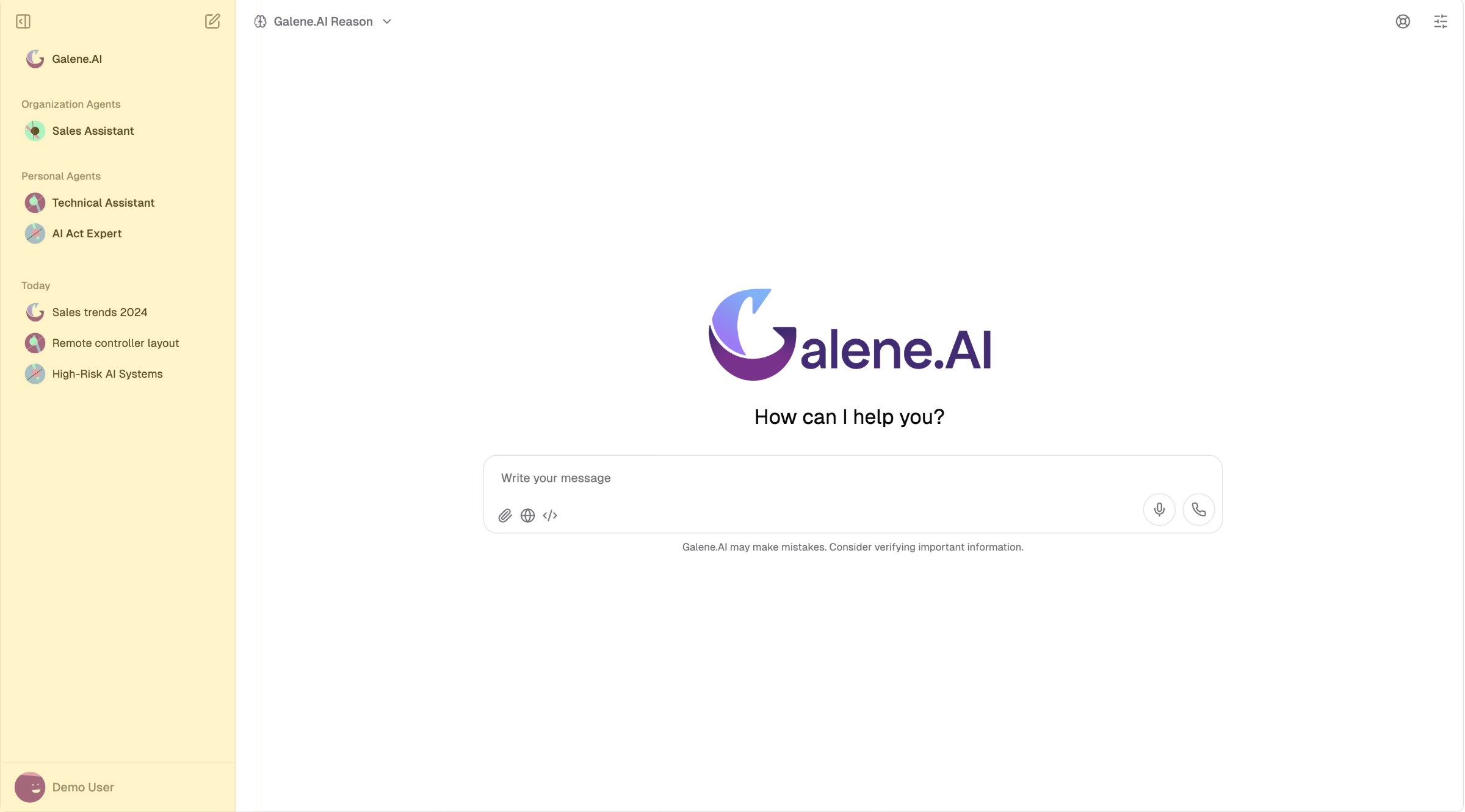
Top Controls
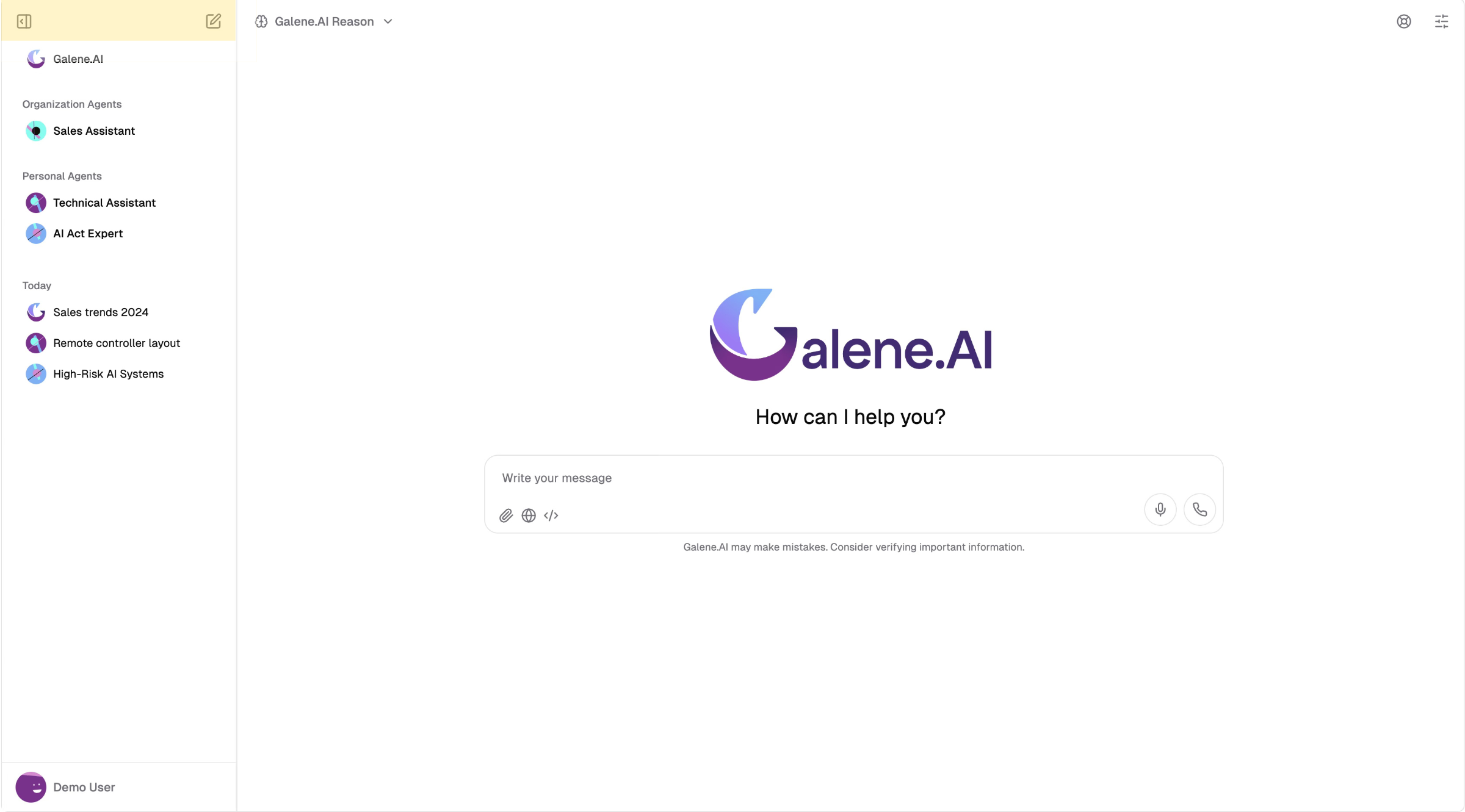
At the very top of the sidebar, you'll find two control icons that affect your overall workspace:
1. Collapse Icon (left side)
- Minimizes the entire sidebar for more screen space
- Useful when you want to focus on the conversation
- Click again to restore the sidebar
2. New Chat Icon (right side)
- Starts a fresh conversation with whatever interface you're currently using
- Works with both Galene.AI Chat and agents
- Opens a blank conversation with no prior context
Galene.AI Chat Button
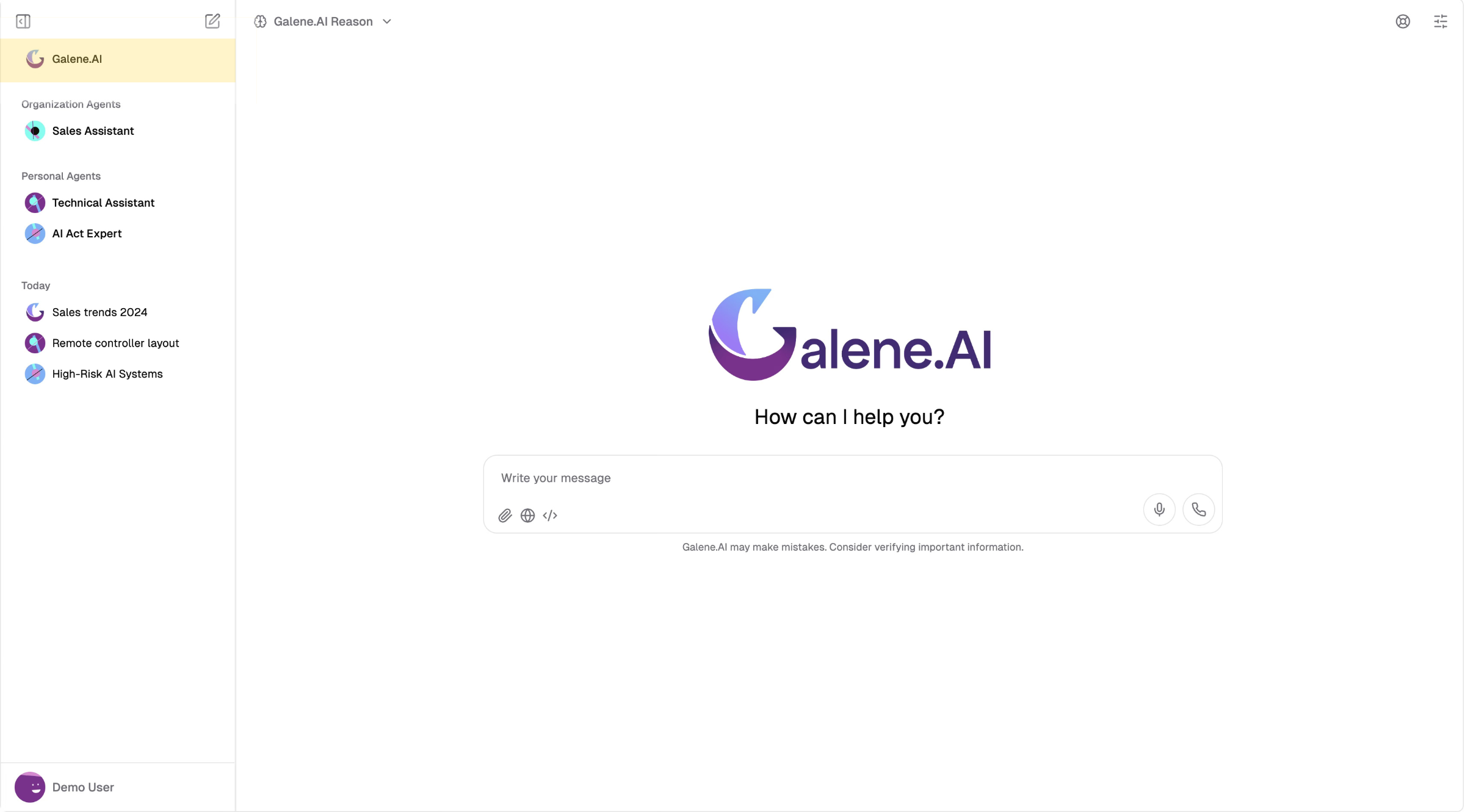
Below the top controls, the Galene.AI logo button is your access point to the general-purpose chat interface described in this guide.
What It Does:
- Opens or returns to Galene.AI Chat
- Starting point for ad-hoc questions and flexible conversations
- Always available regardless of which agents you have access to
Available Agents
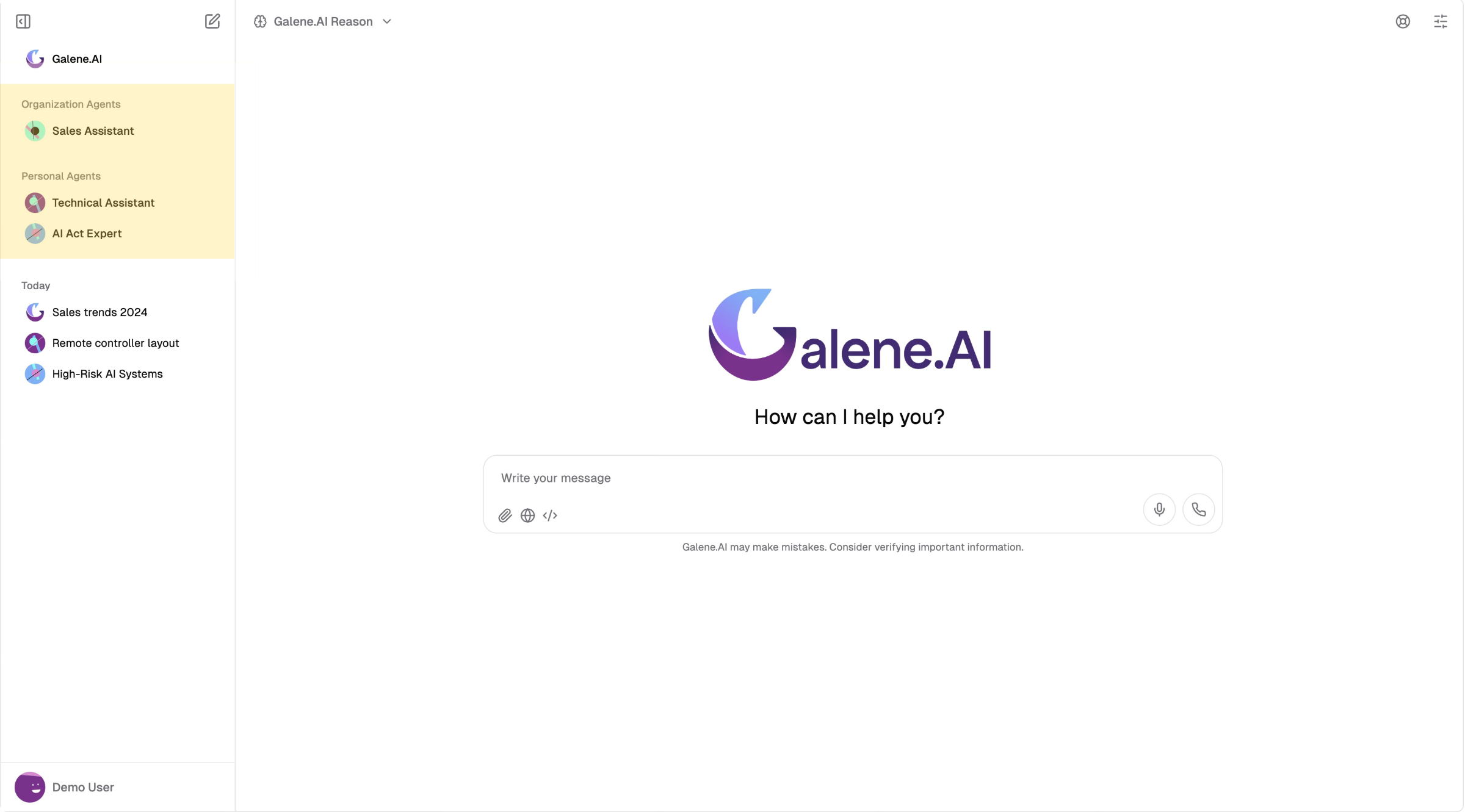
Below the Galene.AI Chat button, you'll see all agents you have access to, organized into Organization Agents (created by admins) and Personal Agents (created by you or shared with you).
How to Access:
- Click any agent name or icon in the sidebar
- Opens a new conversation with that agent's capabilities
- The agent's specialized knowledge and behavior are immediately active
Visual Indicators:
- Each agent displays a name and icon for easy identification
- Icons appear in conversation history to show which agent was used
- Active agent is highlighted in the sidebar
Conversation History
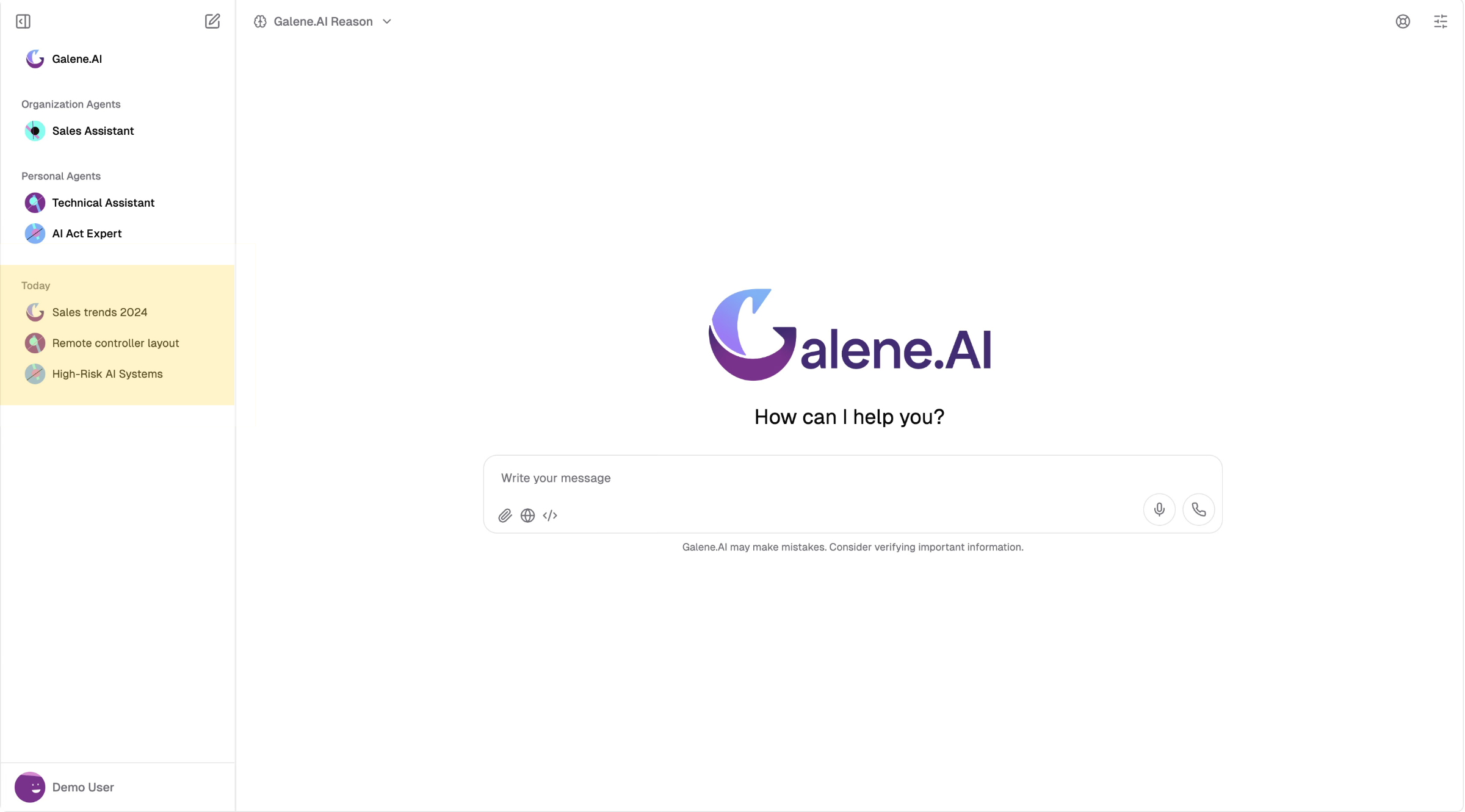
At the bottom of the sidebar, your conversation history provides access to all past conversations.
What It Includes:
- Every conversation with Galene.AI Chat
- Every conversation with any agent
- Automatically saved in chronological order
- Complete context preservation
Each History Entry Shows:
Conversation Title
- Auto-generated from your initial messages
- Helps identify conversations at a glance
- Updates based on conversation content
Interface Icon
- Galene.AI logo for chat conversations
- Agent icon for agent conversations
- Quick visual identification of conversation type
Preserved Context
- All messages (yours and AI responses)
- Uploaded files and their status
- System prompts and personalization settings
- Web search results and sources
Using Conversation History:
- Click any entry to resume exactly where you left off
- All context is restored automatically
- Scroll through history to find past conversations
What This Means:
- No need to re-upload files or repeat context
- Pick up conversations days or weeks later
- Reference past conversations for consistency
- Build knowledge progressively over multiple sessions
User Menu
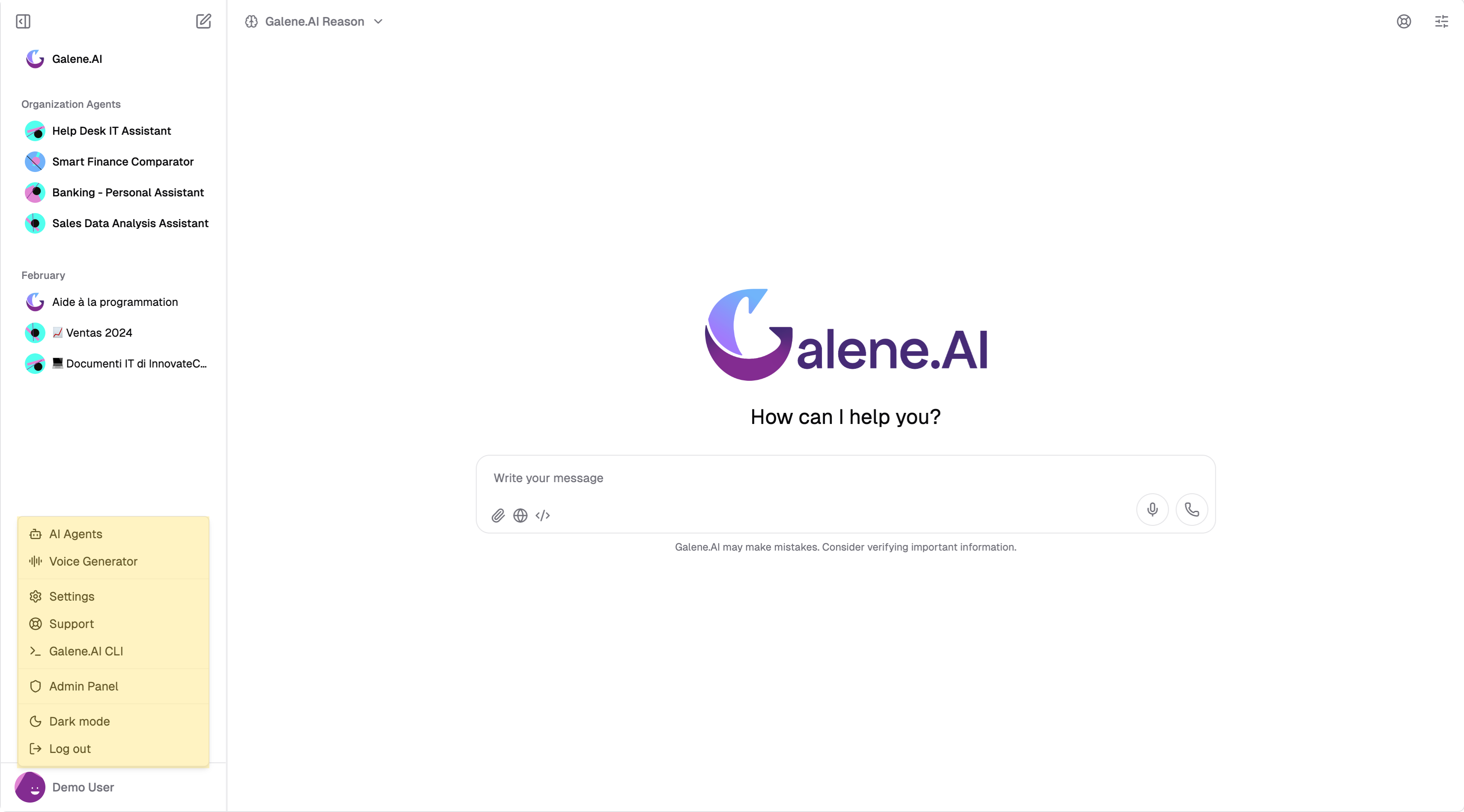
At the very bottom of the sidebar, your profile button displays your avatar and name. Click it to open a dropdown menu with the following options:
| Option | Description |
|---|---|
| AI Agents | Opens the full list of your agents — see Agents Overview |
| Voice Generator | Opens the Voice Generator for text-to-speech generation and voice cloning. Only visible if Voice Input is enabled by your admin |
| Settings | Opens your user settings and preferences — see Authentication & Settings |
| Support | Opens the support section to view and create tickets — see Support Ticketing. A notification badge appears if you have unread responses |
| Galene.AI CLI | Opens the Galene.AI CLI installation page. The CLI lets you interact with Galene.AI from your terminal to generate scripts, refactor code, and manage system tasks using conversational prompts |
| Admin Panel | Opens the Admin Panel in a new browser tab. Only visible to users with admin privileges |
| Dark / Light Mode | Toggles between dark and light theme for the entire interface |
| Log out | Signs you out of the platform and returns to the login page |
Conversation Interface
Once you're in a conversation (either Galene.AI Chat or with an agent), the main interface provides all the tools you need for effective interaction.
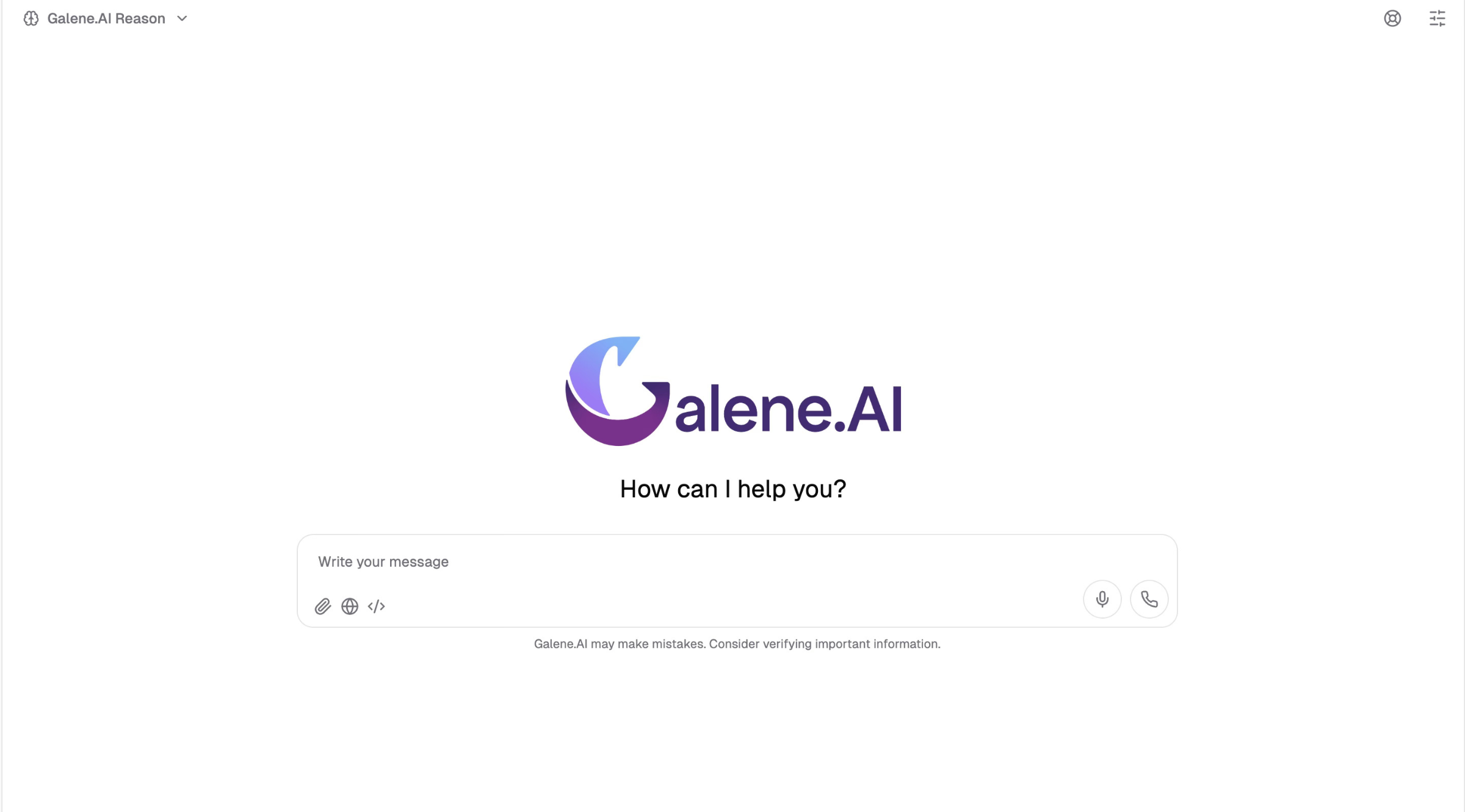
Model Selection
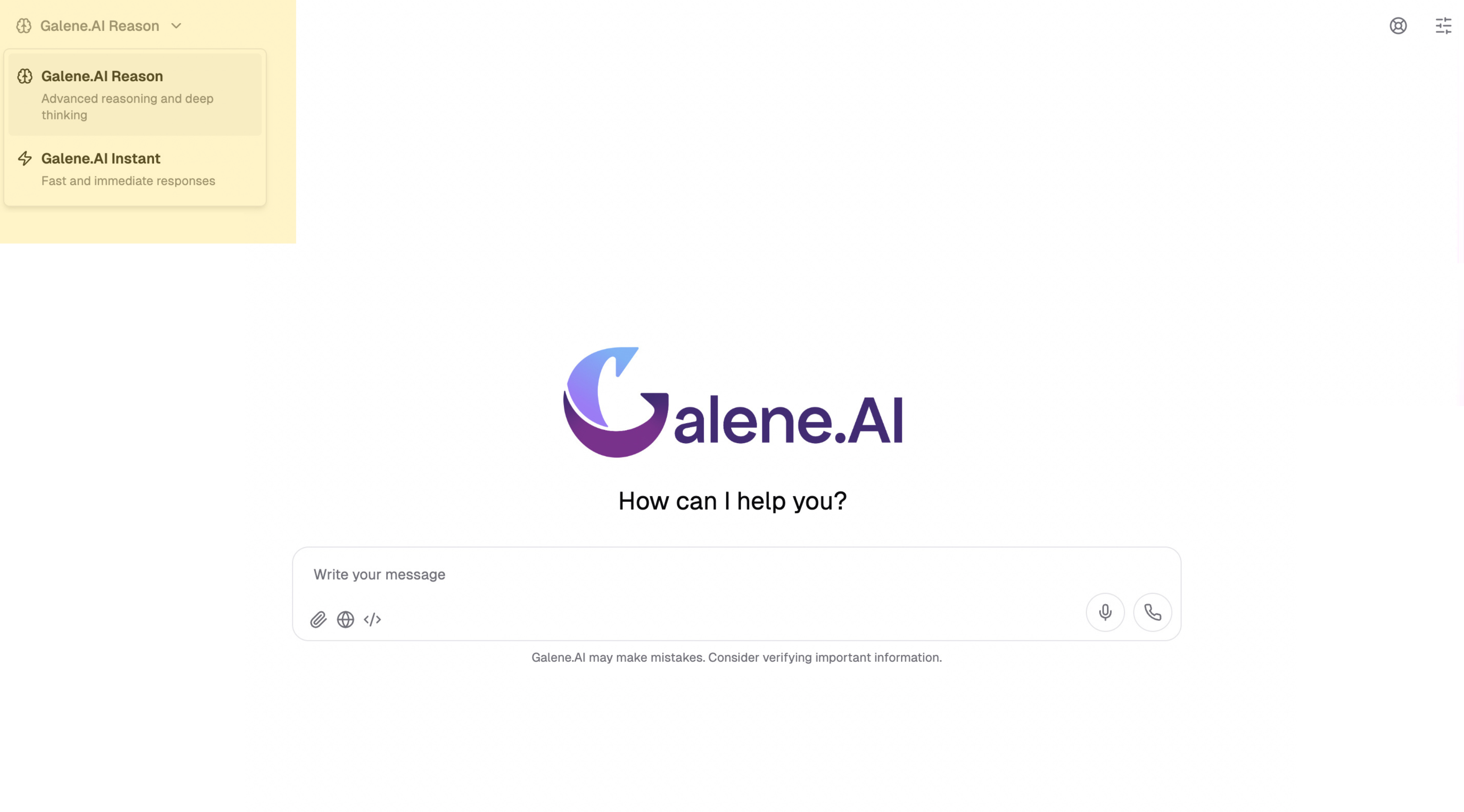
At the top left of the conversation interface, choose between two AI models optimized for different use cases. Both are Vision Language Models (VLMs) that analyze text and images.
- Reasoning Model (Default)
- Fast Model
What It Is: An advanced model that takes more time to process your request but provides deeper analysis and more thoughtful responses.
Best For:
- Complex analysis and problem-solving
- Multi-step reasoning tasks
- Detailed explanations of difficult concepts
- Strategic planning and decision-making
- Code debugging and architecture discussions
- Research and comprehensive document analysis
- Tasks requiring tool usage (web search, file analysis, data queries)
- Generally recommended unless you need immediate responses
Response Characteristics:
- More detailed and thorough explanations
- Better handling of nuanced questions
- Improved logical consistency
- Slower response time (worth the wait for complex tasks)
Using "Answer now" bypasses extended thinking and has the same limitations as Fast Model - responses may lack depth and thorough analysis.
What It Is: A streamlined model optimized for speed, providing quick responses for straightforward questions.
Best For:
- Quick questions with straightforward answers
- Simple document summaries
- Basic information retrieval
- Routine tasks and workflows
- Draft generation and editing
- Simple calculations and conversions
Response Characteristics:
- Near-instant responses
- Concise and direct answers
- Efficient for high-volume interactions
- May lack depth on very complex topics
- May be less effective in longer conversations
You can switch between models mid-conversation - your chat history is preserved.
Message History
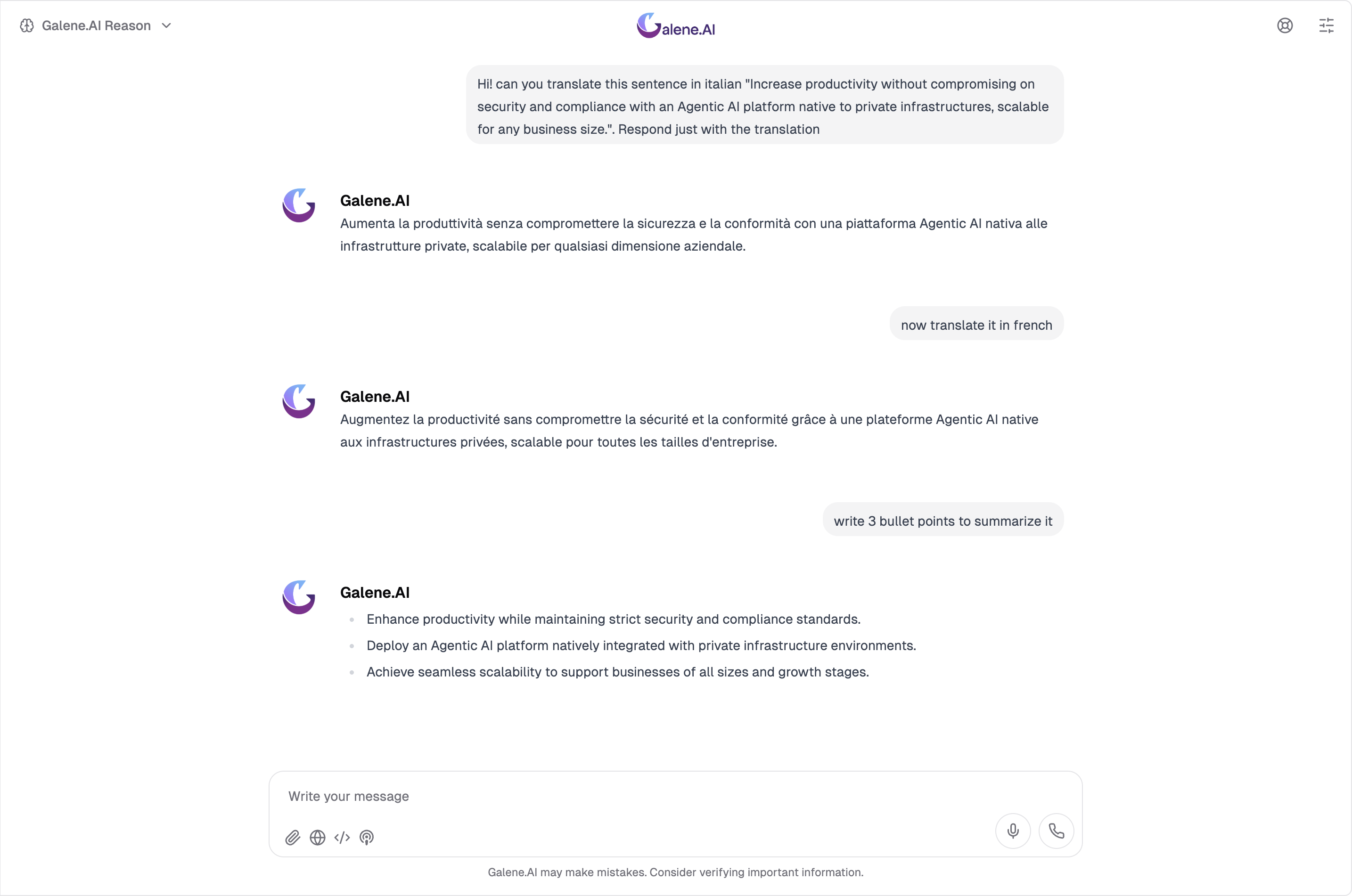
What It Is: The main chat area where your conversation with the AI appears, displaying your messages and the AI's responses in chronological order.
How It Works:
- Messages appear in chat bubbles - yours on the right, AI responses on the left
- The AI maintains context of the conversation
- You can scroll up to review earlier messages
- The conversation persists across your session and can be resumed at any time by selecting it from the conversation history
Context Awareness:
The AI remembers the conversation history within its context window, allowing natural follow-ups:
- "Can you elaborate on point 2?" (references previous message)
- "Now apply that same approach to marketing" (builds on earlier discussion)
- "What did you say about pricing earlier?" (queries conversation history)
What This Means for Your Interaction:
- No need to repeat context in each message
- Build complex discussions over multiple turns
- Refine answers progressively
- The AI understands pronouns and references ("it", "that", "the one you mentioned")
The AI maintains conversation context effectively for typical usage. However, in exceptionally long conversations, context window limits may be reached:
- Reasoning Model: Has a large context window that handles extended conversations well
- Fast Model: Has a smaller context window - rarely an issue for normal conversations
If you notice unusual behavior (like the AI forgetting earlier topics or giving inconsistent responses), the context window may be full. In this case, you can:
- Summarize key points from the conversation so far
- Start a fresh conversation and reference the most important context
Message Input Area
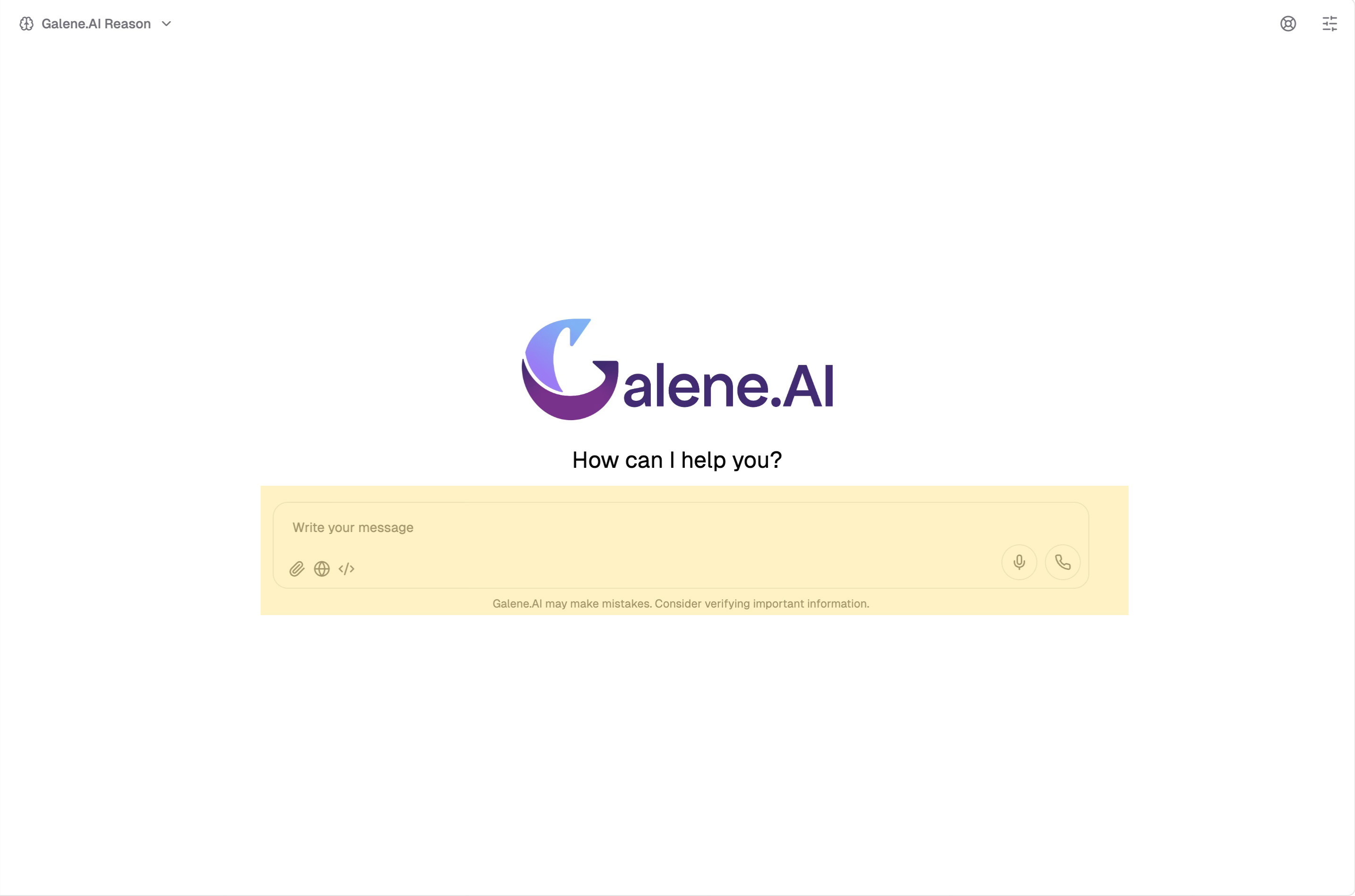
What It Is: The text field at the bottom where you type or speak your messages to the AI.
Text Input
- Click in the input field and start typing
- Press Enter to send (Shift+Enter for new line)
- Messages can be as short or long as needed
- Be specific about what you want ("Summarize in 3 bullet points" vs "summarize this")
- Include relevant context upfront for first messages
- Break very complex requests into multiple messages
- Use clear language - the AI understands natural conversation
Voice Input
Galene.AI offers two voice interaction methods:
- Voice-to-Text
- Voice Conversation
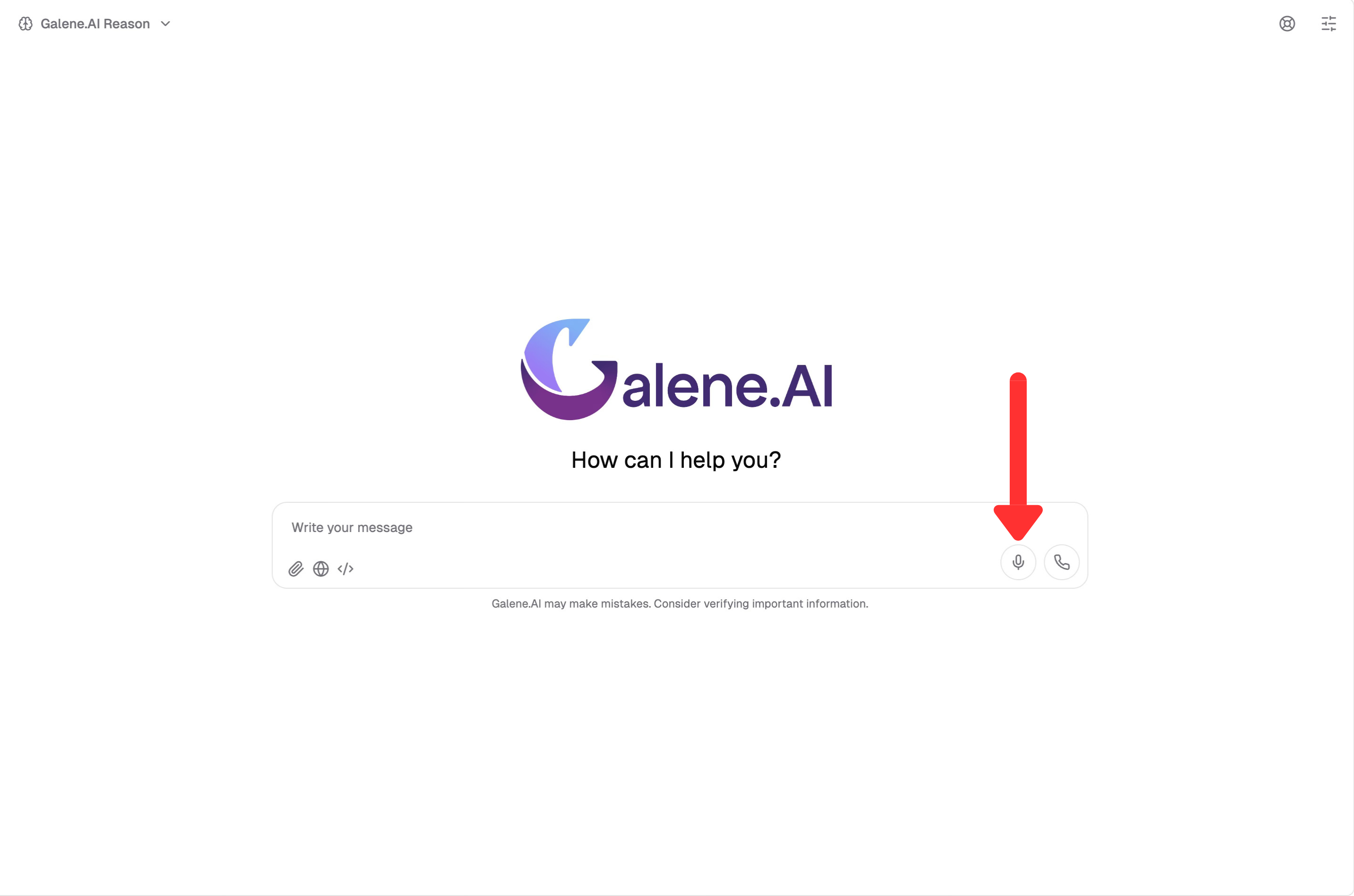
How It Works:
- Click the microphone icon to activate voice-to-text
- Speak your question naturally
- The AI transcribes your speech to text
- The AI responds with text
- Perfect for hands-free typing or when dictation is more convenient
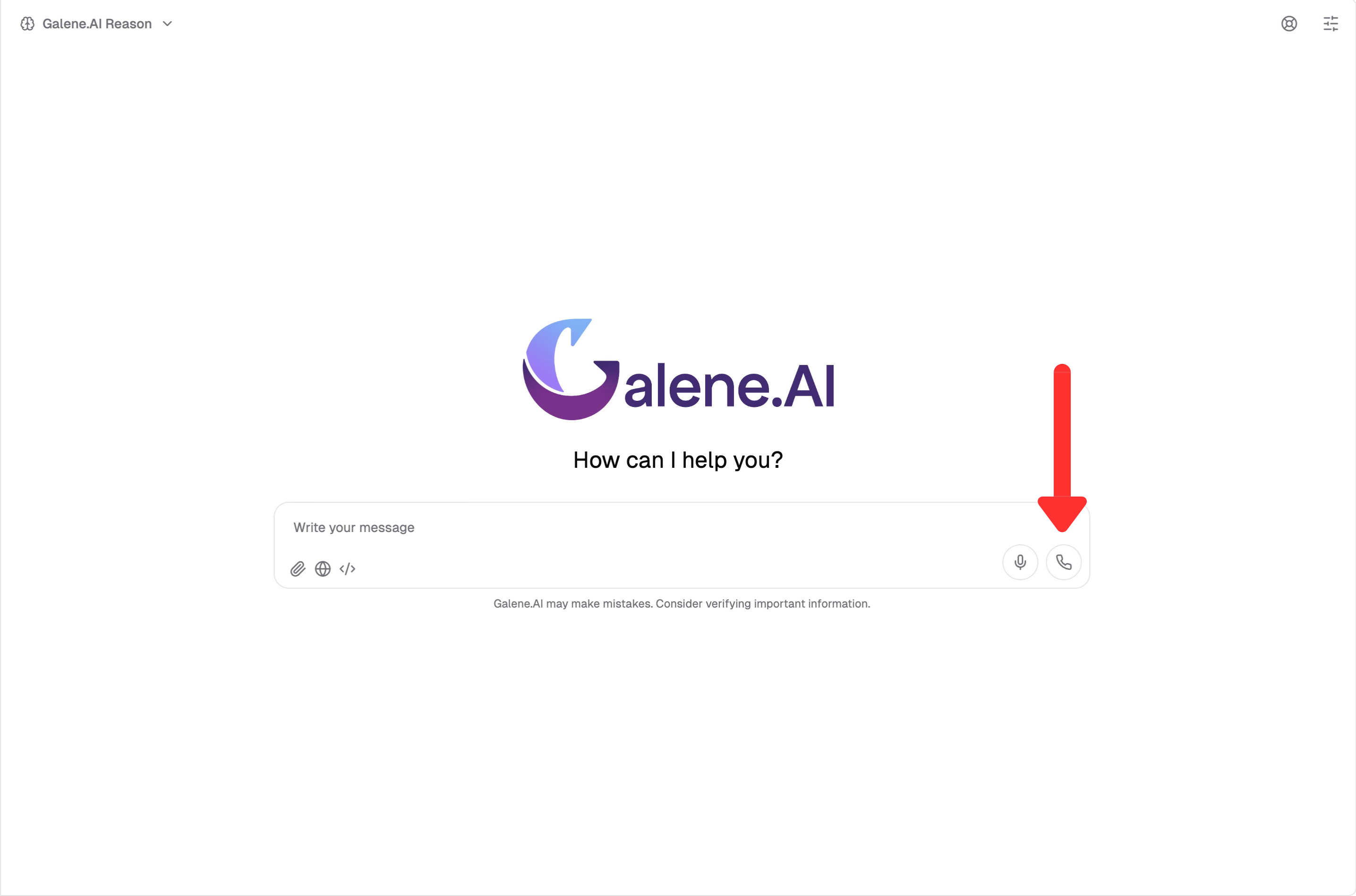
How It Works:
- Click the phone handset icon to start a voice conversation
- Speak your question naturally
- The AI responds with voice audio
- Full back-and-forth voice interaction, like a phone call
- Perfect for completely hands-free operation or while multitasking
Benefits: Faster input for long questions, multitasking support, accessibility features
For more advanced voice capabilities — including generating speech from text, uploading personal voice samples, and voice cloning — see the Voice Generator guide.
Voice features may not be available in all installations. If you don't see the voice icons or the Voice Generator in the sidebar, your organization may not have voice capabilities enabled. Contact your administrator to enable Voice Input in Platform Capabilities.
Document Search Mode
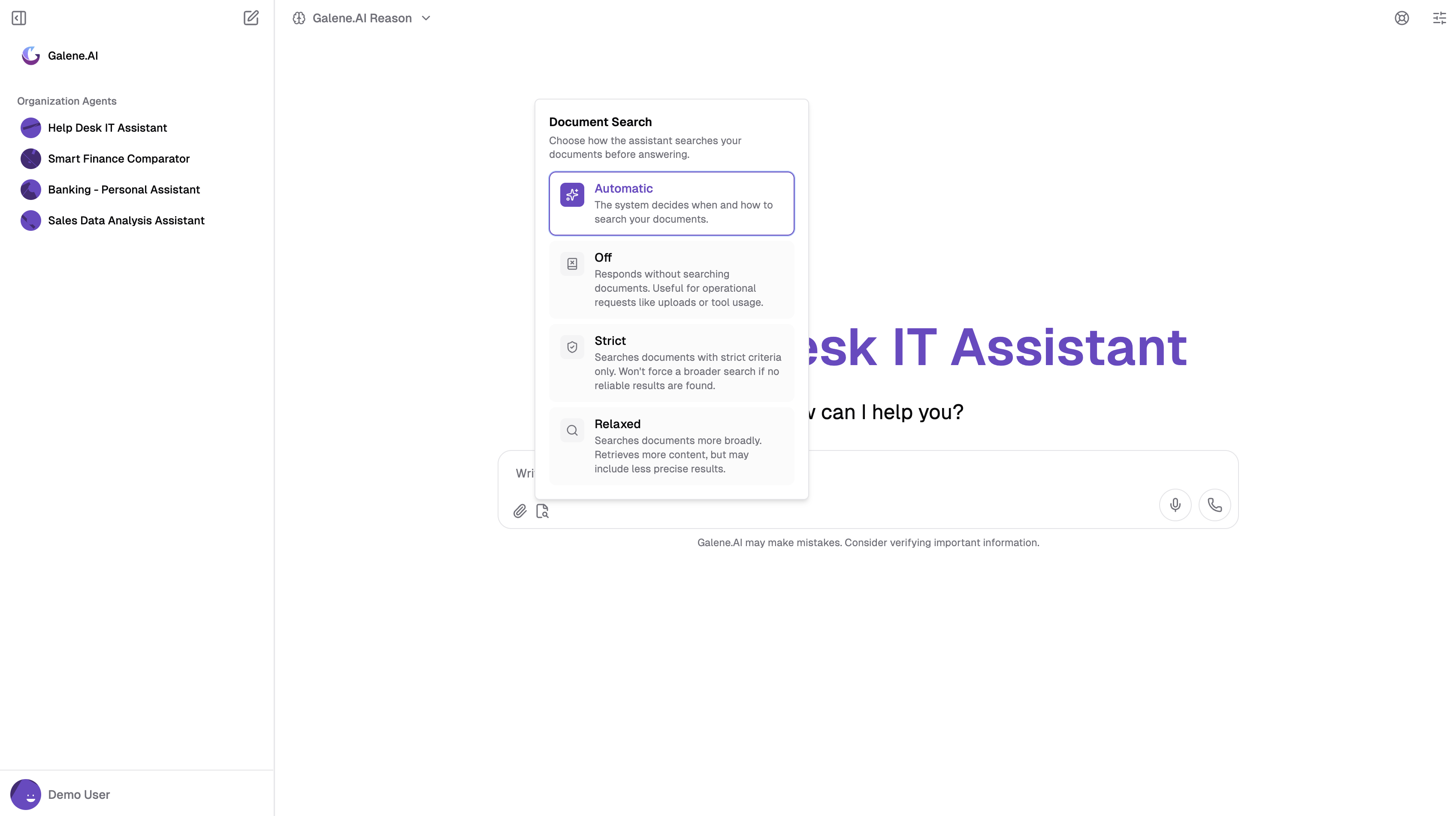
Use the Document Search selector (found in the input area) to customize how the assistant queries your documents before generating an answer. This configuration overrides default settings and applies to all uploaded files as well as the agent's connected knowledge bases.
There are four available modes:
| Mode | Behavior |
|---|---|
| Automatic | The system decides when and how to search your documents |
| Off | Responds without searching documents |
| Strict | Searches with strict criteria only; will not broaden the search if no reliable results are found |
| Relaxed | Searches more broadly and retrieves more content, but may include less precise results |
For more details, see Document Search Mode guide.
The Document Search mode selector is only shown when there are documents available in the conversation (uploaded files or agent knowledge bases). If no documents are present, document search is not performed regardless of the selected mode.
Web Search Capability
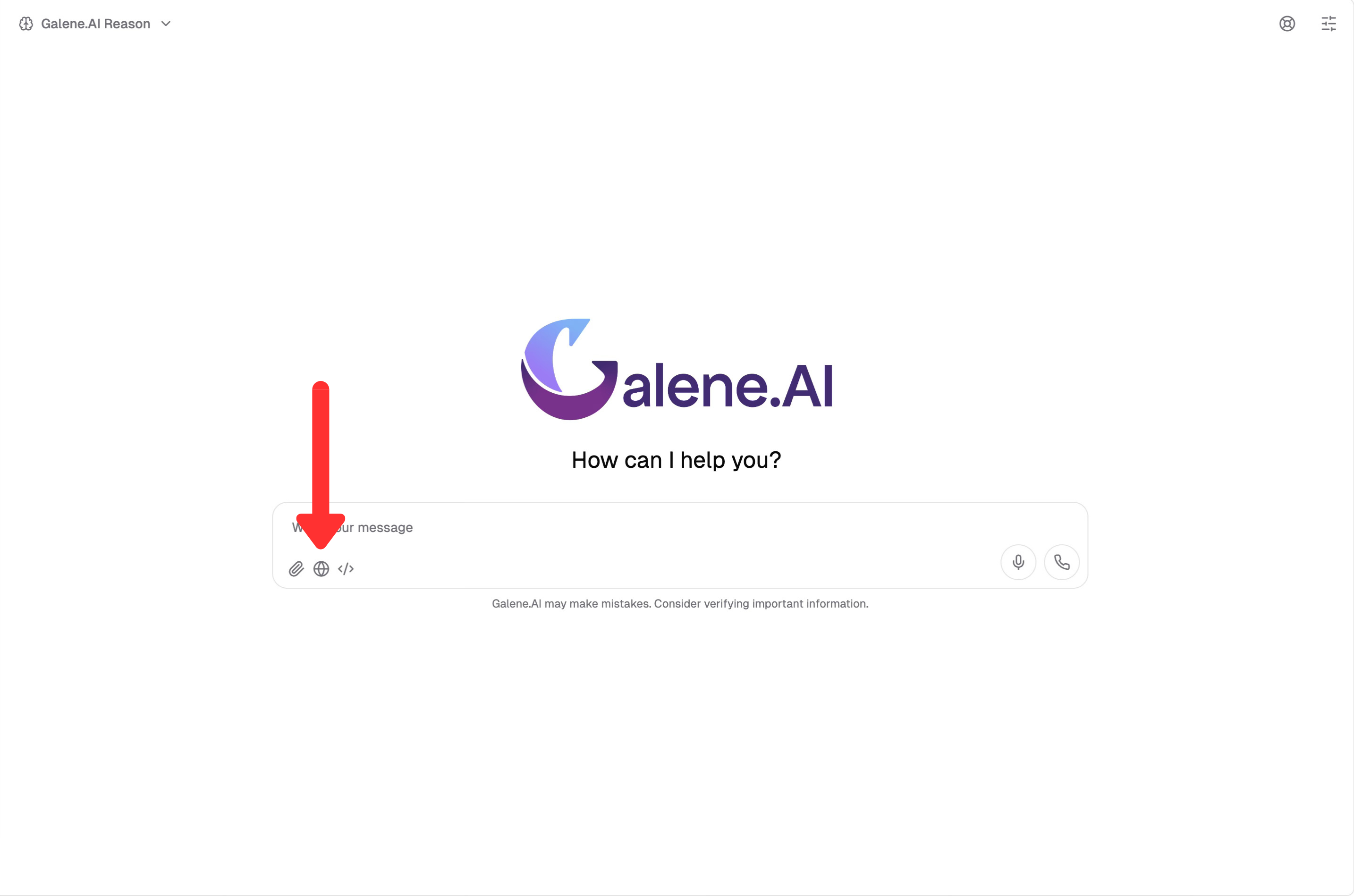
Toggle Web Search to enable the AI to access current information from the internet.
When to Use: Questions about current events, recent developments, pricing, reviews, or any up-to-date information.
How Web Search Works
Process:
- You ask a question requiring current information
- The AI searches the web for relevant, authoritative sources
- Information is synthesized from multiple sources
- The response includes proper citations
Example Questions:
- "What are the latest developments in [technology/news topic]?"
- "What's the current price of [product/stock]?"
- "What are recent reviews saying about [product/service]?"
Impact on Response:
- Slightly slower responses (due to web search time)
- Responses include "Sources" section with links
- Information is up-to-date, not just from training data or uploaded files
File Upload
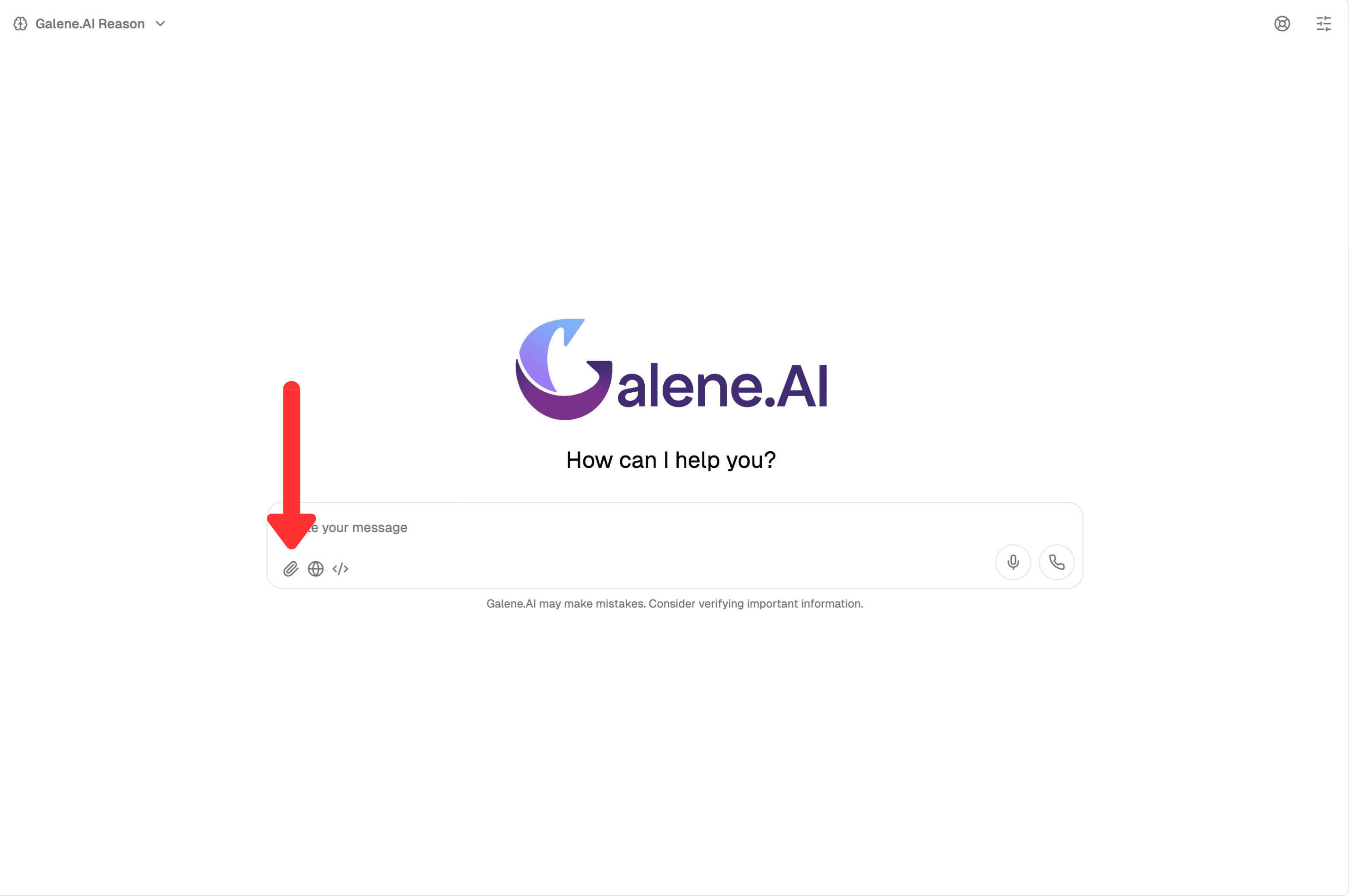
Provide documents directly into your conversation for the AI to read and reference.
How to Upload:
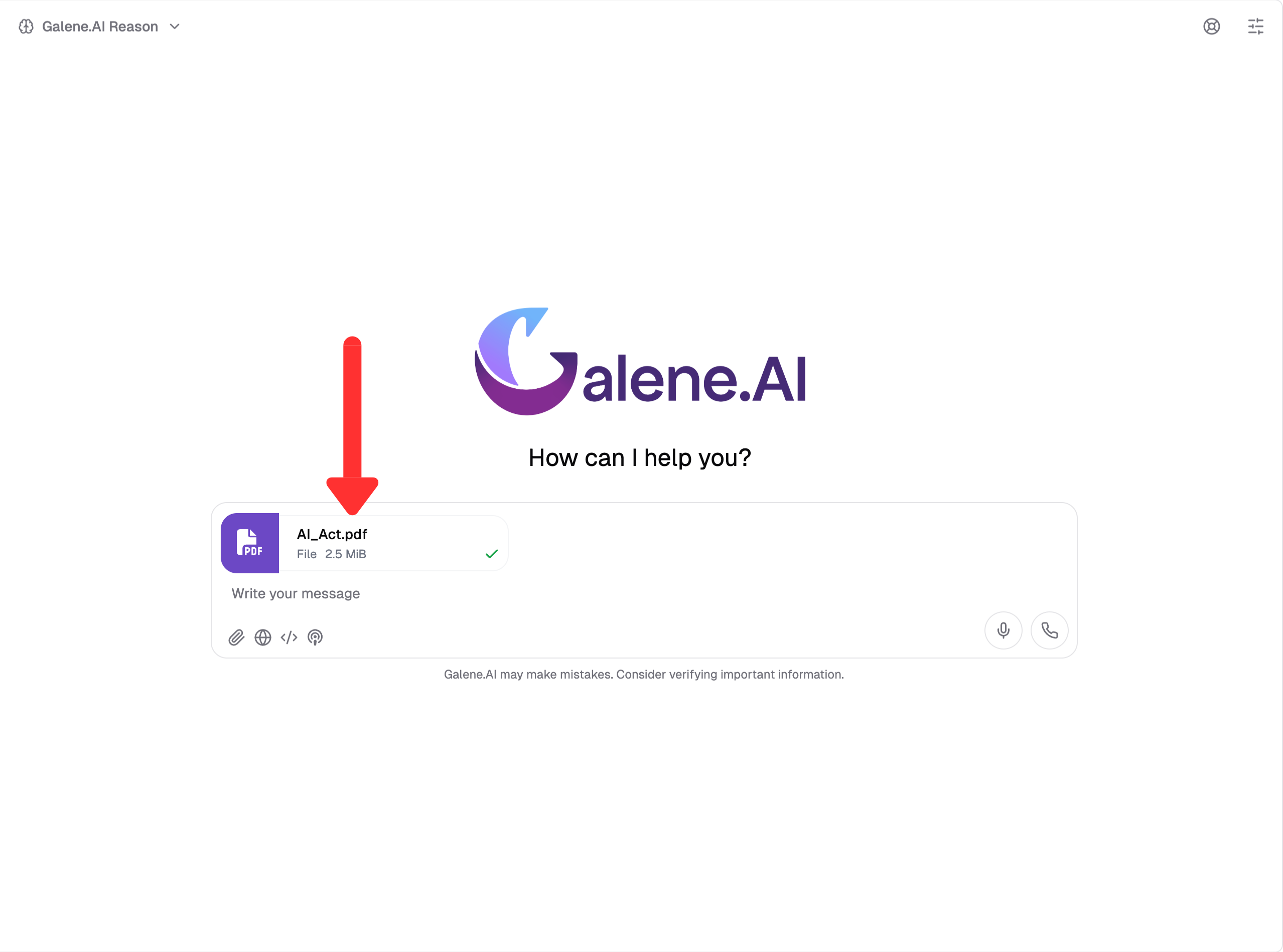
- Click the paperclip icon or drag and drop files into the chat window
- Files appear with status indicators once uploaded
- The AI can now access these documents
Supported: .PDF, .DOCX, .TXT, .EPUB, .XLSX, .CSV, .PPTX, .PNG, .JPG, .JPEG, .EML
How the AI Uses Your Files
When you ask questions, the AI uses semantic search to find relevant content in your uploaded files. This means it understands the meaning and context of your question, not just exact keywords, and retrieves the most relevant sections based on conceptual similarity.
Example Conversation:
You: [Upload quarterly_report.pdf] What were our main achievements this quarter?
AI: [Searches the document semantically] According to the quarterly report, the main achievements were...
File Status Indicators:
- Processed - File is ready, AI can now use it
- Processing - File is being analyzed, wait a moment
- Error - File couldn't be processed, check format and try again
For detailed information on semantic search and RAG (Retrieval Augmented Generation), see Adding Knowledge Sources.
Conversation Customization
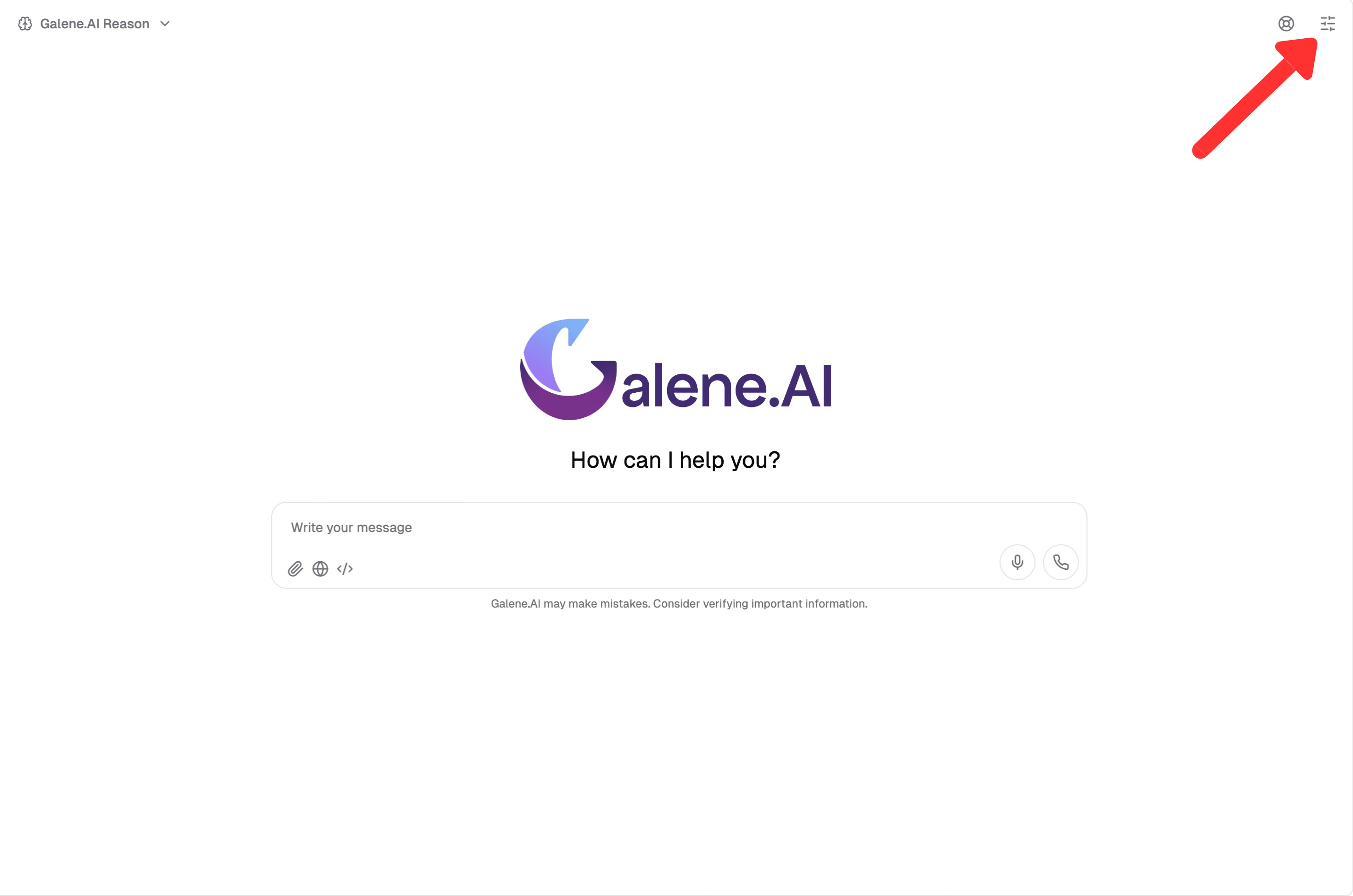
While in any conversation (Galene.AI Chat or agent), you can click the customization button in the top-right corner to open a right sidebar that gives you control over files and conversation-specific instructions.
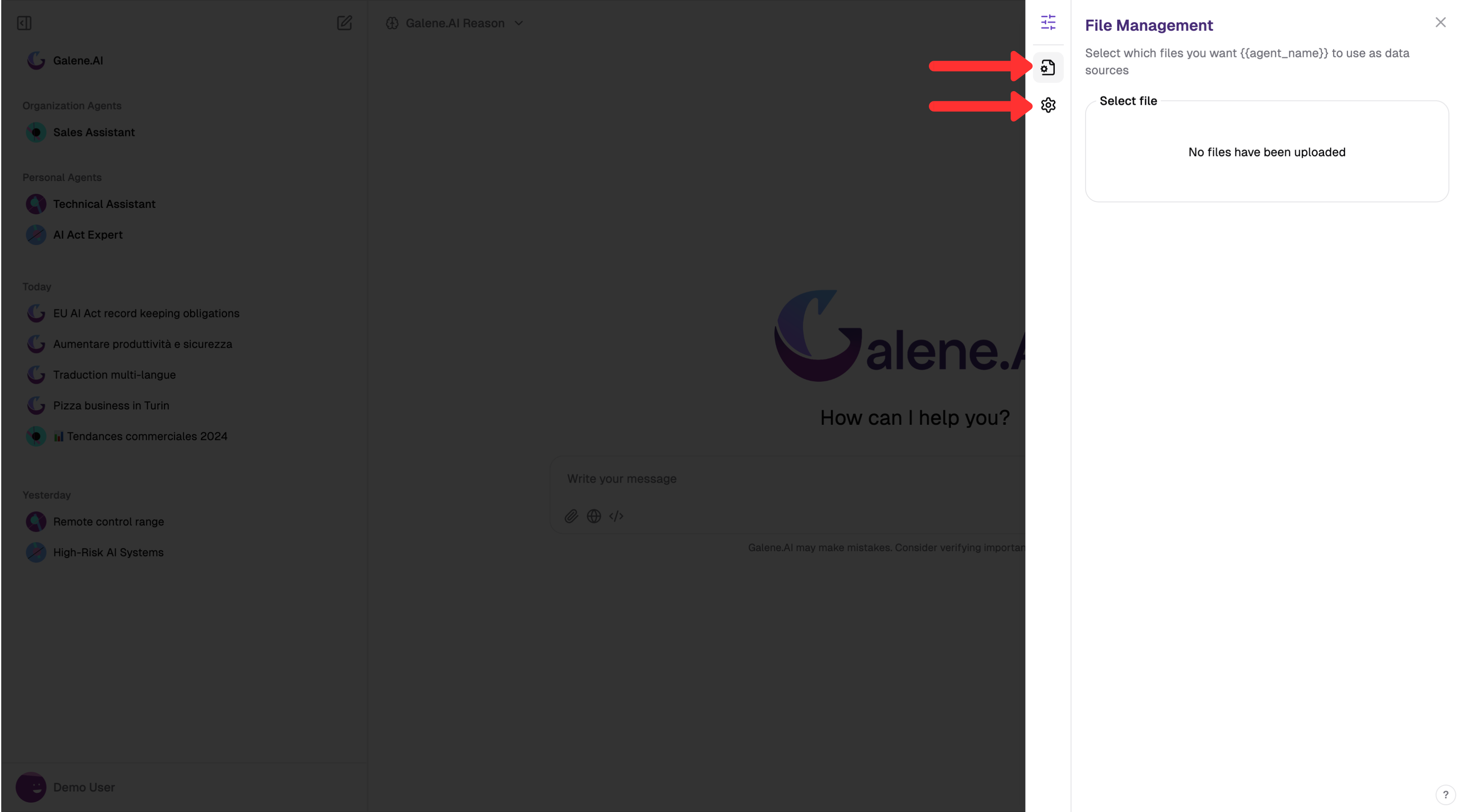
The right sidebar contains its own small left-side navigation with two options:
- File Management (first icon) - Control which uploaded files are active
- Personalization (second icon) - Add conversation-specific knowledge and behavior
File Management
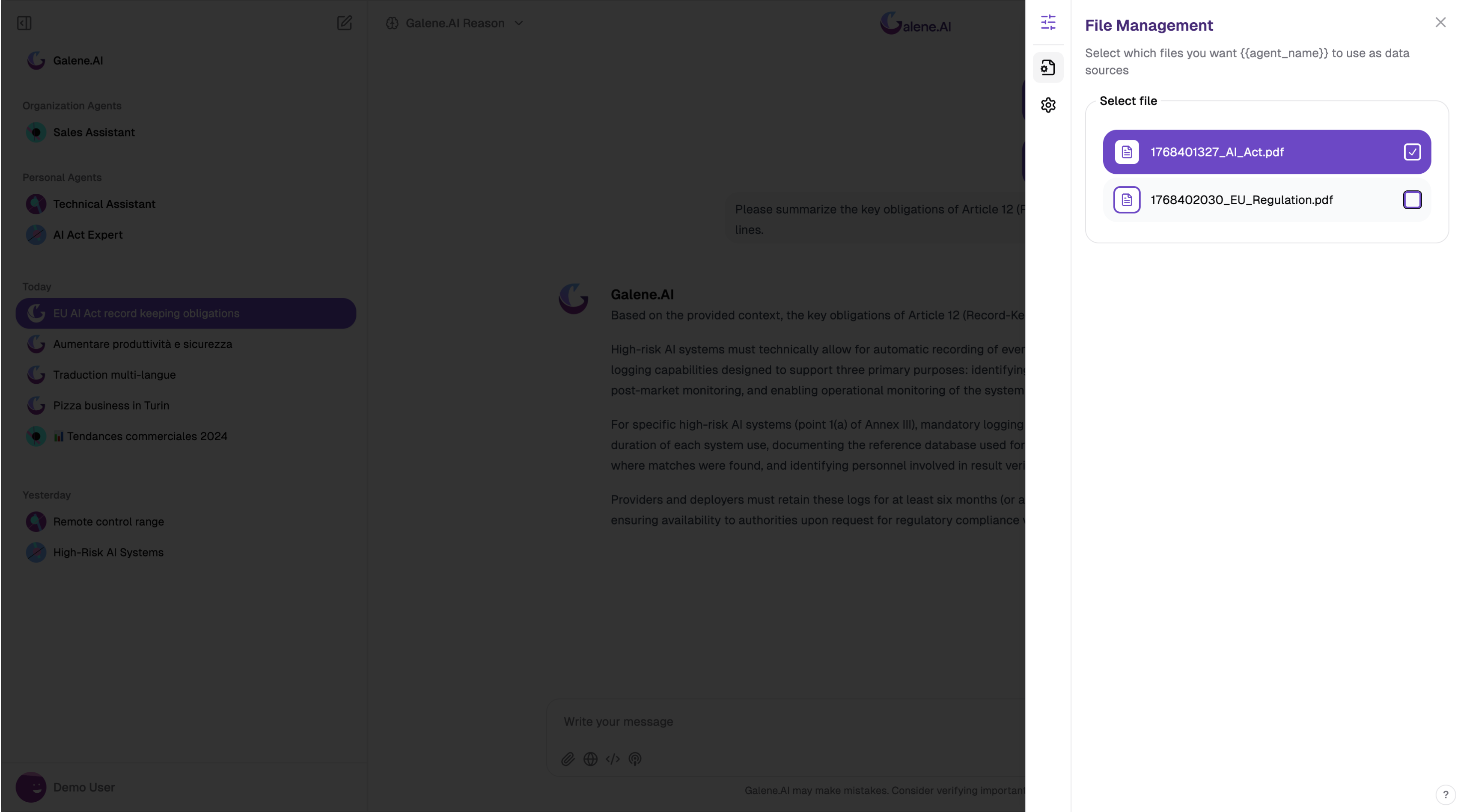
Click the File Management icon (top) in the sidebar navigation to manage which files the AI can access.
Active Files Selection:
All uploaded files are attached and active by default. Use checkboxes to selectively enable or disable files:
- Uncheck files that are no longer relevant to your current questions - this helps the AI focus on the right documents and provide better answers
- Re-check files at any time to make them available again for future questions
- Files remain in the conversation even when unchecked - you're just controlling whether the AI searches them
Example: If you have both technical documentation and marketing materials uploaded, you may uncheck the marketing files when asking technical questions to help the AI focus on relevant content.
What This Means:
- Ask multiple questions about the same files without re-uploading
- Switch between different file combinations using checkboxes
- Files are automatically removed when you start a new conversation
- Each conversation has its own independent set of uploaded files
Why Use File Management:
- Focus the AI: Direct it to search only the most relevant documents
- Reduce noise: Temporarily disable files that might confuse the context
- Organize context: Manage multiple documents efficiently in a single conversation
- Check status: Verify which files are processed and currently active
Personalization
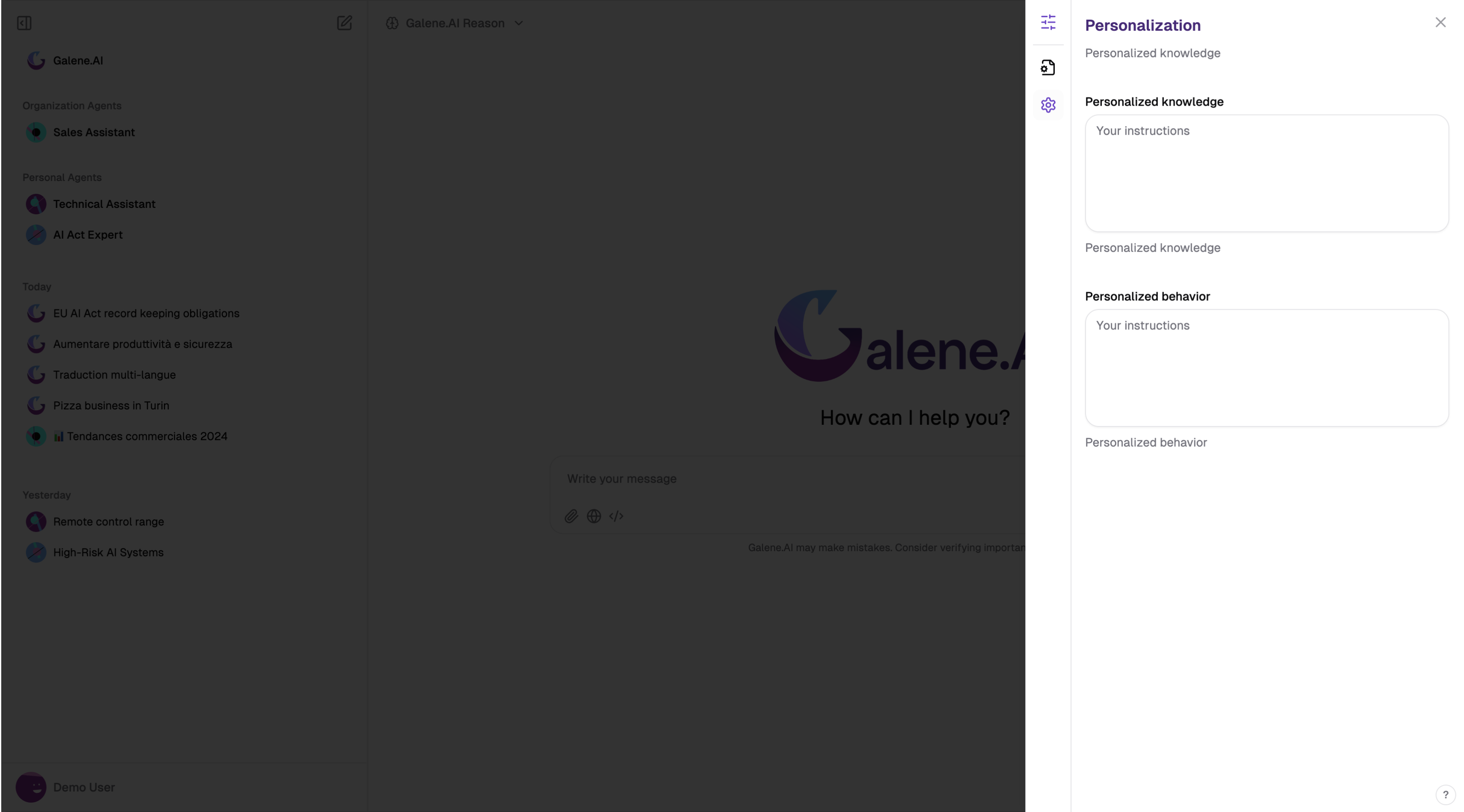
Add conversation-specific instructions that customize the AI's behavior for the current conversation only.
Key Points:
- Apply only to the current conversation (temporary)
- Work alongside agent configurations (additive, not replacement)
- Reset when you start a new conversation
- Two types: Knowledge (context) and Behavior (formatting/style)
Personalized Knowledge - Add context the AI should know
What It Does: Add specific information or context that the AI should be aware of throughout the conversation.
When to Use:
- Provide background information about your project or situation
- Share relevant context that applies to multiple questions
- Add temporary reference information for this conversation only
- Include domain-specific terminology or acronyms unique to your needs
Example:
Project context: We're launching a new SaaS product called "DataFlow"
targeted at mid-market companies. Our fiscal year runs April-March.
When I mention "Q3", I mean October-December.
Result: The AI understands your project context and interprets terminology correctly
Personalized Behavior - Define response format and style
What It Does: Define how the AI should respond and format its answers in this conversation.
When to Use:
- Set preferred response formats (bullet points, tables, step-by-step)
- Define tone and style preferences
- Request specific types of analysis or explanation
- Establish conversation-specific conventions
Good Examples:
Always provide responses in bullet points with clear headings.
Be concise and avoid unnecessary explanations.
Structure your answers with three sections:
1) Summary, 2) Detailed Explanation, 3) Example
When explaining concepts, always include a practical real-world
example at the end. Use technical language appropriate for engineers.
Personalized Behavior is for formatting and style preferences. For specialized expertise or persistent roles, create a dedicated agent instead:
- ❌ "You are a marketing expert" → Create a marketing agent
- ✅ "Always respond in bullet points" → Good for Personalized Behavior
How Personalization Integrates
For Galene.AI Chat:
The AI builds responses using:
- Your personalized knowledge (context you provided)
- Your personalized behavior (formatting/style preferences)
- Conversation history
- Uploaded files (if any)
- Web search results (if enabled)
For Agent Conversations:
The AI combines:
- Agent configuration (persistent instructions, tools, databases, etc.)
- + Your personalized knowledge (conversation-specific context)
- + Your personalized behavior (temporary formatting preferences)
- Conversation history
- Uploaded files (if any)
Example: Using a "Technical Documentation Agent" with personalization:
Personalized Knowledge: "We're documenting the new API v2.0 release"
Personalized Behavior: "Always include code examples in Python and JavaScript"

Result: Agent provides technical documentation expertise focused on
API v2.0 with both Python and JavaScript examples.
You may hear references to "system prompts" in AI contexts. In Galene.AI, there isn't a single "system prompt" field you edit directly. Instead, the platform automatically builds the system prompt by combining:
- Agent configuration (if using an agent)
- Your personalized knowledge and behavior
- Available tools and capabilities
- Connected knowledge bases and data sources
This ensures all elements work together seamlessly without requiring you to manage technical prompt engineering.
Next Steps
- Chat Best Practices Guide - For detailed guidance on getting the most out of Galene.AI, including effective prompting strategies, model selection, document analysis, web search optimization, file management, and security practices
- Voice Generator - Generate speech from text, upload voice samples, and use voice cloning
- Creating Your First Agent - Build your own specialized AI assistant
- Adding Knowledge Sources - Upload files and connect data to your agents
- Agent Sharing - Collaborate with colleagues by sharing agents