Adding Files and Websites
This is Step 2 in the agent creation process. After configuring your agent, you can add static knowledge sources—documents and web content that provide your agent with foundational information.
Knowledge sources are direct information you can add to your agents.
You can directly add two types of static knowledge sources to your agents:
- File Upload - Upload documents, spreadsheets, and other files directly
- Website Integration - Provide URLs/sitemaps to include content from web pages and online resources.
These sources are static, meaning they are not automatically updated. For websites, the content is scraped at the time of integration; any subsequent changes made to the live website will not be reflected in the agent's knowledge unless you manually re-sync or re-upload the source.
If you need always up-to-date data from enterprise databases and external systems, see Connectors.
File Upload
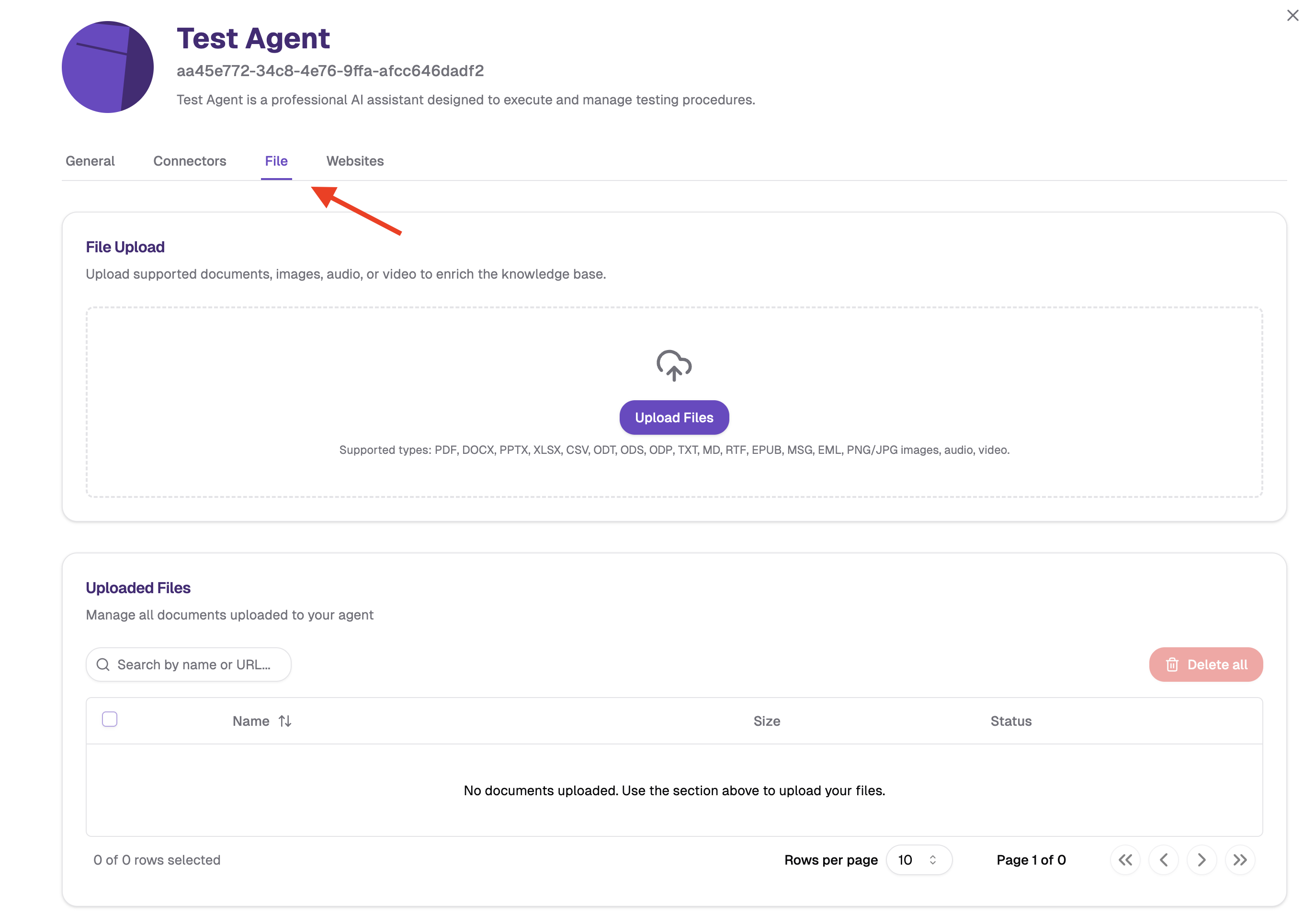
File upload allows you to provide your agent with documents and files that contain relevant information.
Supported File Types
| File Type | Extensions |
|---|---|
| PDF files | .pdf |
| Microsoft Word documents | .docx |
| OpenDocument Text | .odt |
| Rich Text Format | .rtf |
| Plain text files | .txt |
| Markdown files | .md |
| Microsoft Excel files | .xlsx |
| OpenDocument Spread. | .ods |
| CSV files | .csv |
| Microsoft PowerPoint | .pptx |
| OpenDocument Pres. | .odp |
| Emails | .eml |
| EPUB data files | .epub |
| Images | .png, .jpg, .jpeg |
| Audio files | .mp3, .wav, .aac |
| Video files | .mp4, .mkv, .mov |
Company Knowledge: Employee handbooks, product documentation, training materials, and standard operating procedures.
Project Information: Project plans, meeting notes, research reports, and technical specifications.
Reference Materials: Industry reports, best practices documentation, templates, and regulatory guidelines.
Website Integration
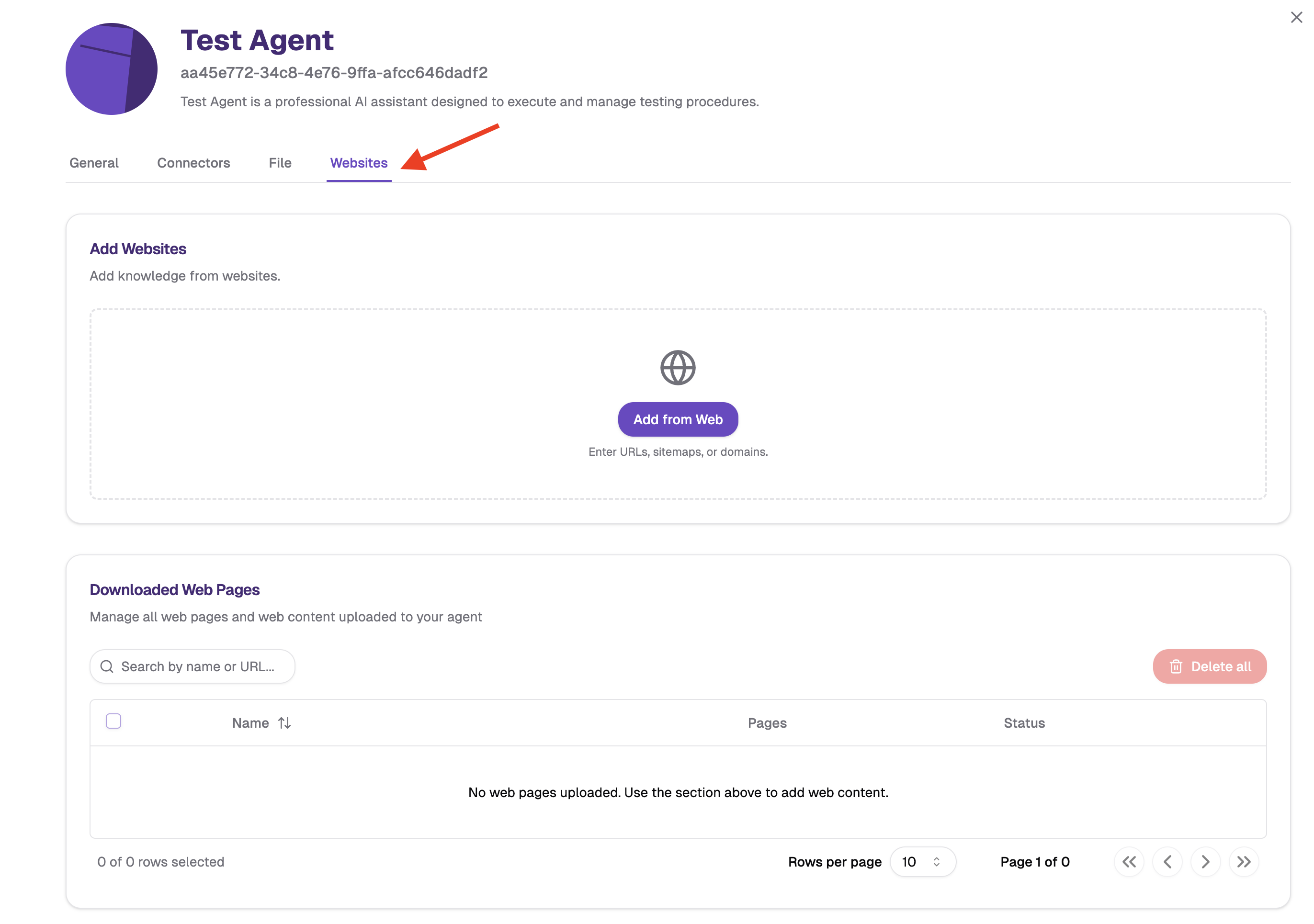
Website integration allows your agent to access information directly from web pages. To add website knowledge to your agent:
- Navigate to Website Tab: In your agent configuration, click on "Websites"
- Click "Add from Web": This opens the web knowledge integration dialog
- Choose Integration Method: Select from Manual, Sitemap, or Documents
Integration Methods
Manual URL Entry
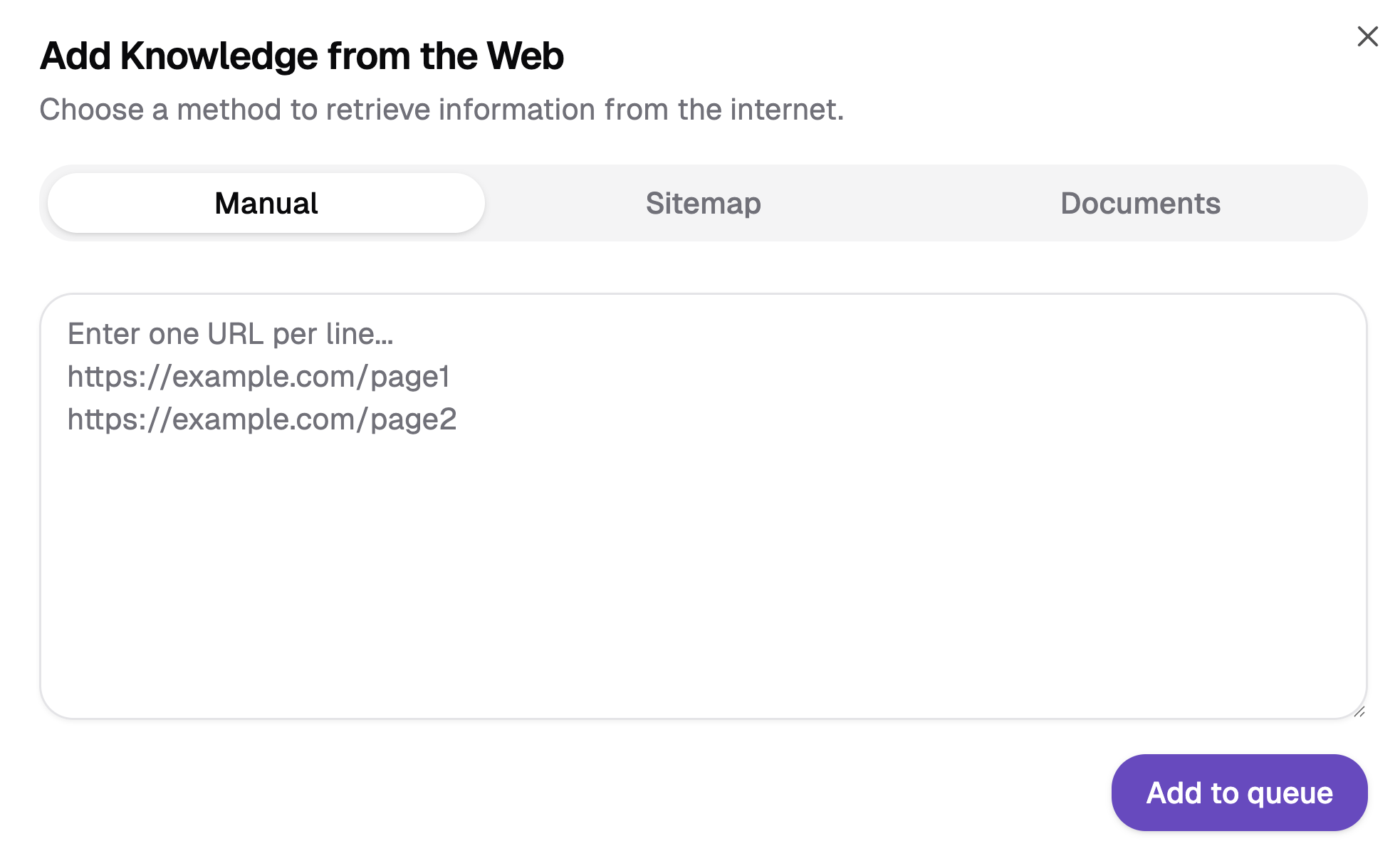
Add specific web pages directly. Use for important pages, reference documentation, and company websites.
- Select "Manual" tab
- Enter one URL per line in the text area
- Include complete URLs with https://
- Click "Add to queue" to process the URLs
Example URLs:
https://example.com/page1
https://example.com/page2
https://docs.company.com/api-guide
Sitemap Discovery
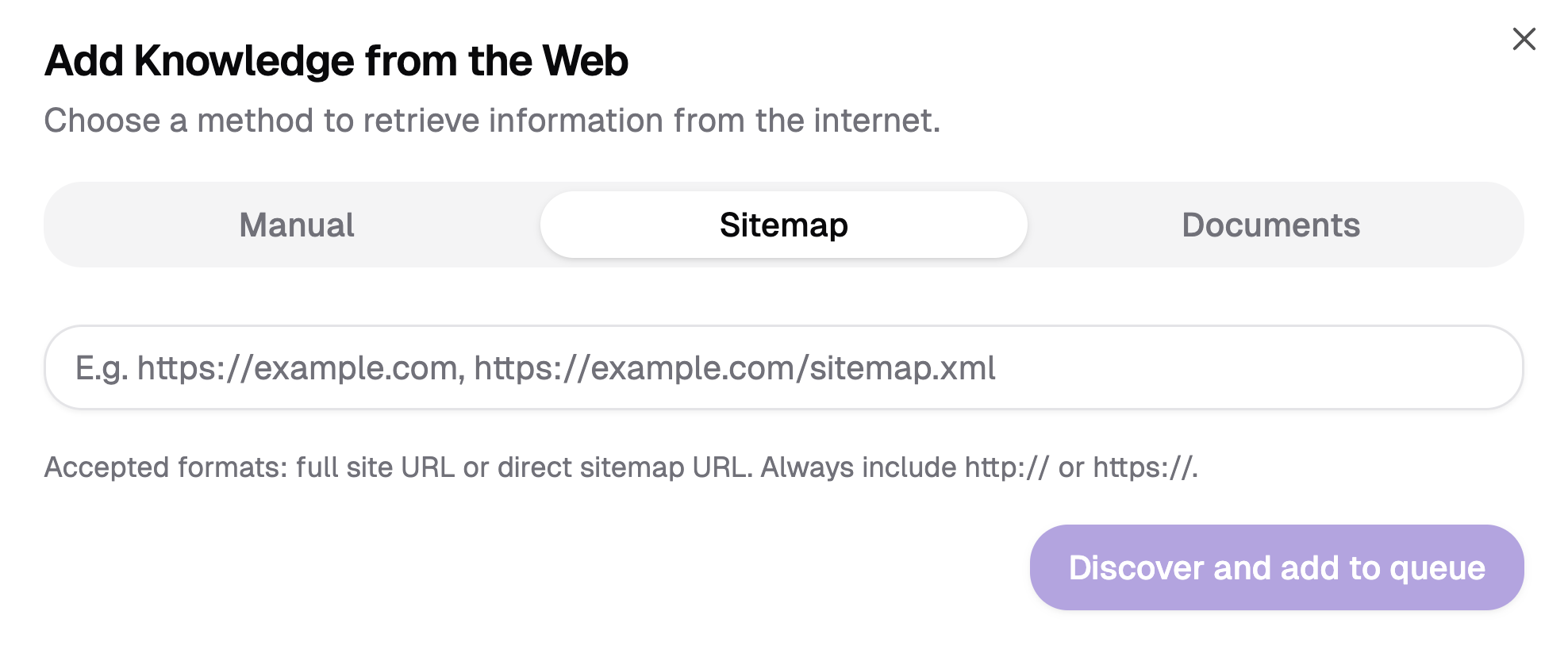
Automatically discover and index entire websites. Use for comprehensive indexing, documentation sites, knowledge bases, and structured content.
- Select "Sitemap" tab
- Enter the main website URL or a sitemap (e.g., https://example.com, https://example.com/sitemap.xml)
- Click "Discover and add to queue"
- System will find and process all accessible pages
While sitemap discovery provides a structured map of a website, successful indexing is subject to the following constraints:
-
Robots.txt Restrictions: Even if a URL is listed in the sitemap, it cannot be scraped if the site's robots.txt file explicitly disallows access to that path. Most automated scrapers are built to respect these "Disallow" directives to remain compliant with web standards.
-
Authentication & Paywalls: Sitemaps often include links to "premium" or user-specific content. If a page requires a login, a subscription, or a specific cookie session, the discovery tool will only see the landing page or a 403/401 error.
Documents Method
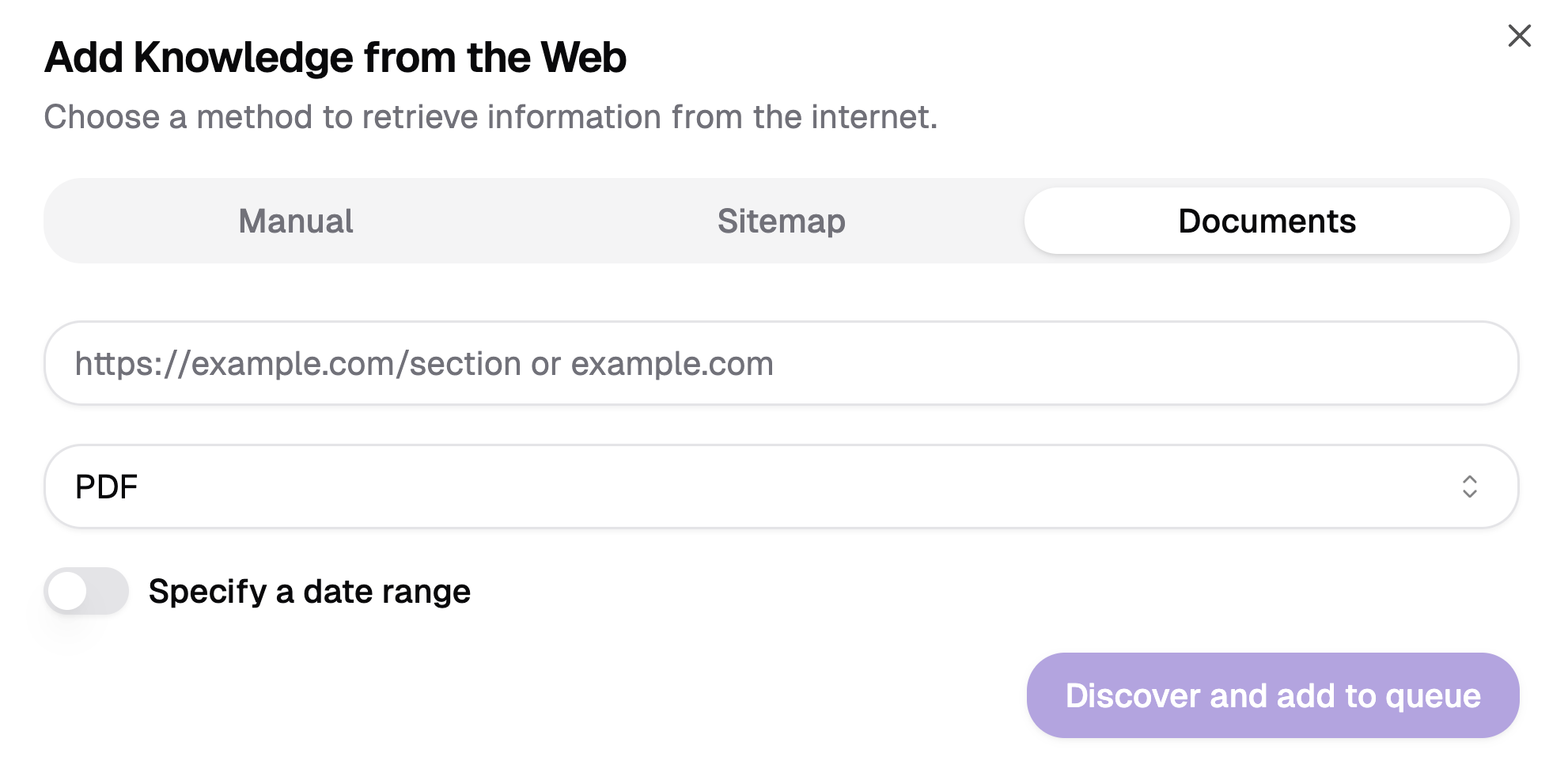
Scrape document files (PDFs and DOCX) from websites and filter by date range. Ideal for academic repositories, article archives, and document libraries.
- Select "Documents" tab
- Enter the website URL that hosts documents (e.g., https://arxiv.org)
- Select the document format to scrape (PDF or DOCX)
- Optionally specify a date range to filter documents by publication date
- Click "Discover and add to queue"
The system will scan the website for matching document files within your specified time range and process them through the standard document processing pipeline.
Example Use Case: Scrape all PDF articles from arxiv.org published between January 1, 2024 and March 31, 2024.
Managing Knowledge
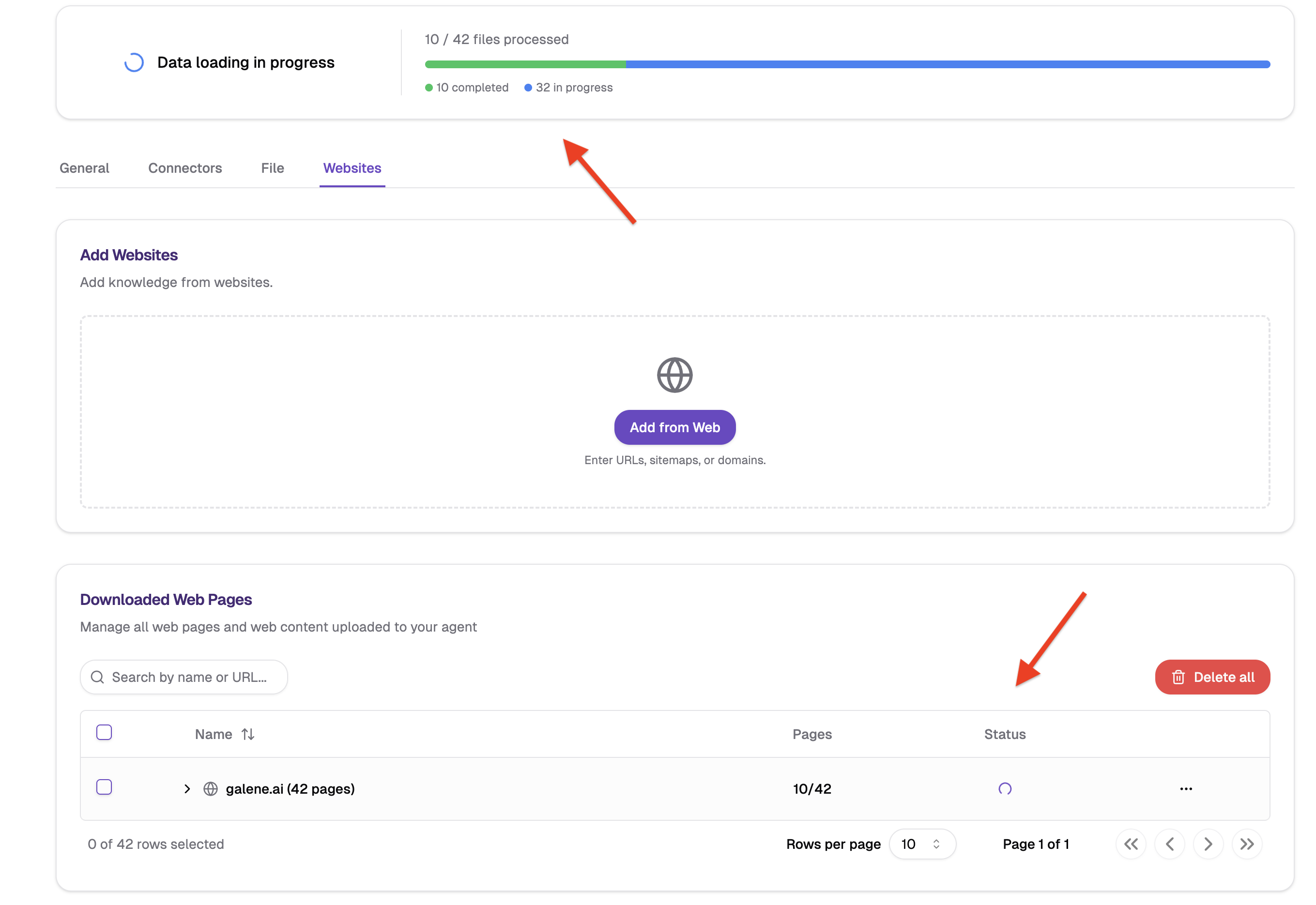
Once you have added your websites or files, you can manage and monitor your data using the following tools:
- Track Processing Status: Monitor the real-time progress of your uploads or web scrapes to see when they are ready for use.
- Locate Specific Content: Use the search and filter functions to quickly find pages or documents by name, keyword, or URL.
- Download Your Files: Quickly access and download your uploaded files directly from the knowledge base.
- Curate Your Data: Maintain the quality of your library by removing outdated, duplicate, or irrelevant files and pages.
- Resolve Failures: If a document fails to upload or a website fails to scrape, you can trigger a Retry to attempt the process again.
Industry Information: News and trends, market research, competitor analysis, and regulatory updates.
Technical Documentation: API documentation, software manuals, technical specifications, and best practices guides.
Company Resources: Company blogs, product updates, support documentation, and corporate policies.
Best Practices
File Management: Group documents by purpose, use clear names, keep content current, and remove outdated files.
Website Management: Monitor accessibility, update URLs when redesigned, review content quality, and focus on high-value pages.
Performance: Prioritize quality over quantity, test regularly, monitor usage patterns, and maintain logical organization.
Common Issues
Files Not Working: Ensure file format is supported (see Supported File Types), check successful upload, verify not password-protected, try re-uploading.
Website Problems: Test URLs in browser, ensure public accessibility, try simpler pages first.
Agent Can't Find Information: Verify successful processing, test with specific questions, check readable content, ensure text-based content.
Need More Data Sources?
For access to enterprise systems and databases:
Connectors - Connect to databases, knowledge bases, and external systems (configured by administrators)
Next Steps
After adding knowledge sources:
- Connect to Enterprise Data: Link to databases and external systems
- Configure Your Agent: Fine-tune behavior and responses
- Test and Share: Collaborate with team members
For administrator setup of enterprise connectors, see the Admin Connectors Documentation.