Audit
Audit provides comprehensive access logging for conversation traces on the Galene AI Platform. This system automatically records every access to conversation traces, showing who viewed what, when, and from where.
Audit is exclusively available to super administrators who need to track and review access to conversation traces for compliance and security purposes.
What is Audit?
Audit is the automatic access logging system that records every time someone views a conversation trace. For any given Trace ID, audit logs show:
- Read At: Exact timestamp when the trace was accessed
- User ID: UUID of the administrator who accessed the trace
- Client IP: IP address from which the access occurred
- User Agent: Browser and operating system information
How it works: Logs are created automatically when traces are opened - no manual action required. Logs are immutable (cannot be edited or deleted) and permanently retained for compliance.
Purpose: Protects user privacy by documenting all access to personal data, enables security monitoring, and supports compliance with GDPR and AI Act Article 26. Available exclusively to super administrators.
Audit Interface
The Audit interface provides a search-based system for viewing access logs for specific traces.
Accessing Audit
- Log in as super administrator
- Navigate to Observability section
- Select Audit (or Access Audit for Trace)
- View the Audit search interface
Audit Search Interface
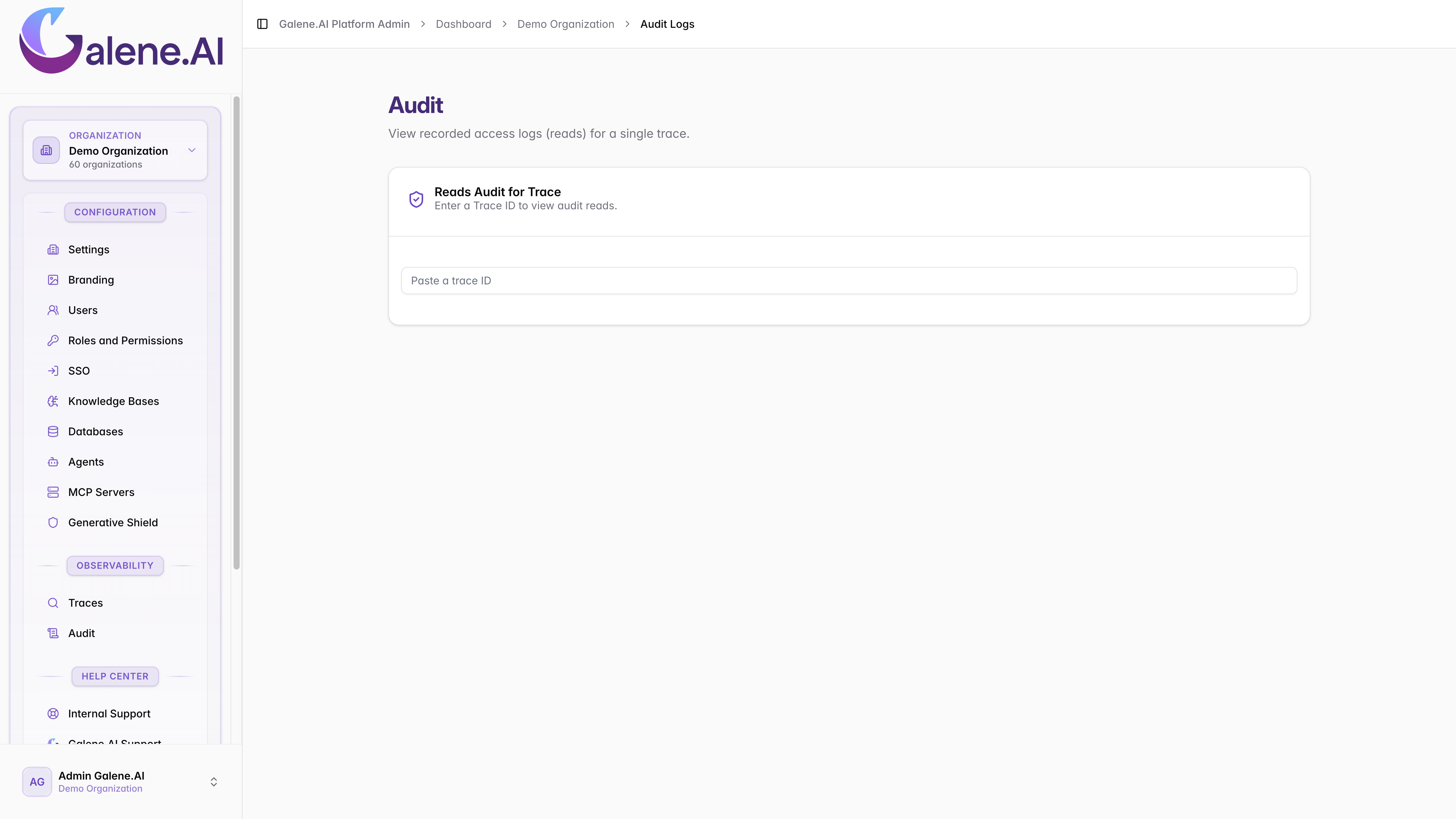
Key Components:
- Search Field: Enter Trace ID to view access logs
- Audit Results Table: Displays access logs for the searched trace
- No Results State: Shown when no Trace ID is entered or trace has no access logs
Searching Audit Logs
Audit logs are searched by Trace ID from the Traces system.
How to Search Audit Logs
Step 1: Get Trace ID
From Traces Interface:
- Navigate to Observability → Traces
- Find the conversation you want to audit
- Copy the Trace ID (UUID format)
Step 2: Search in Audit
- Navigate to Observability → Audit
- Paste or enter the Trace ID in the search field
- Press Enter or click Search
- View access logs for that trace
Step 3: Review Results
If access logs exist: Table displays all access events
If no logs exist: "No results were found" message appears. This may mean that either the trace was never accessed or that the trace ID doesn't exist.
When viewing a trace in detail, you can switch to the "Audit Requests" tab to see access logs without copying the Trace ID manually.
Understanding Audit Log Data
Each audit log entry contains four key pieces of information.
Audit Log Columns
| Column | Description | Purpose | Use Cases |
|---|---|---|---|
| Read At | Timestamp when the trace was accessed | Know exactly when access occurred | Timeline reconstruction, incident correlation, access verification |
| User ID | UUID of the user who accessed the trace | Identify who accessed the conversation | Accountability, unauthorized access detection, user tracking |
| Client IP | IP address from which the trace was accessed | Know the network location of access | Location verification, suspicious IP detection, security monitoring |
| User Agent | Browser and operating system information | Understand access device and browser context | Device verification, unusual pattern detection, troubleshooting |
Format Examples:
| Column | Format | Example |
|---|---|---|
| Read At | Date and time with timezone (precision: down to the second) | 2024-01-12 14:23:45 UTC |
| User ID | UUID | a2715bb6-8d2c-473a-e888-81fb8262c78a |
| Client IP | IPv4 or IPv6 address | IPv4: 192.168.1.100IPv6: 2001:0db8:85a3:0000:0000:8a2e:0370:7334 |
| User Agent | User agent string | Mozilla/5.0 (Macintosh; Intel Mac OS X 10_15_7) AppleWebKit/537.36 (KHTML, like Gecko) Chrome/143.0.0.0 Safari/537.36 |
Timestamps are typically in UTC (Coordinated Universal Time). Convert to your local timezone if needed for analysis.
- Copy the User ID from audit log
- Navigate to User Management
- Search for the User ID
- View full user details (name, email, role)
If you see access from unexpected IP addresses:
- Verify with the user if they accessed from that location
- Check if IP is within your organization's network
- Investigate for potential account compromise
- Review other access logs for that user
Understanding User Agent Strings
User agent strings contain browser, operating system, and device information. Most common patterns include Chrome, Firefox, Safari, and Edge on Windows, macOS, or mobile devices.
Most legitimate access shows modern browser versions, common operating systems, and consistent patterns for each user.
Watch for suspicious patterns:
- Very old browser versions
- Unusual operating systems or automated scripts
- Inconsistent patterns for a specific user
Limitations: Search by Trace ID Only
Audit interface searches by Trace ID. You cannot directly search by:
- User ID (to see "all traces user X accessed")
- IP address (to see "all access from IP Y")
- Time range (to see "all access between dates")
Workaround: For user-specific or time-based analysis, export traces from Traces interface and manually correlate with audit logs for each Trace ID.
Troubleshooting
No Results Found:
- Verify Trace ID is correct (check for typos)
- Confirm trace actually exists (check Traces first)
- Trace may never have been accessed
Can't See Expected Access:
- Verify you're searching correct Trace ID
- Refresh the page to update results
- Contact support if recent access not appearing
User ID Not Recognized:
- User may have been deleted from system
- Cross-reference with User Management to check if the User account still exists
Suspicious IP Address:
- Verify IP with network team
- Check if IP is VPN or proxy
- Confirm with user if they accessed from that location
It may be legitimate remote access, investigate further if unexplained.
Can't Access Audit Interface:
- Verify you have Super Administrator permissions