Backups and Scheduling
Backups and Scheduling provides comprehensive data backup management for your Galene.AI Platform. This section allows you to configure automated backup schedules, manage backup destinations, and ensure your platform data is securely backed up and recoverable.
Super Admin features are exclusively available to users with system configuration privileges. These tools allow you to configure platform-wide settings that affect all organizations and users on the system.
Backup Configuration
The Backup Configuration page is the single place to manage the entire backup lifecycle — destination, schedule, notifications, and execution history. Two action buttons at the top let you trigger operations on demand without waiting for the next scheduled run: Run Backup Now starts an immediate backup, and Run Retention Cleanup removes backups that exceed the configured retention period.
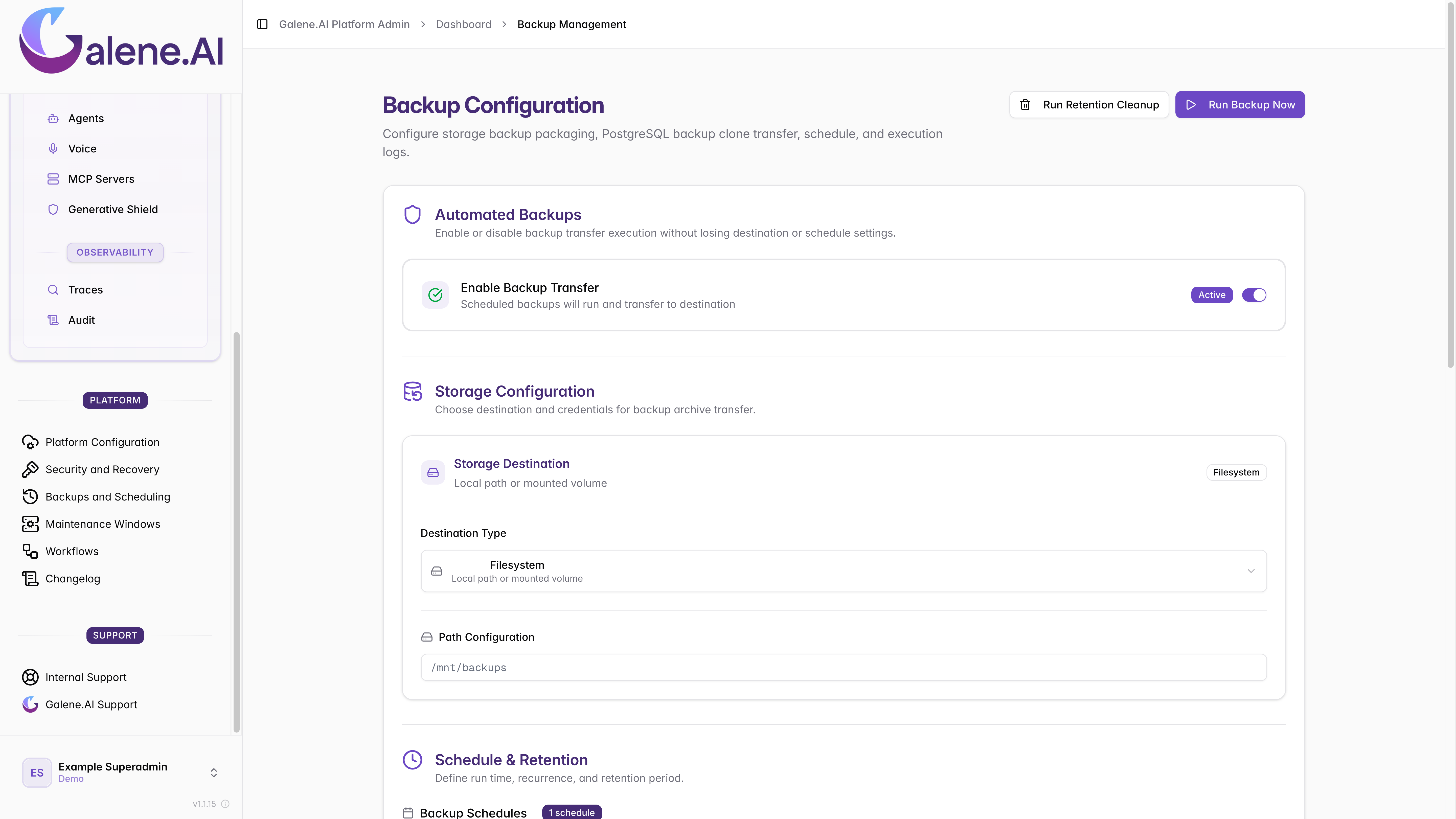
Automated Backups
The Automated Backups section controls whether the backup transfer runs at all. The Enable Backup Transfer toggle activates or pauses automated execution without losing any destination or schedule settings — useful when you need to temporarily suspend backups during maintenance without reconfiguring everything.
Storage Configuration
The Storage Configuration section defines where backup archives are sent. Select a destination type and fill in the corresponding credentials.
Supported Destination Types
- S3 Compatible
- Filesystem
- NFS / CIFS
- SMB Share
S3 Compatible Object Storage
- Bucket Name: The S3 bucket where backups will be stored.
- Access Key ID: The public identifier for your S3 account.
- Secret Access Key: The private key used for authentication (hidden).
- Endpoint: The URL of your S3 provider (e.g.,
s3.amazonaws.com).
Local Filesystem
- Path Configuration: The absolute directory path where backups are written (e.g.,
/mnt/backups).
Filesystem-based backup configuration requires server-level access and is set up jointly with the Galene.AI team. Contact us to arrange the initial configuration.
Network File System
- Path Configuration: The mounted network filesystem path.
NFS/CIFS configuration requires server-level access and is set up jointly with the Galene.AI team. Contact us to arrange the initial configuration.
SMB Share
- Host: Hostname or IP of the SMB server.
- SMB Port: SMB port number.
- Share Name: Name of the SMB share to sync.
- Username: SMB username.
- Password: Service account password.
- Path Prefix (Optional): Subdirectory within the share to limit the sync scope.
- Active Directory Domain (Optional): Active Directory domain.
- Enable Encryption: Enables SMB-level encryption.
Schedule & Retention
The Schedule & Retention section defines when backups run and how long they are kept. Multiple schedules can be configured under Backup Schedules — the badge shows the current count. Each schedule has a name, a Start Time (UTC), and a Frequency (number and unit, e.g., every 1 day). The Retention Policy sets how long completed backups are kept before automatic deletion, expressed as a duration and time unit (e.g., 7 days). Use Add New Backup Schedule to add further schedules, then click Save Backup Settings to apply.
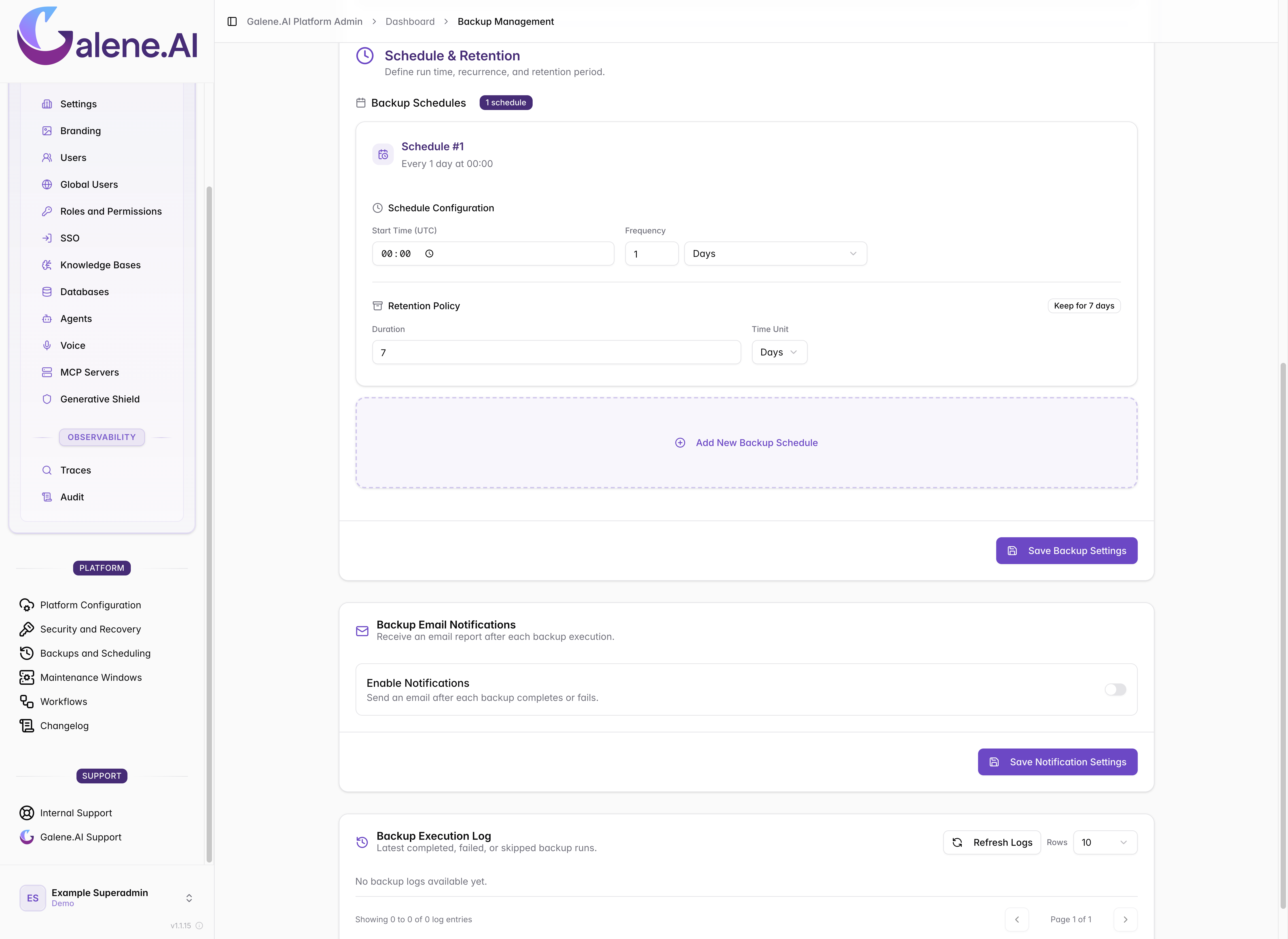
Setting the start time to low-usage hours and keeping the retention window as short as your recovery objectives allow helps balance storage costs with data protection.
Email Notifications
The Backup Email Notifications section lets you receive an email report after each backup execution. Toggle Enable Notifications on and add the recipient address to get immediate confirmation of success or early warning of failures without needing to check the dashboard. Click Save Notification Settings to apply.
Backup Execution Log
The Backup Execution Log at the bottom of the page records every completed, failed, or skipped backup run. Use the Refresh Logs button to load the latest entries and adjust the Rows selector to control how many entries are shown per page. Check this log after the first scheduled run to confirm the configuration is working as expected, and revisit it whenever a notification reports a failure.