Internal Support Requests
Internal Support Requests provides administrators with tools to review, manage, and respond to support tickets submitted by platform users. This system enables efficient support ticket management and user communication through a chat-based interface.
Internal Support Request management is available to administrators who need to provide user support across their organizations.
For an overview of the complete Support system, including the difference between Internal Support and Galene Support, see the Support Overview.
Overview
Internal Support is a ticket-based request system that allows administrators to:
- Review Support Requests: View all support tickets submitted by users
- Chat with Users: Communicate directly through the ticket conversation thread
- Manage Status: Update ticket status (Open, In Progress, Closed)
- Access Context: View full conversation history for chat-based tickets
Support Requests Dashboard
The Support Requests dashboard provides a centralized view of all support tickets submitted by users in your organization.
Accessing the Dashboard
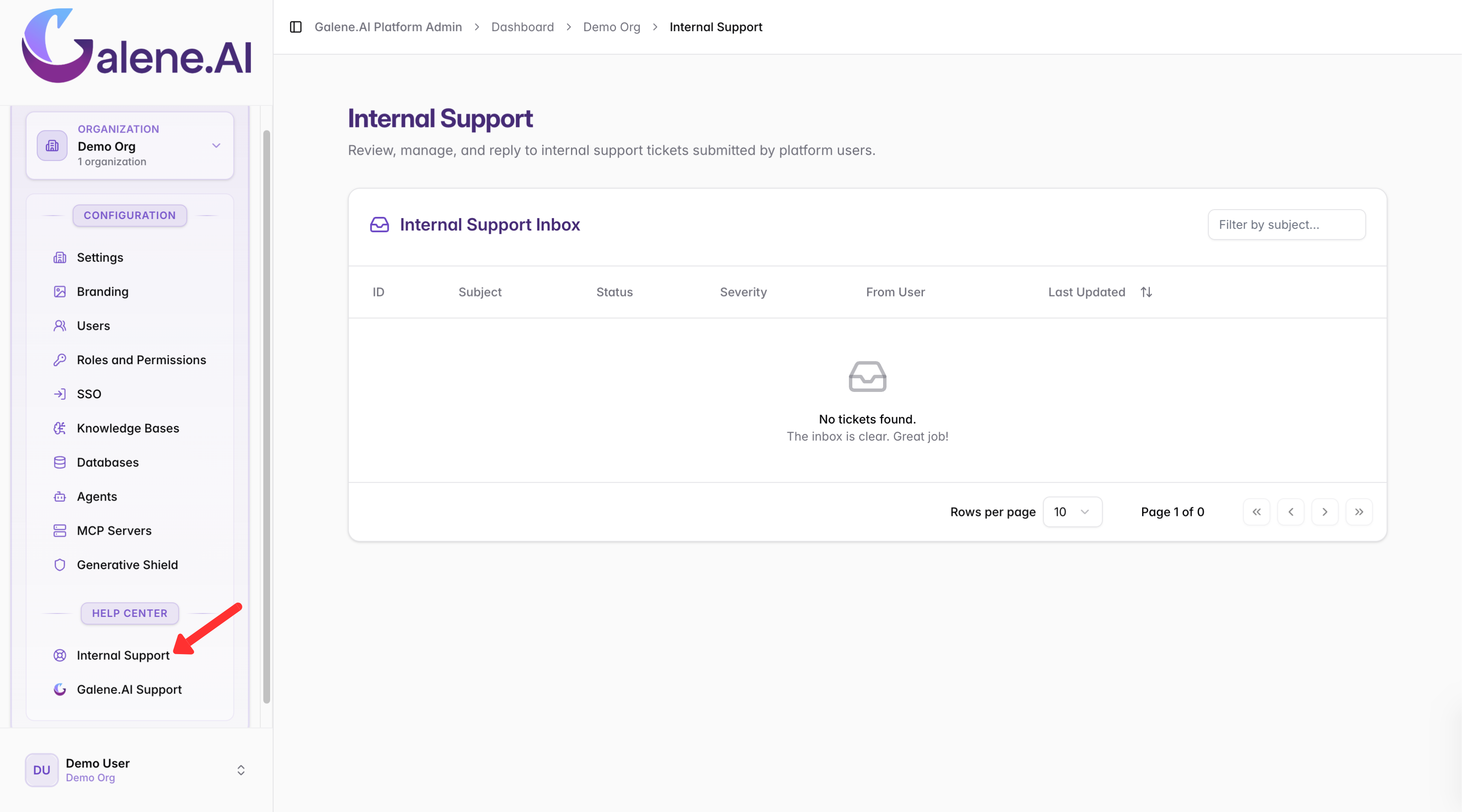
Access the Support Requests dashboard from the left navigation bar in the admin panel.
Dashboard Overview
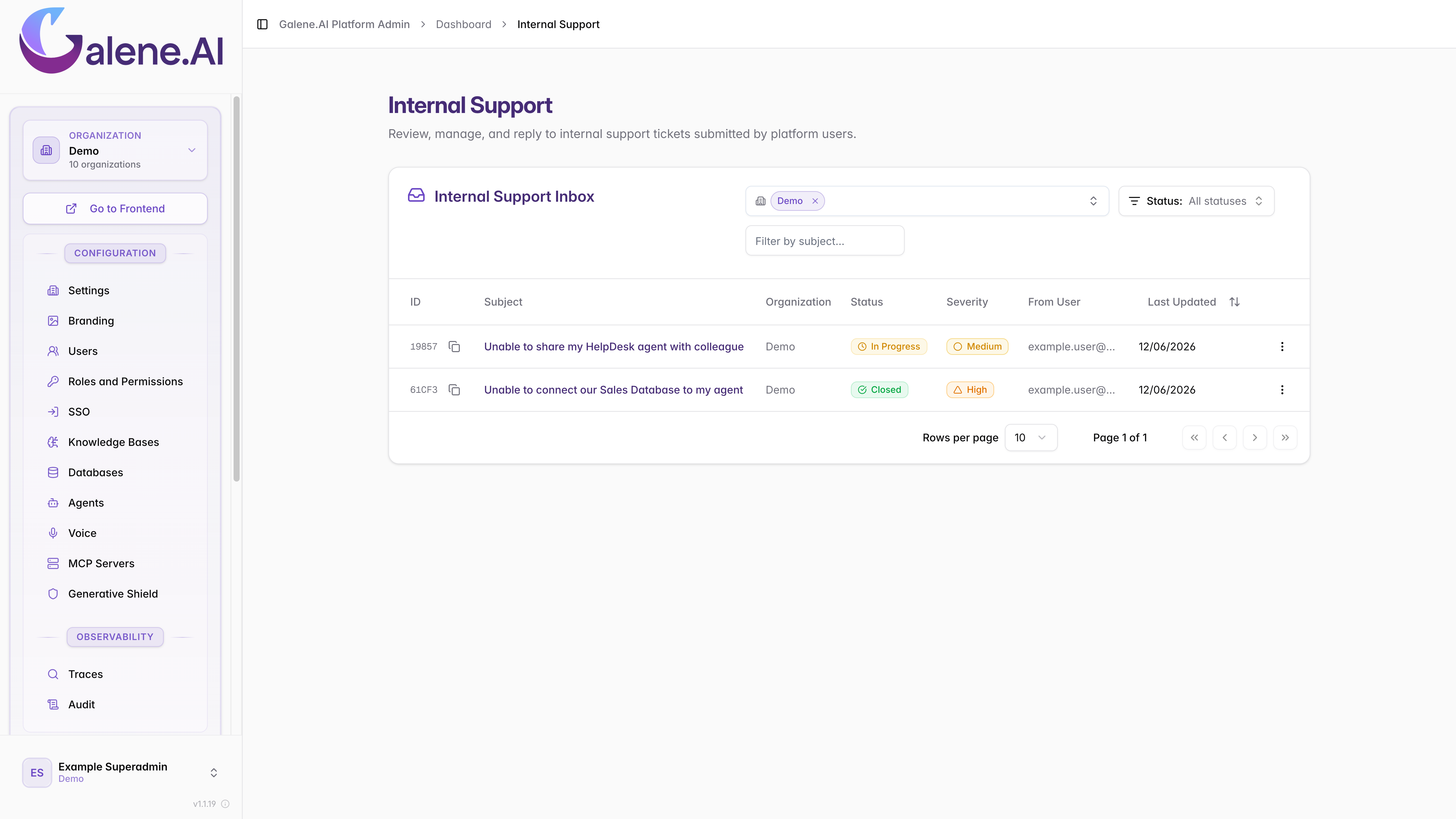
The dashboard displays comprehensive ticket management tools with all support tickets and key information.
Dashboard Features
The main inbox displays all support tickets with:
- Ticket ID: Unique identifier for each support request
- Subject: Brief description of the user's issue
- Status: Open, In Progress, or Closed
- Severity: Priority level (Low, Medium, High, Critical)
- From User: User who submitted the request
- Last Updated: Timestamp of most recent activity
Understanding Ticket Types
Users can create two types of support tickets:
Generic Tickets: Standalone tickets for general questions, feature requests, or account-related issues created through the support interface.
Chat-Based Tickets: Created directly from chat conversations. These tickets automatically include the full conversation history, making it easier to understand the context of the user's problem.
Managing Support Tickets
Viewing Ticket Details
When you open a ticket, you'll see the ticket information, initial message, and for chat-based tickets, the complete conversation context.
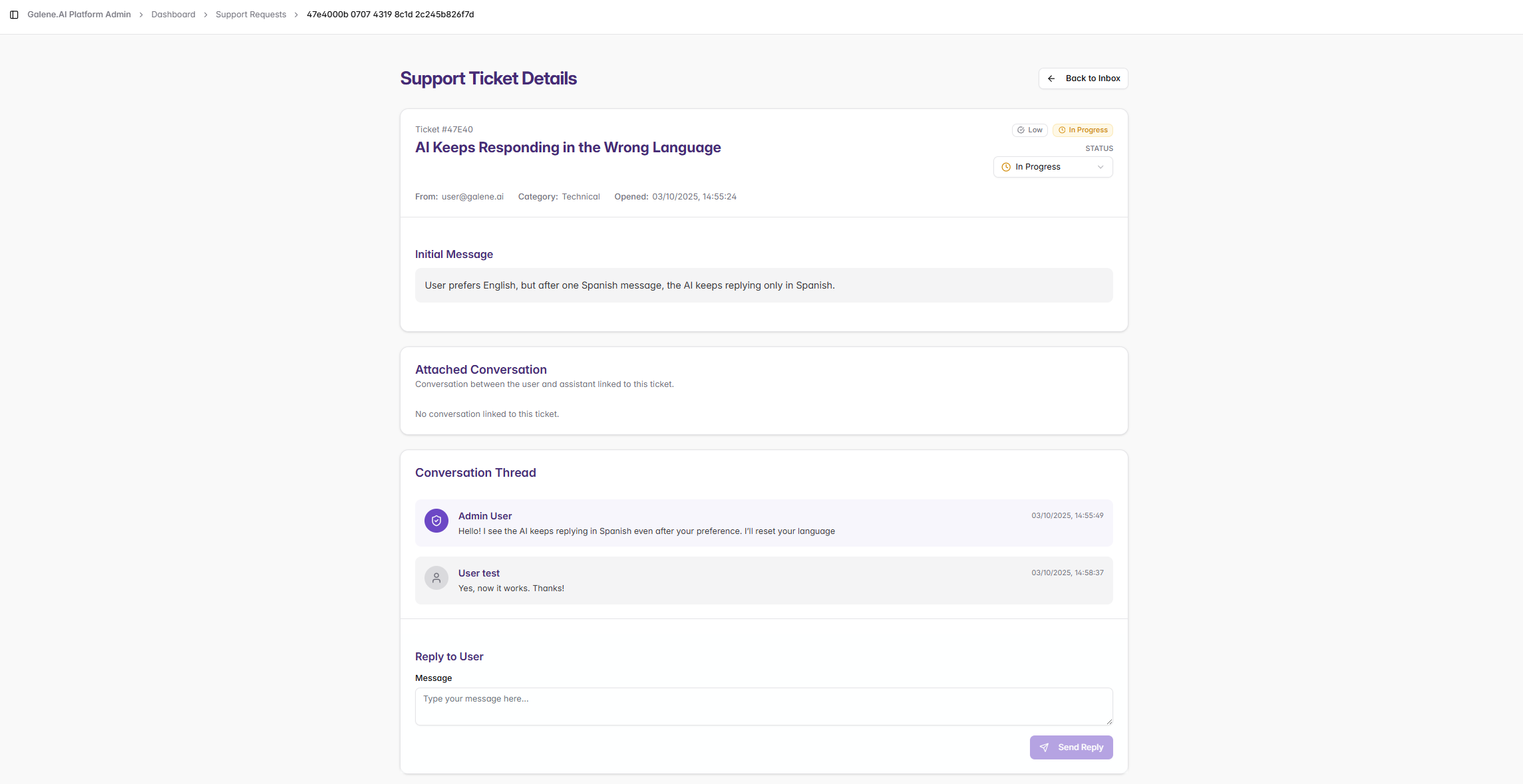
Example of a chat-based ticket with full conversation context
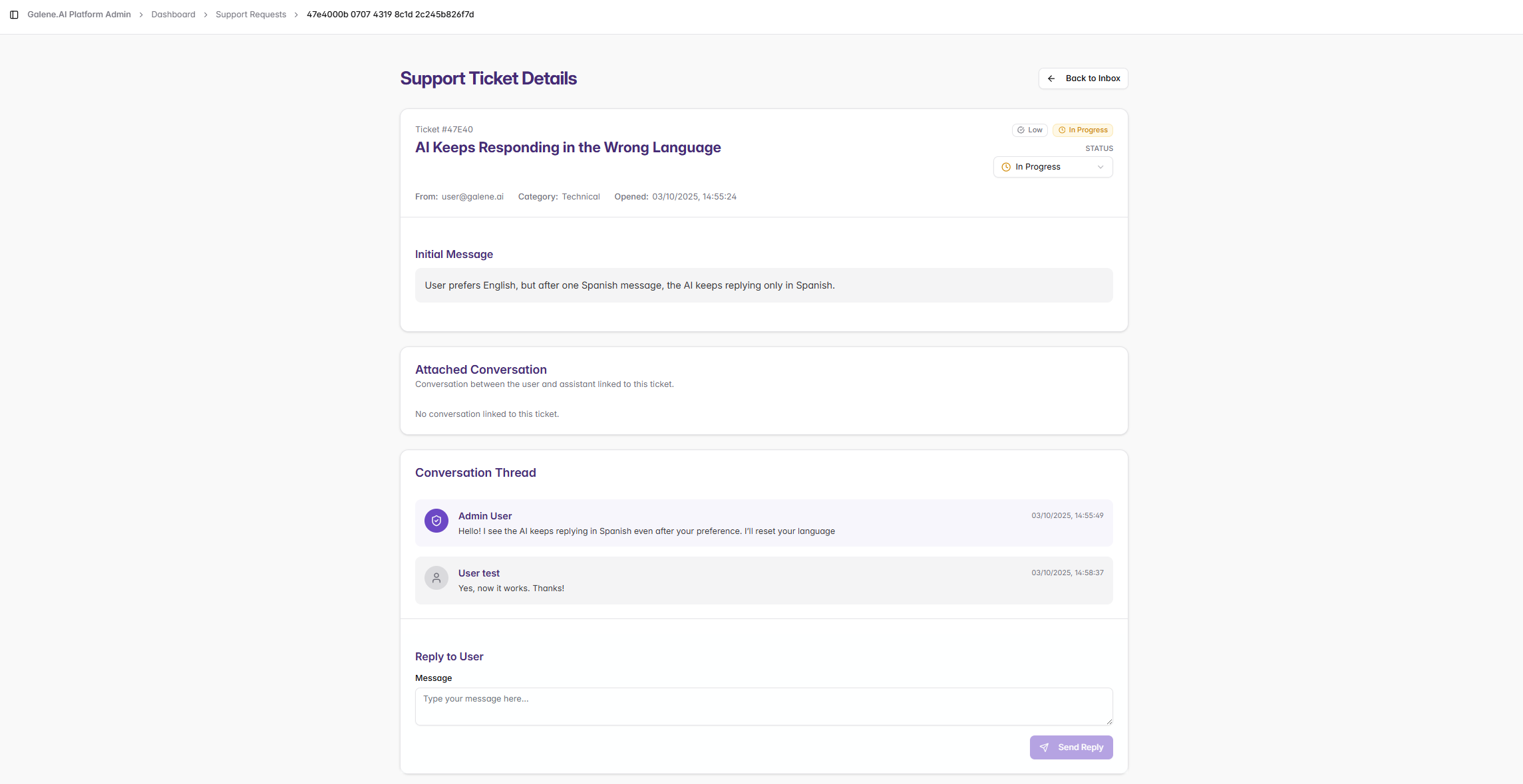
Example of a generic ticket without conversation context
Responding to Users
Use the reply section at the bottom of each ticket to communicate with users:
- Write your response in the text editor
- Update the ticket status as you work on the issue
- Continue the conversation thread as needed
Only administrators can change ticket status. Users can view status updates but cannot modify them directly. Tickets progress through: Open → In Progress → Closed.
Support Best Practices
Before Responding
1. Check Documentation First
Before responding to a ticket, always review the relevant documentation section related to the user's issue or behavior problem:
- For agent problems → Agent Configuration
- For chat issues → Chat Usage Guide
- For connector problems → Connectors Documentation
- For user questions → User Documentation
This ensures your response is accurate and aligned with the official documentation.
2. Analyze the Context
- For chat-based tickets: Review the complete conversation to understand what went wrong
- For generic tickets: Read the user's description carefully
- Identify whether it's a user error, configuration issue, or platform bug
Escalation Button
Within each ticket detail view, you'll find an "Escalate to Galene" button that allows you to:
- Transfer Context: Automatically send all ticket information to Galene team
- Preserve History: Maintain complete conversation context for chat-based tickets
- Link Tickets: Create a connection between internal and Galene tickets
- Continue Tracking: Monitor both tickets throughout resolution
Consider escalating to Galene when:
- Platform Bugs: User reports a confirmed platform bug
- Technical Limitations: Issue requires backend access or system-level changes
- Complex Problems: Beyond internal troubleshooting capabilities
- Performance Issues: Problems that may affect multiple users
- Feature Requests: Valuable user feedback for product team
For complete details on working with Galene Support and the escalation process, see the Galene Support Guide.
Next Steps
- Galene Support: Learn to escalate complex issues to the Galene team
- Support Overview: Understand the complete support system
- User Support Guide: See how users create tickets
Internal Support enables efficient support delivery through direct communication with users. For platform-level assistance, use Galene Support.